
Before you start
Sign in to the dashboard at app.360navtech.com with an owner or manager login. If you have more than one store, pick the store at the top of the page.
Steps
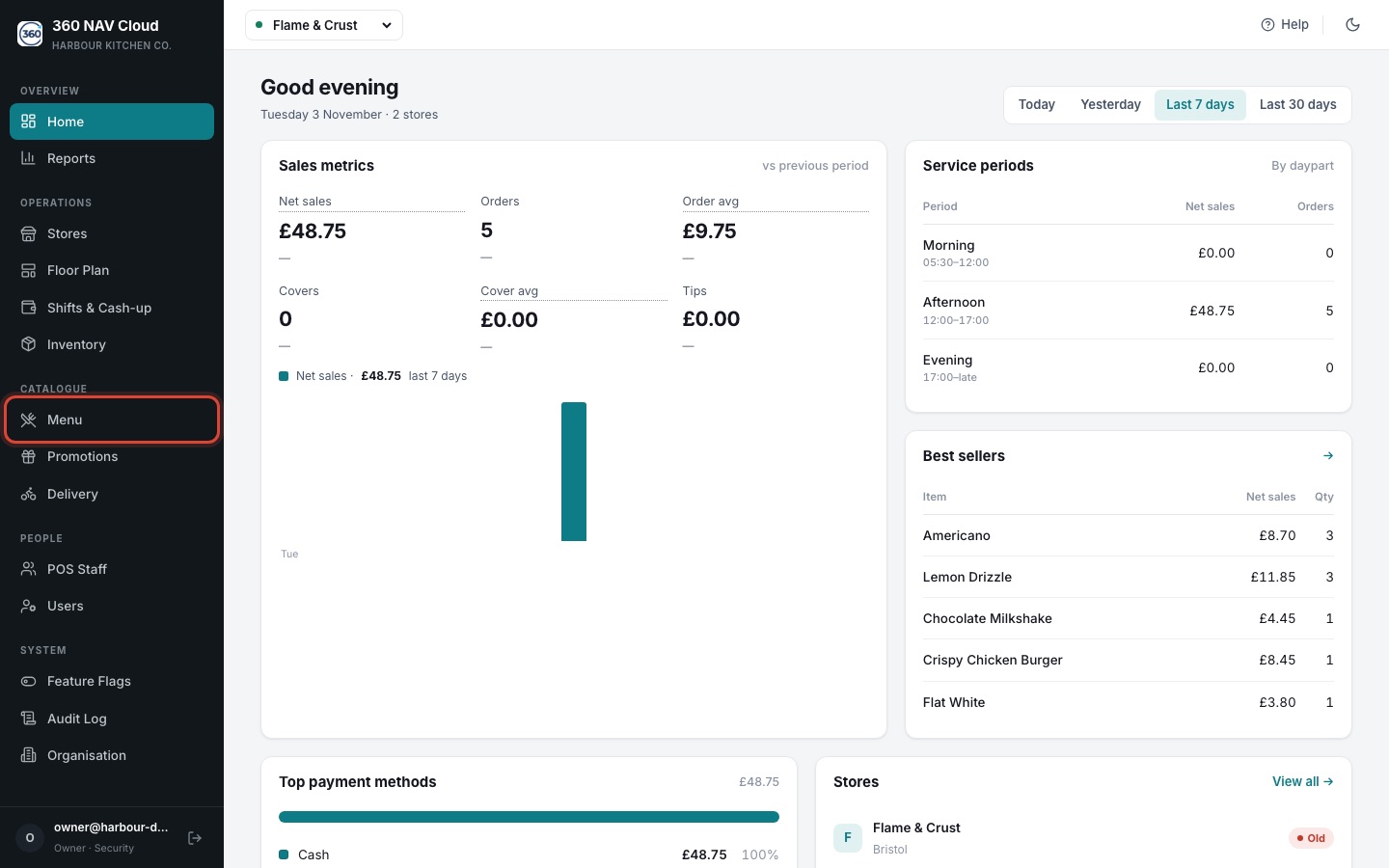
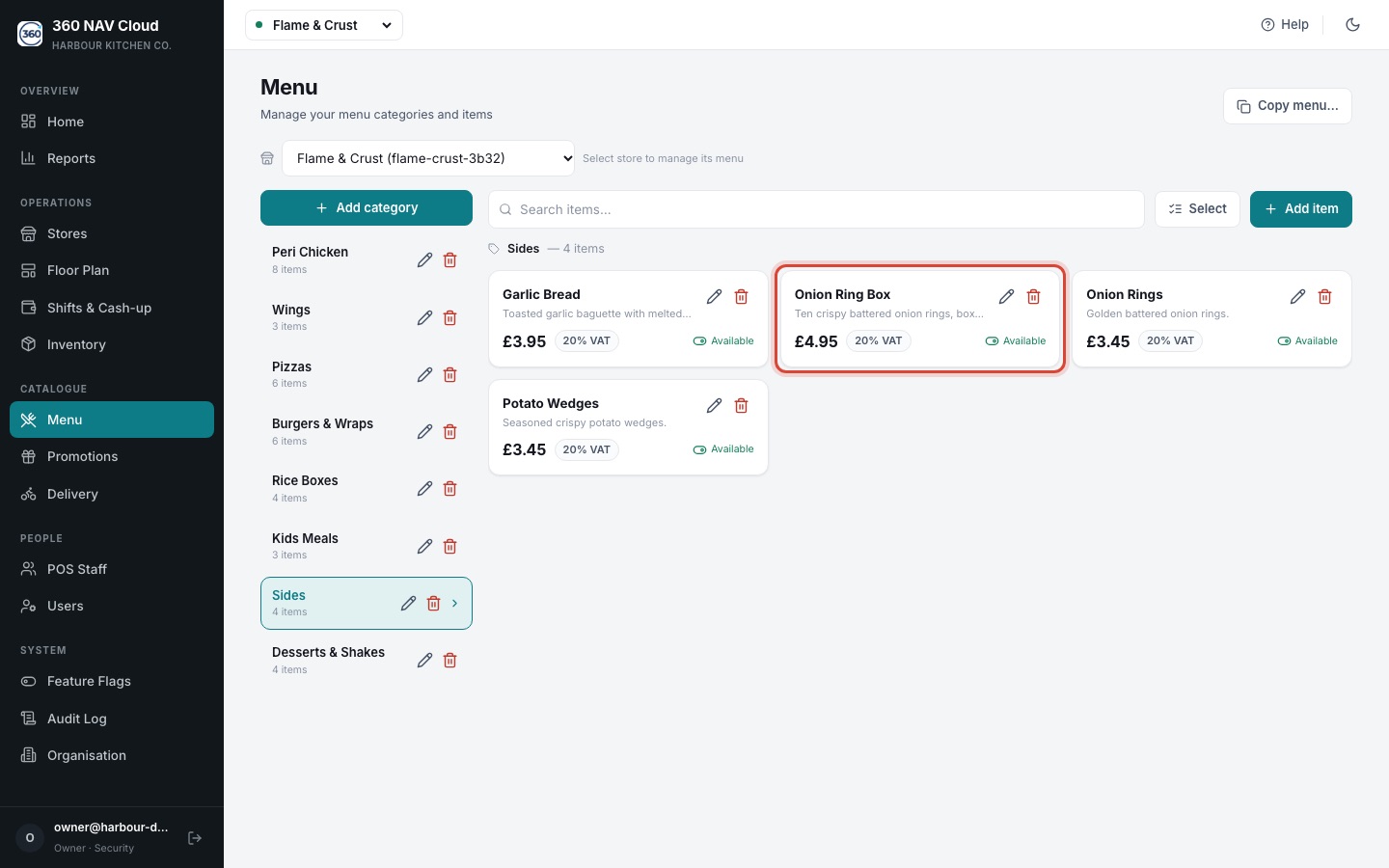
Open Menu. Click Menu in the left-hand list.
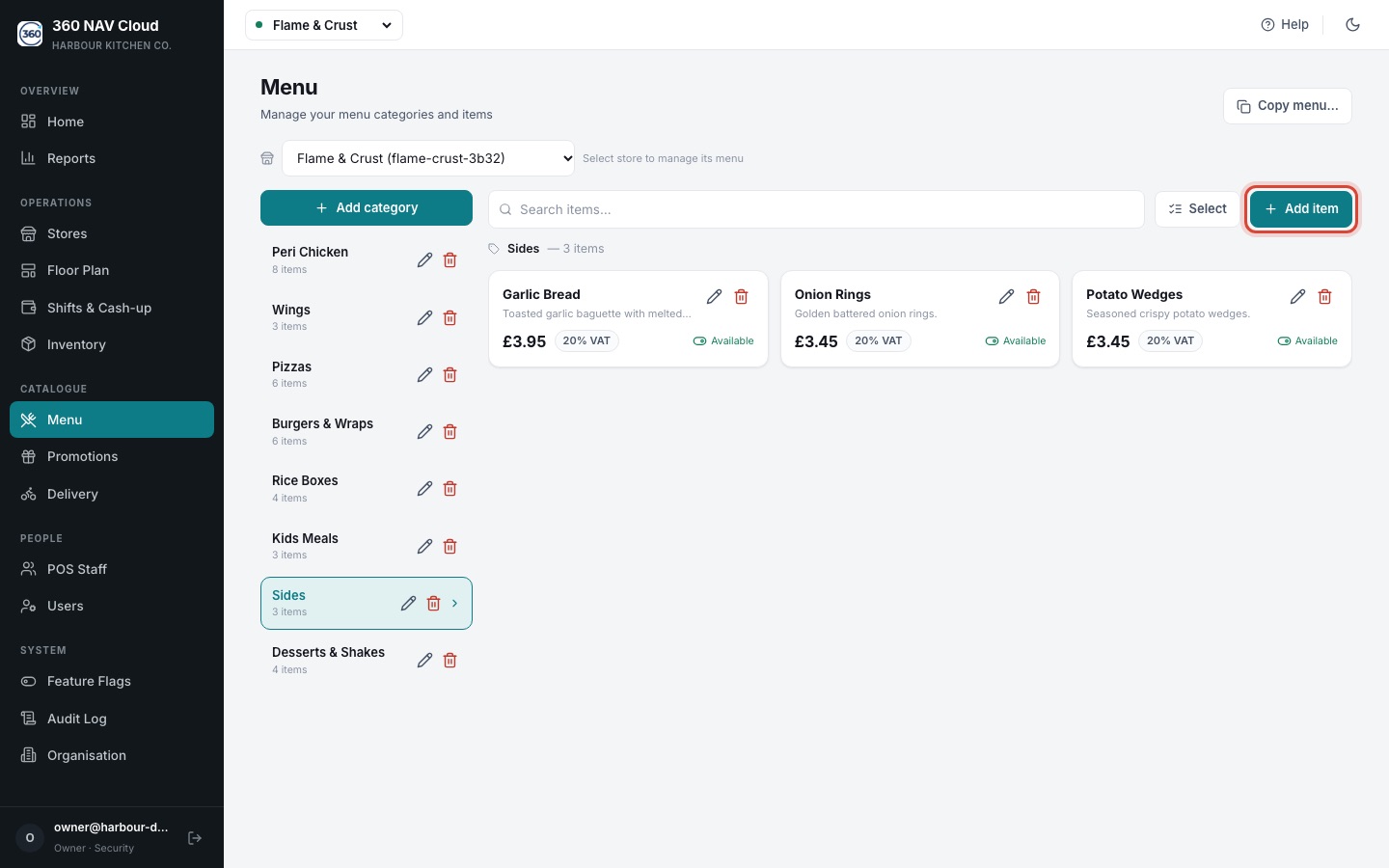
Pick the category and click Add item. Click the category the item belongs in, then Add item at the top right.
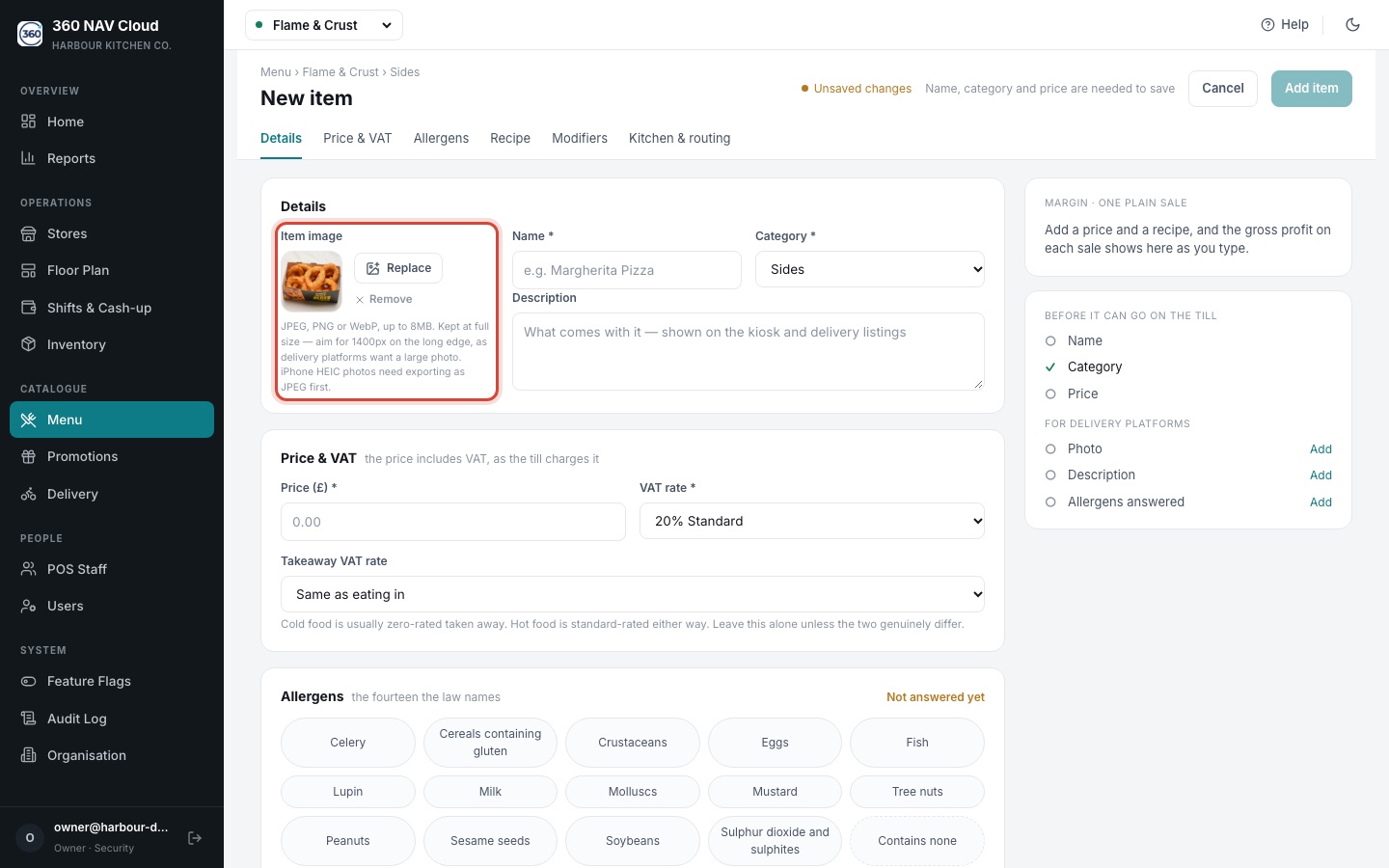
Add a photo. Click Upload and pick a JPEG, PNG or WebP photo (up to 8 MB). The kiosk and delivery apps show it, so a clear, well-lit photo sells more.
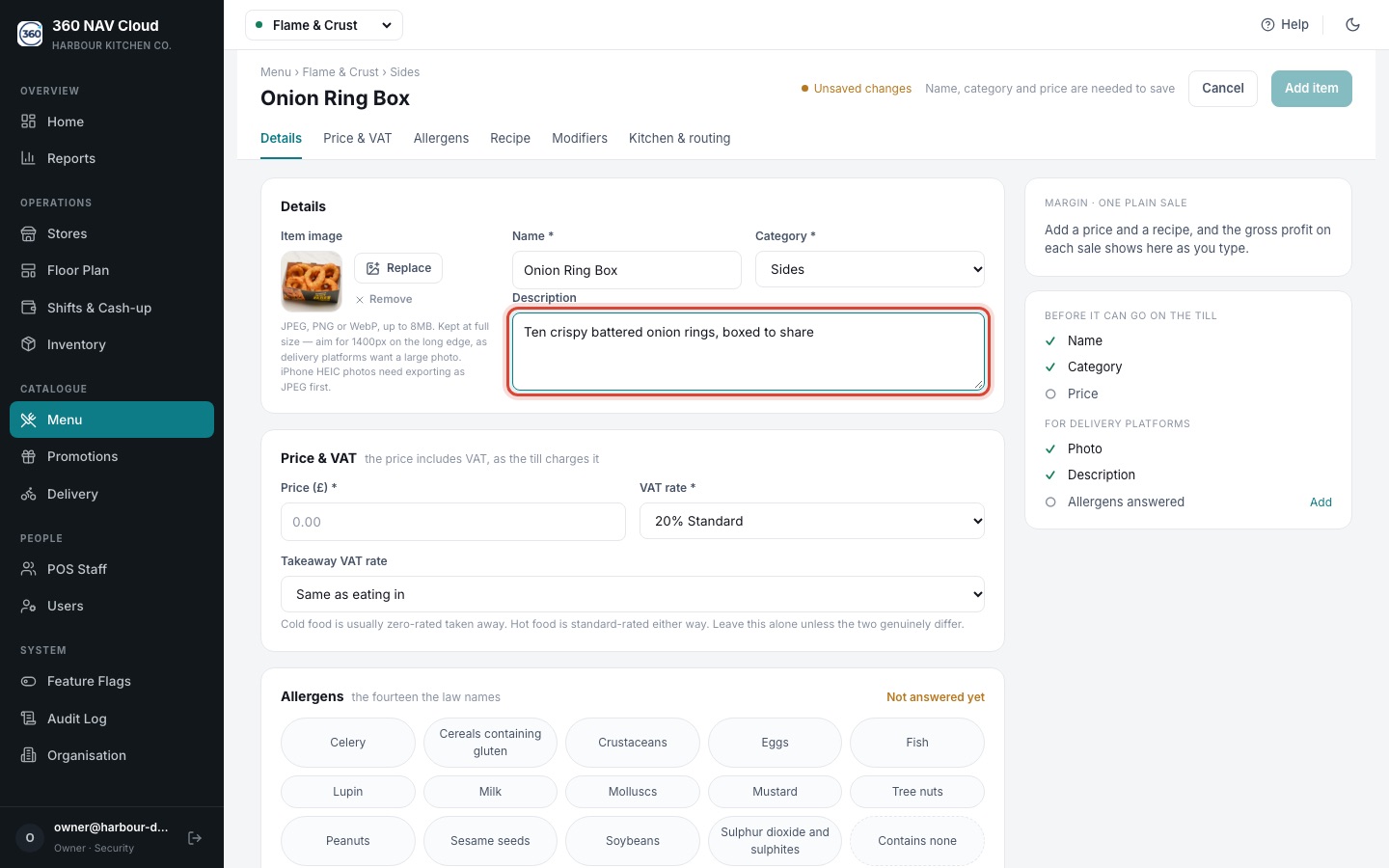
Type the name and description. The name is what staff see on the till and what prints on the receipt. The description shows on the kiosk and delivery apps.
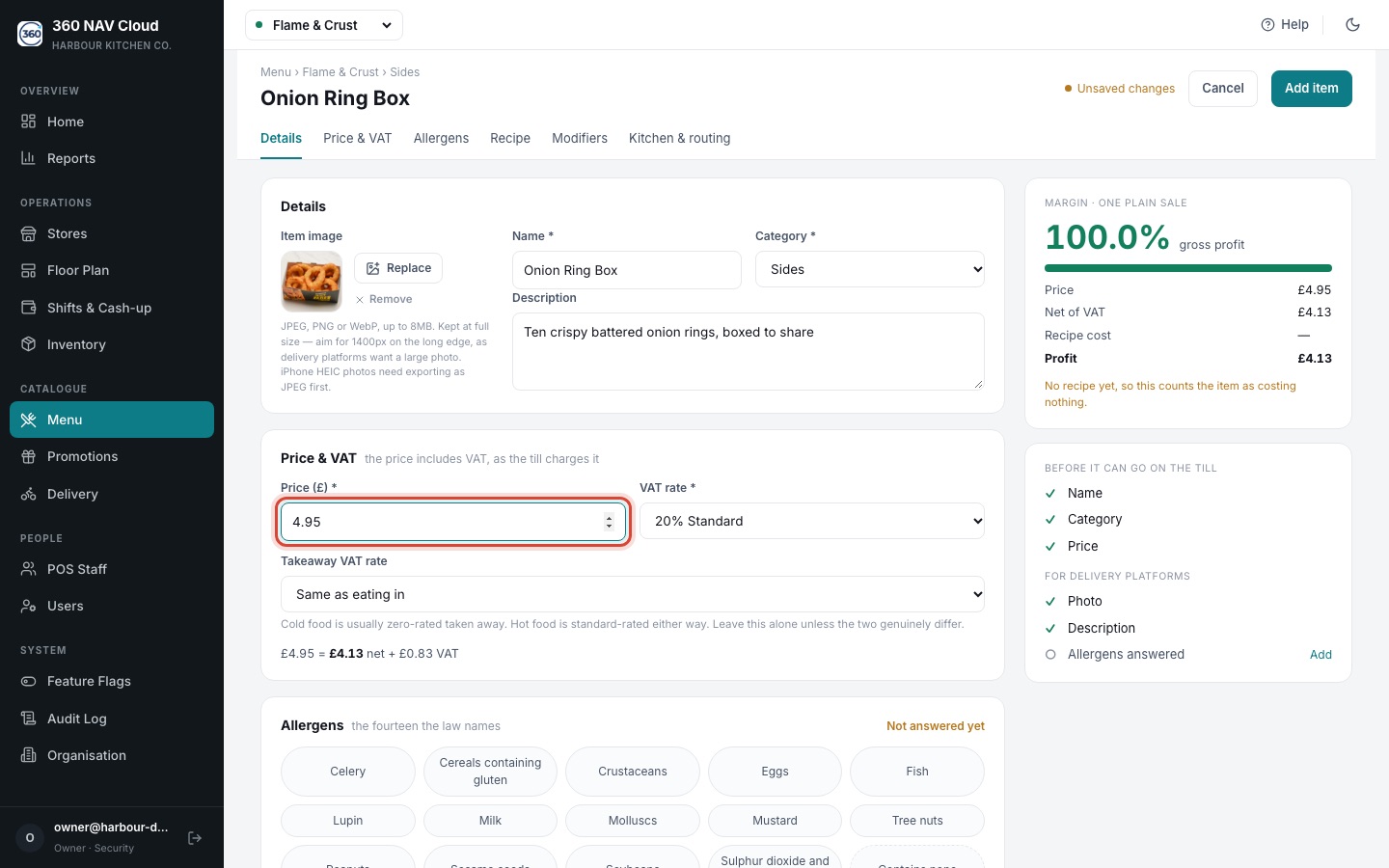
Enter the price and check the VAT rate. Type the price the customer pays, including VAT. Most food and drink is 20% Standard. If takeaway is taxed differently, set Takeaway VAT rate.
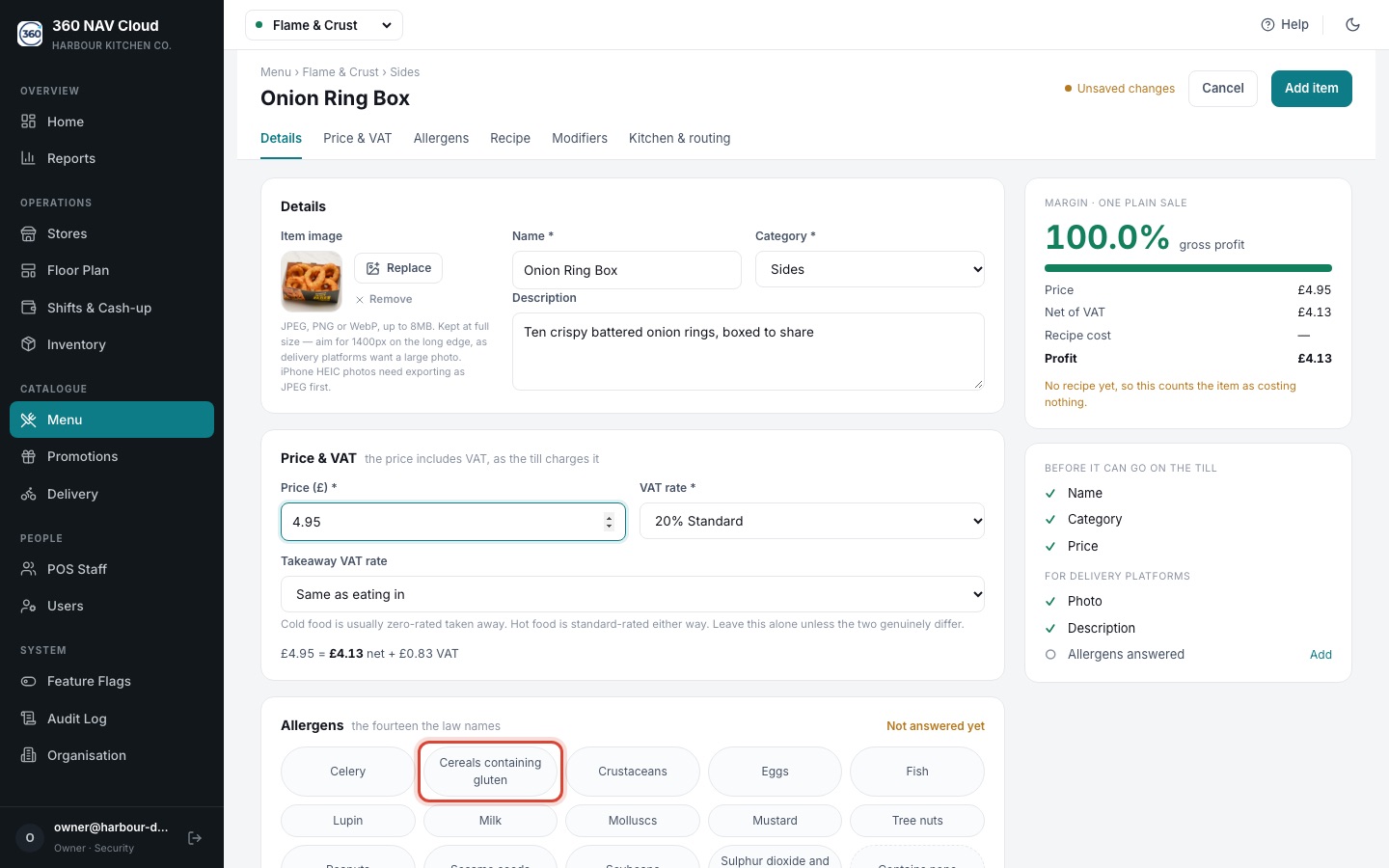
Answer the allergens. Tap each of the 14 allergens the item contains, or Contains none. Delivery platforms need this before they list the item.
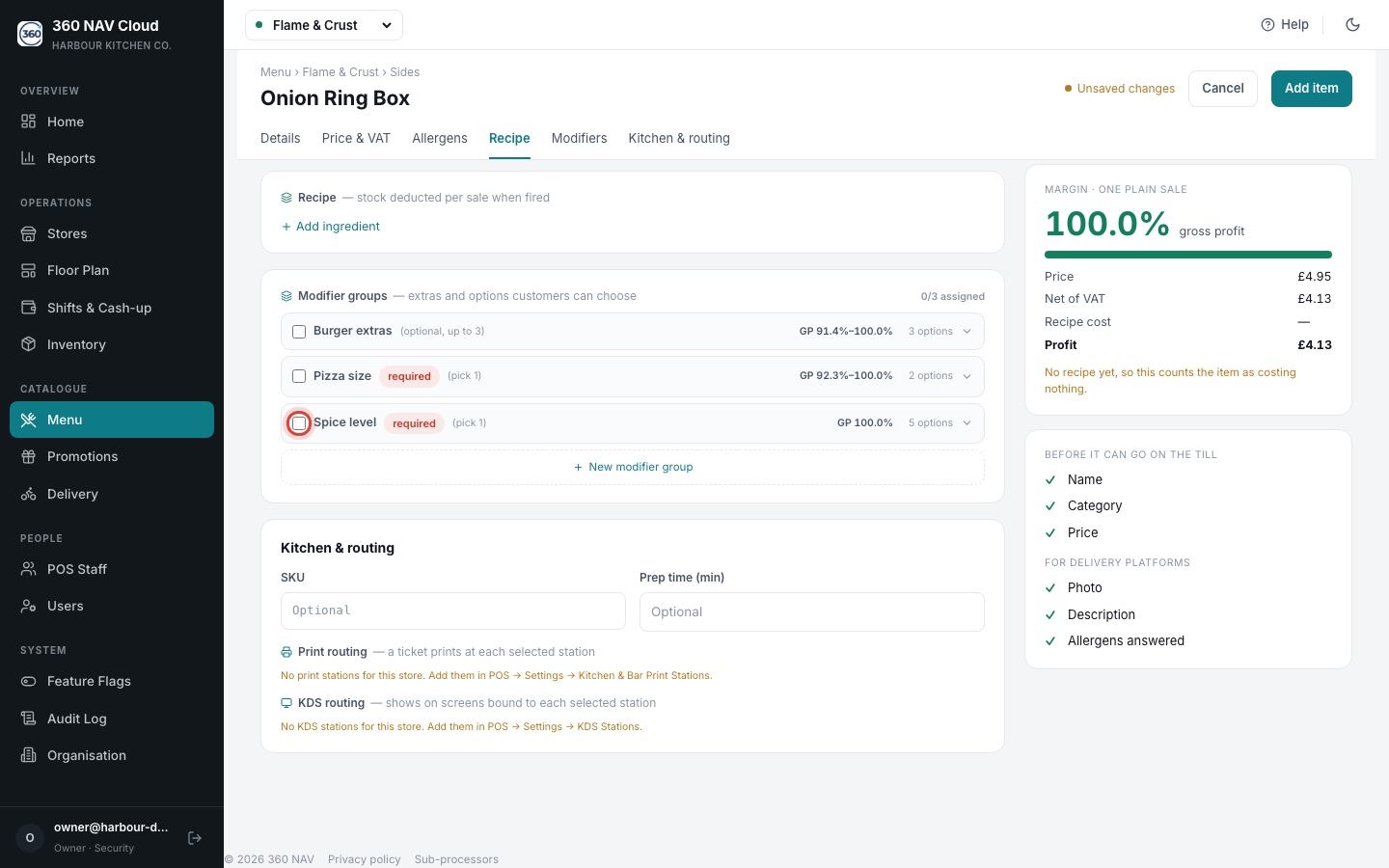
Add options (optional). Under Modifiers, tick any option group, such as spice level or size, that staff should be asked about.
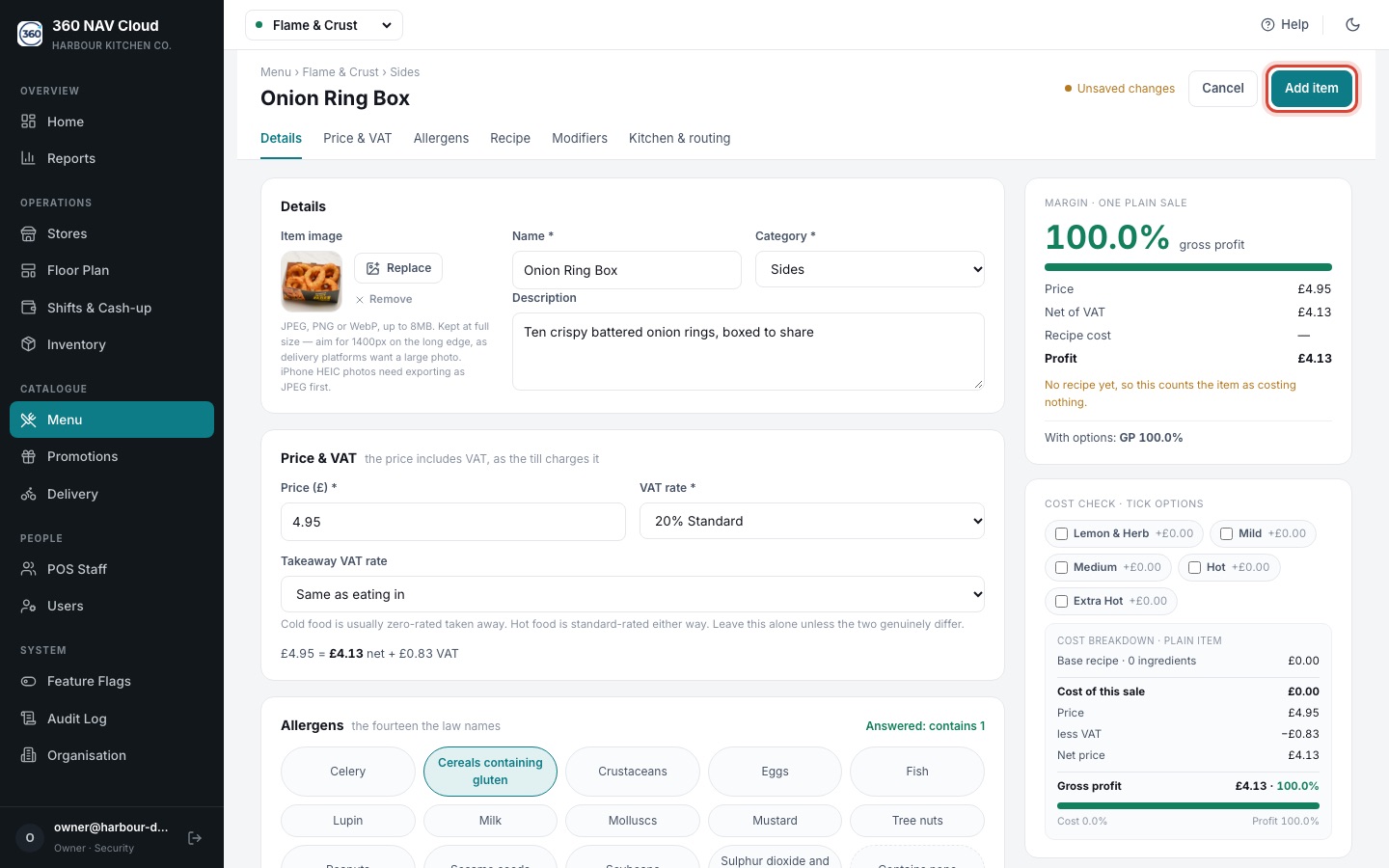
Save. Click Add item. The button lights up once name, category and price are filled in.
Check it. The new item shows in the category list straight away, and on every till in the store within a minute.
Tips
- To change the price later, click the pencil on the item card.
- The bin icon on an item card hides the item from the tills and marks it Unavailable; its sales history is kept. Switch it back to Available on its card to bring it back.
If something goes wrong
- Add item stays grey: name, category and price are all needed.
- It isn't on the till after a minute: check the till shows Online at the top.