
Before you start
A shift must be open on the till. If the till says Shift Not Started, ask a manager to tap Start Shift.
Steps
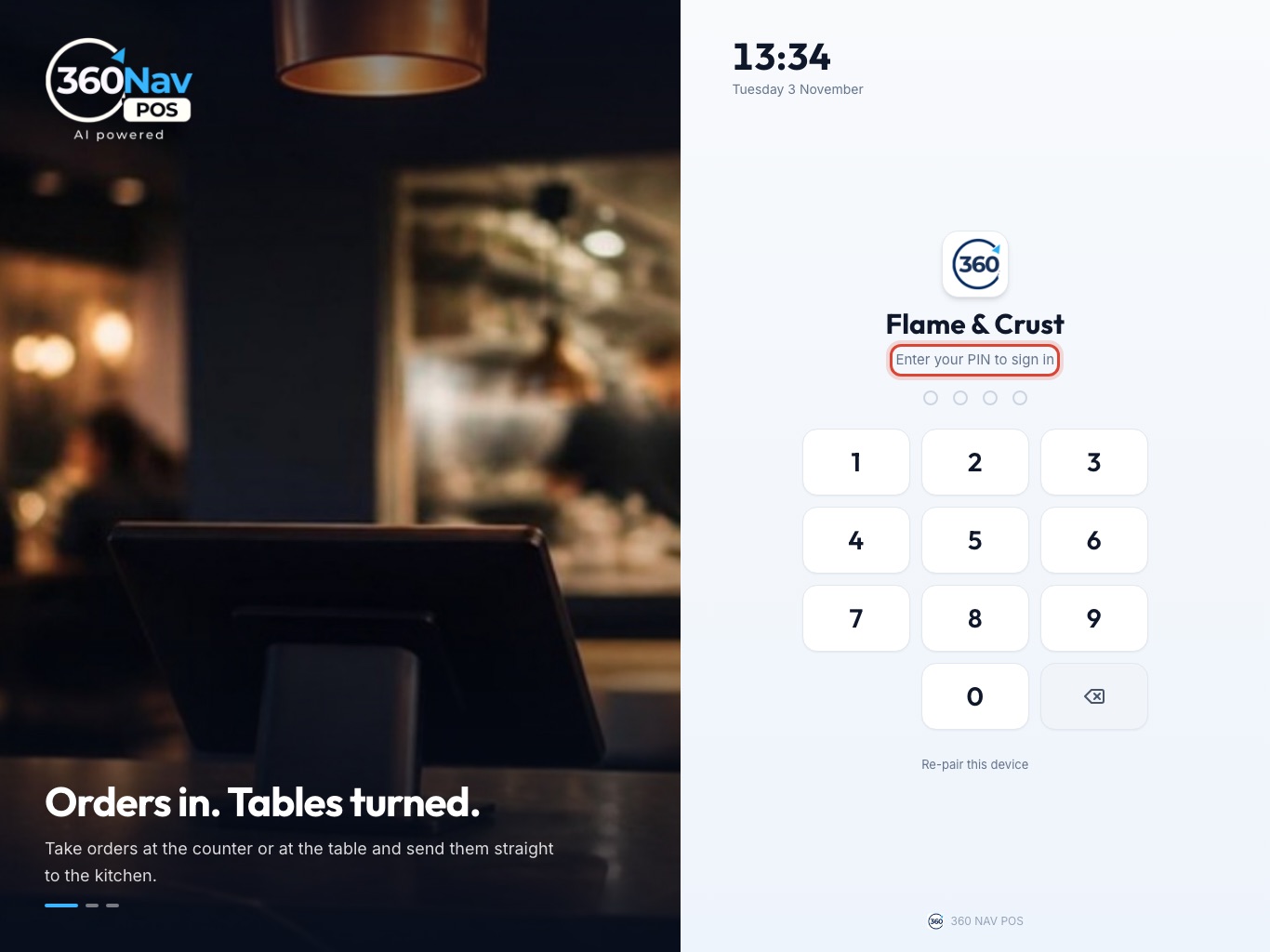
Sign in with your PIN. Type your 4-digit staff PIN on the sign-in screen. Your name shows at the top right once you are in.
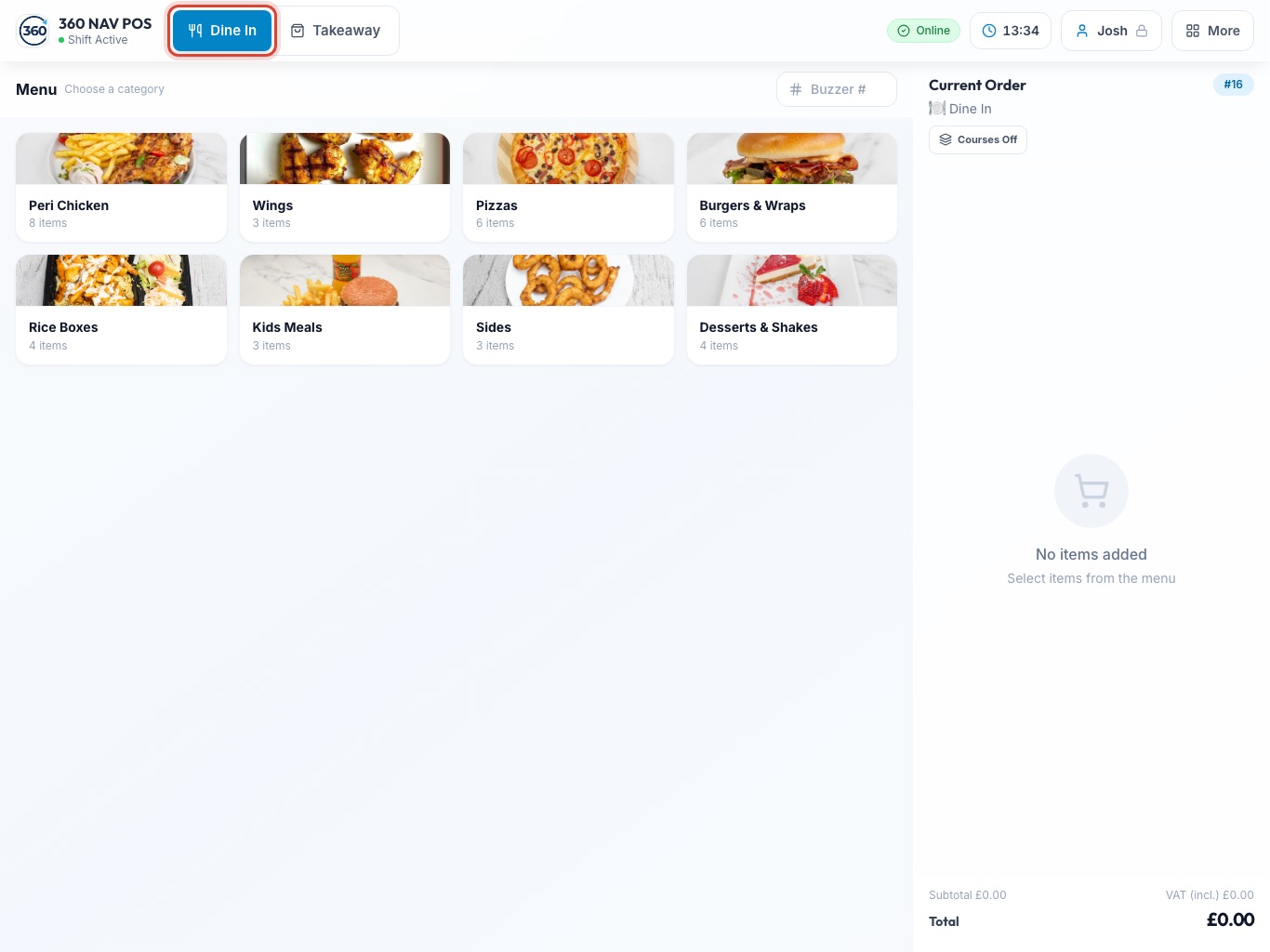
Choose Dine In or Takeaway. Use the switch at the top of the screen. Takeaway can change the VAT on some items, so pick it before you add them.
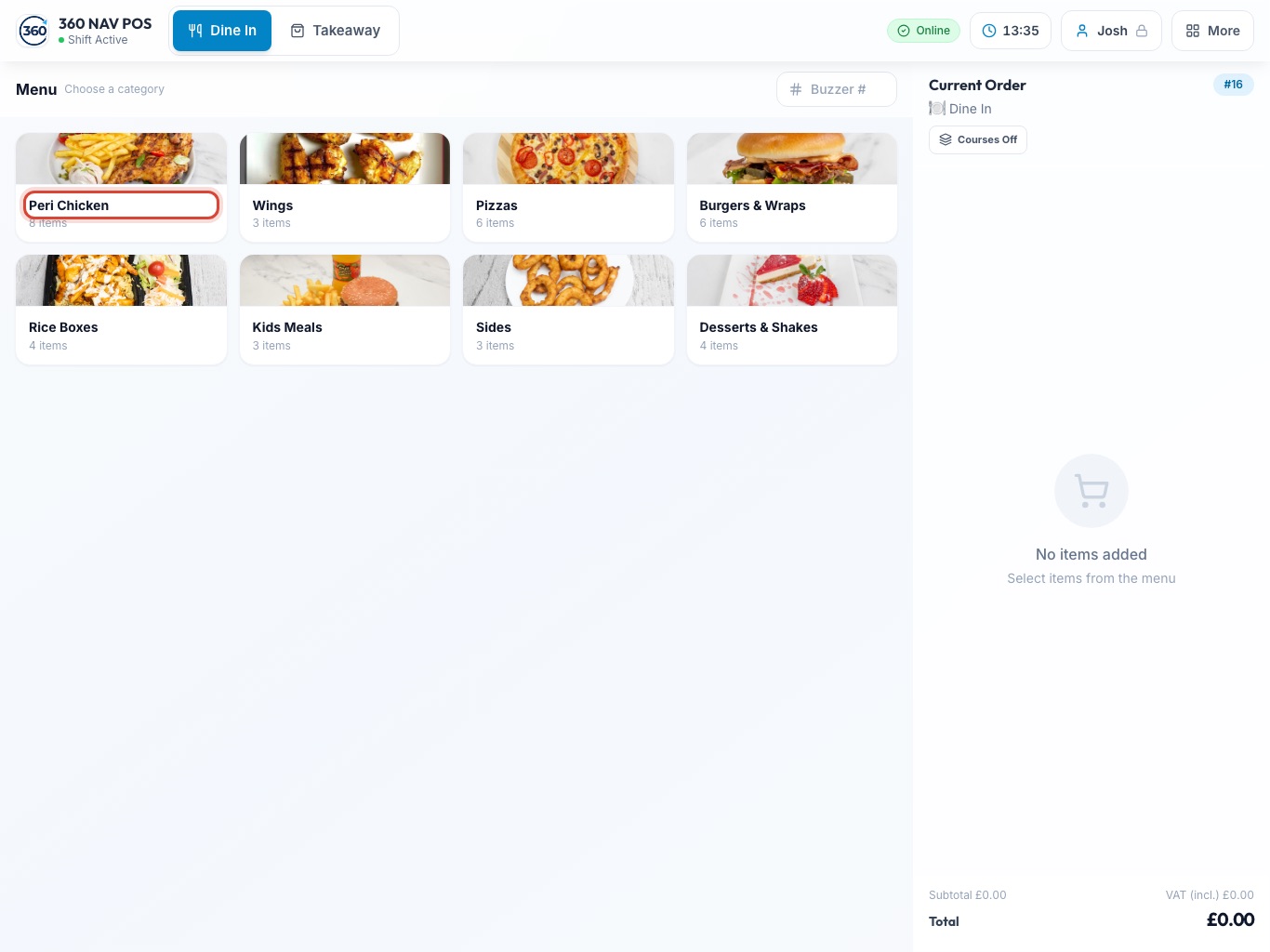
Open a category. Tap a category tile, such as Peri Chicken, to see its items.
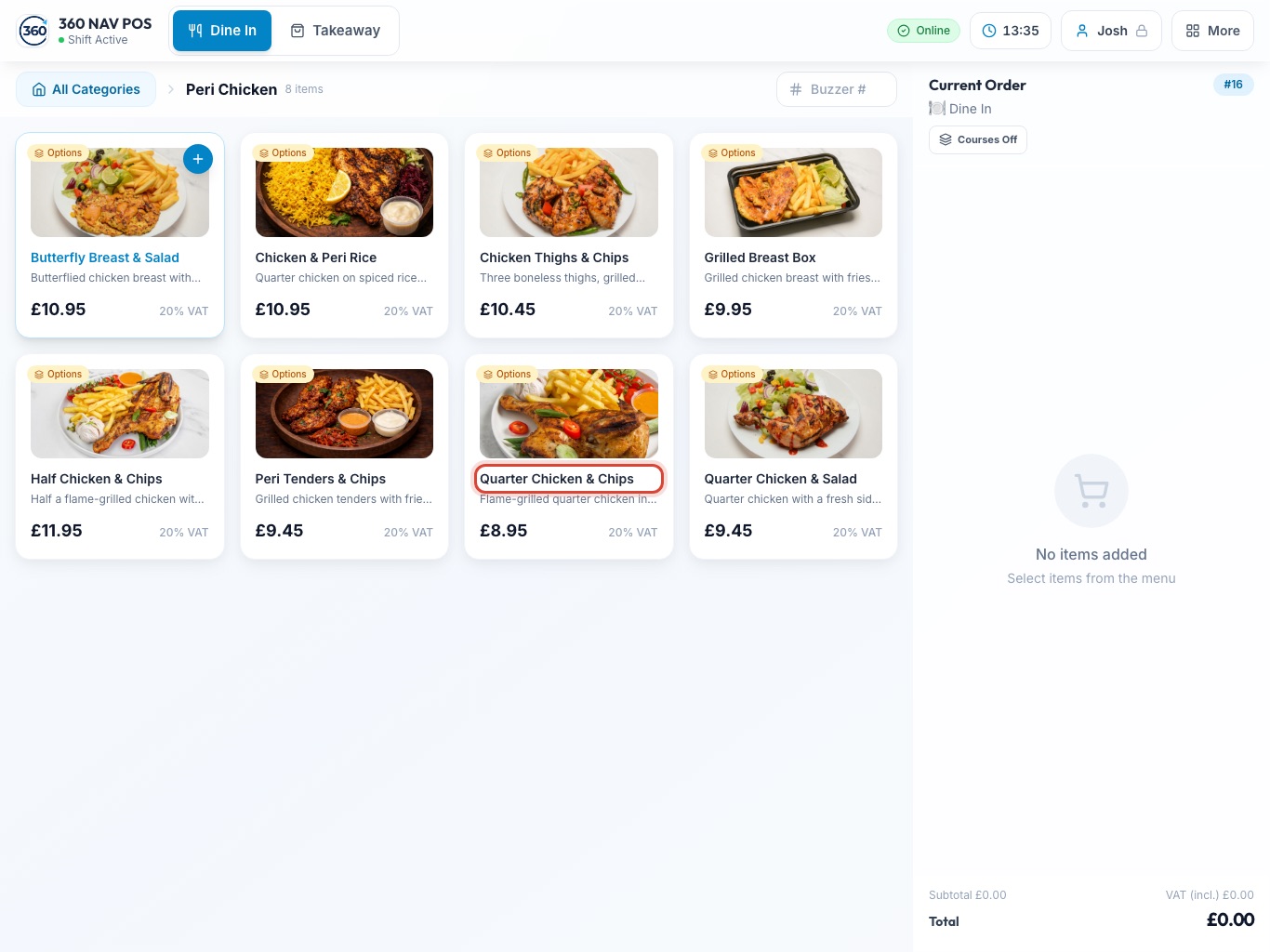
Tap an item to add it. Each tap adds one. Tap again to add another.
Pick any options. If the item has options, such as how spicy or what size, a window opens. Tap the options the customer wants, then tap Add to Order. The price updates as you go.
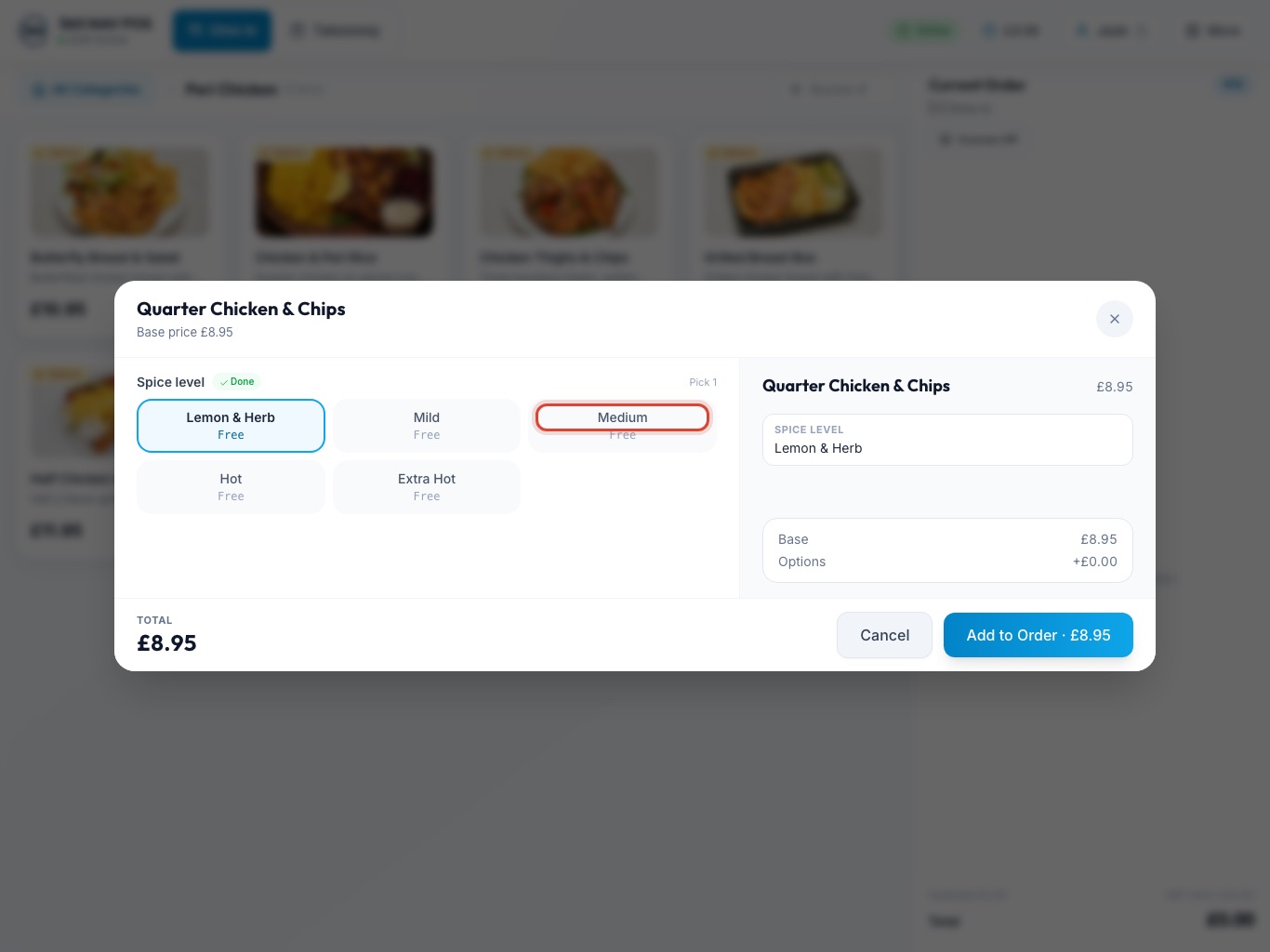
Add the rest of the order. Tap All Categories to go back, then add more items the same way.
Check the order. The right-hand panel lists every item, its options and the total including VAT.
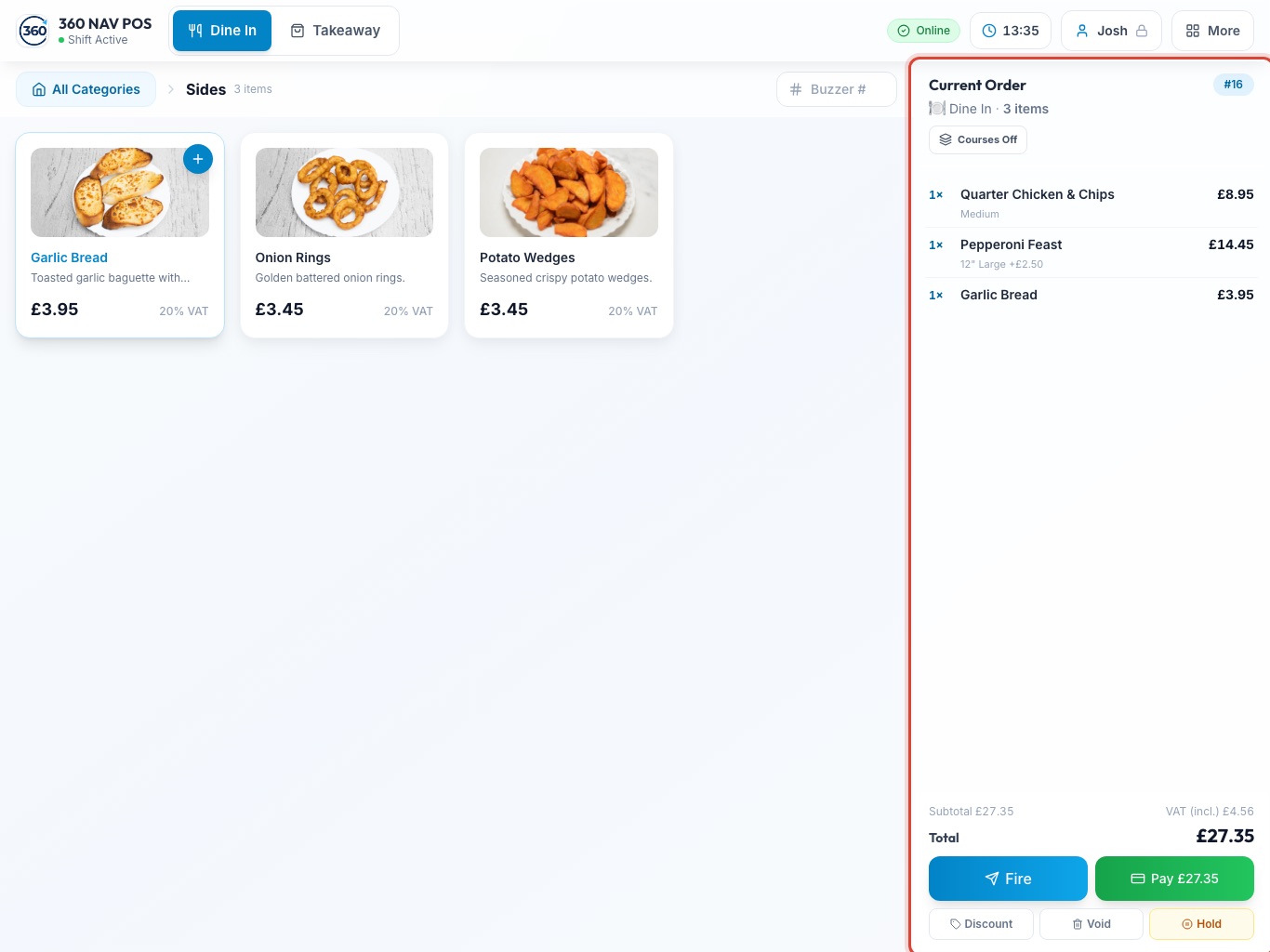
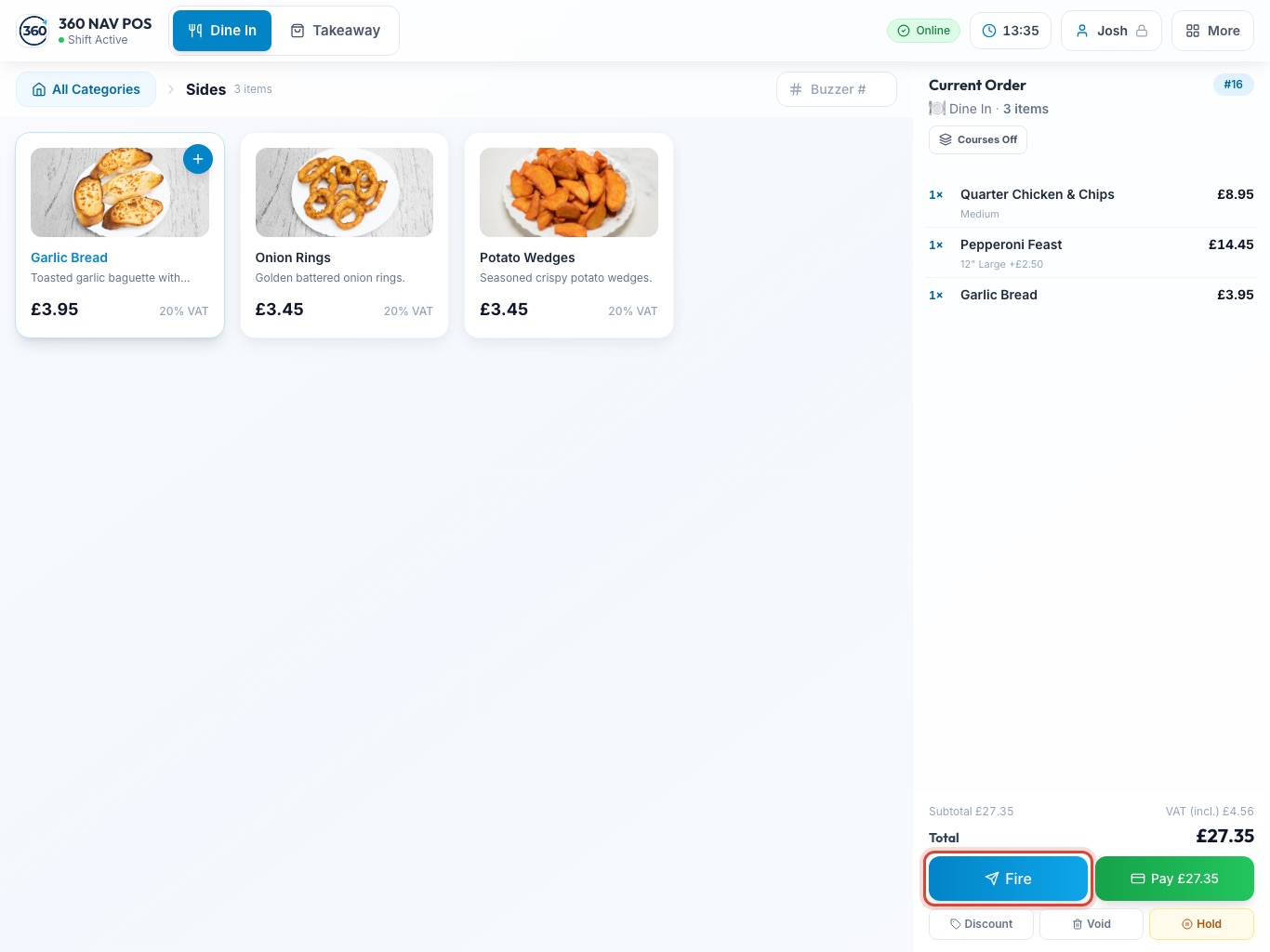
Send it to the kitchen. Tap Fire. The till shows Order sent to kitchen, and the items print on the kitchen printer or show on the kitchen screen. If you add more items later, tap Send New to send just those.
Tips
- To take an item off before firing, swipe it or tap it in the order panel.
- Hold parks the order so you can start another; open it again later from the held orders list.
- Nothing is charged until you take the payment. See Take a payment.
If something goes wrong
- "This order is in use": the order is open on another till or phone. It unlocks when they leave it.
- An item is missing: new menu items reach the till within a minute of being saved in the dashboard.