
Before you start
You need an order on screen with at least one item. See Take an order.
Steps
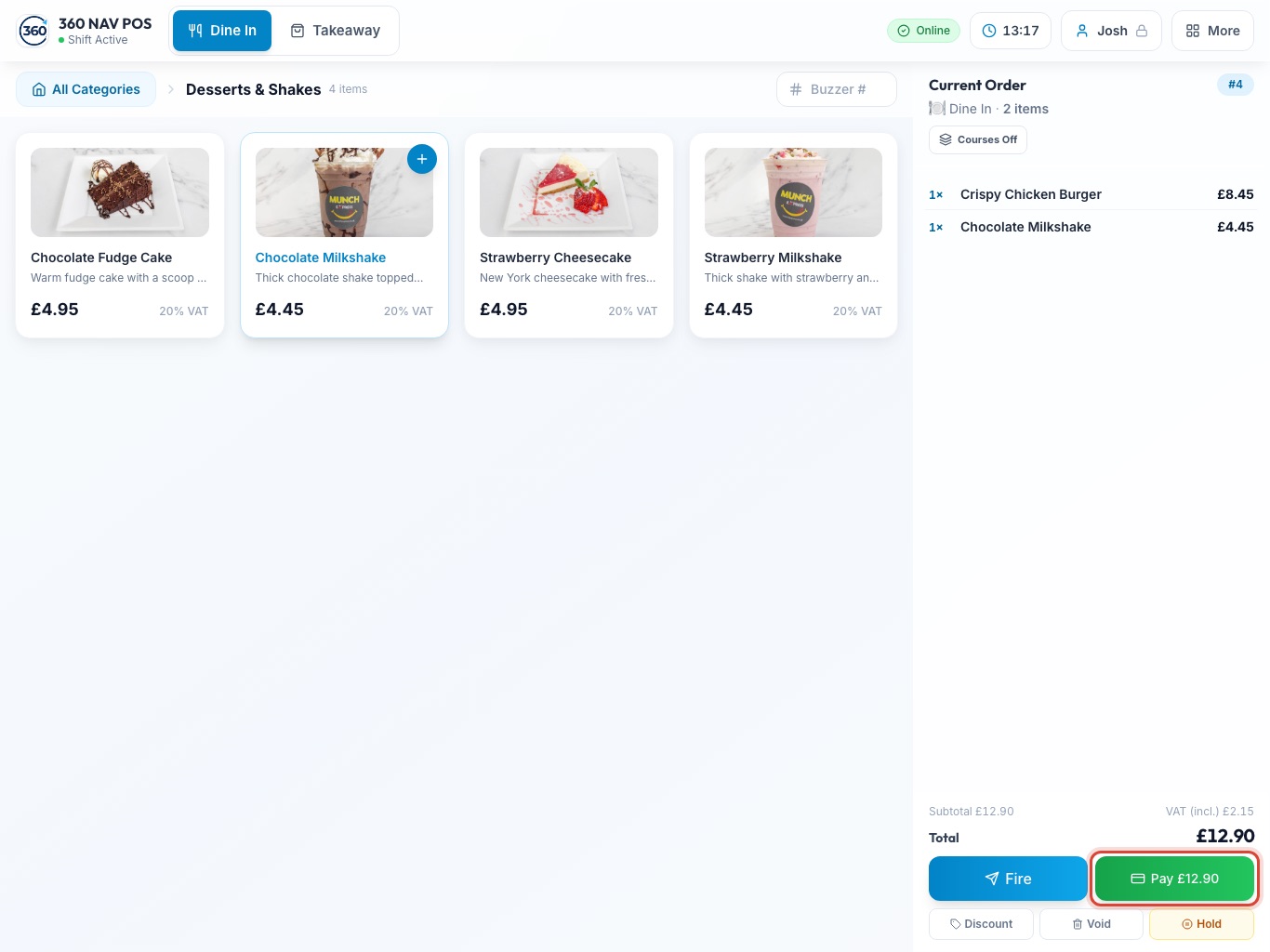
Tap Pay. The green Pay button at the bottom of the order shows the amount due.
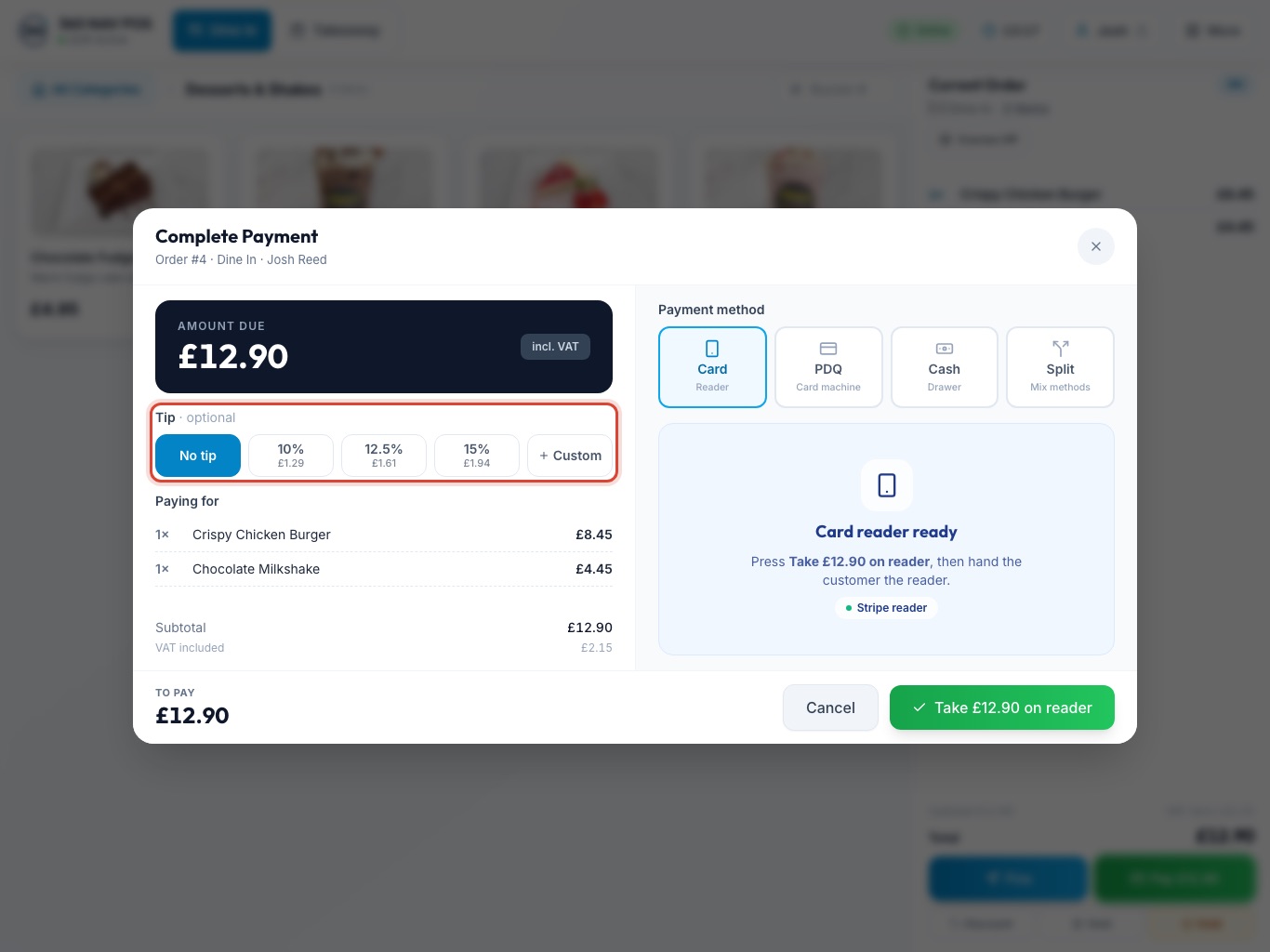
Add a tip if the customer wants to. Tap 10%, 12.5% or 15%, or Custom for an amount. Leave it on No tip otherwise.
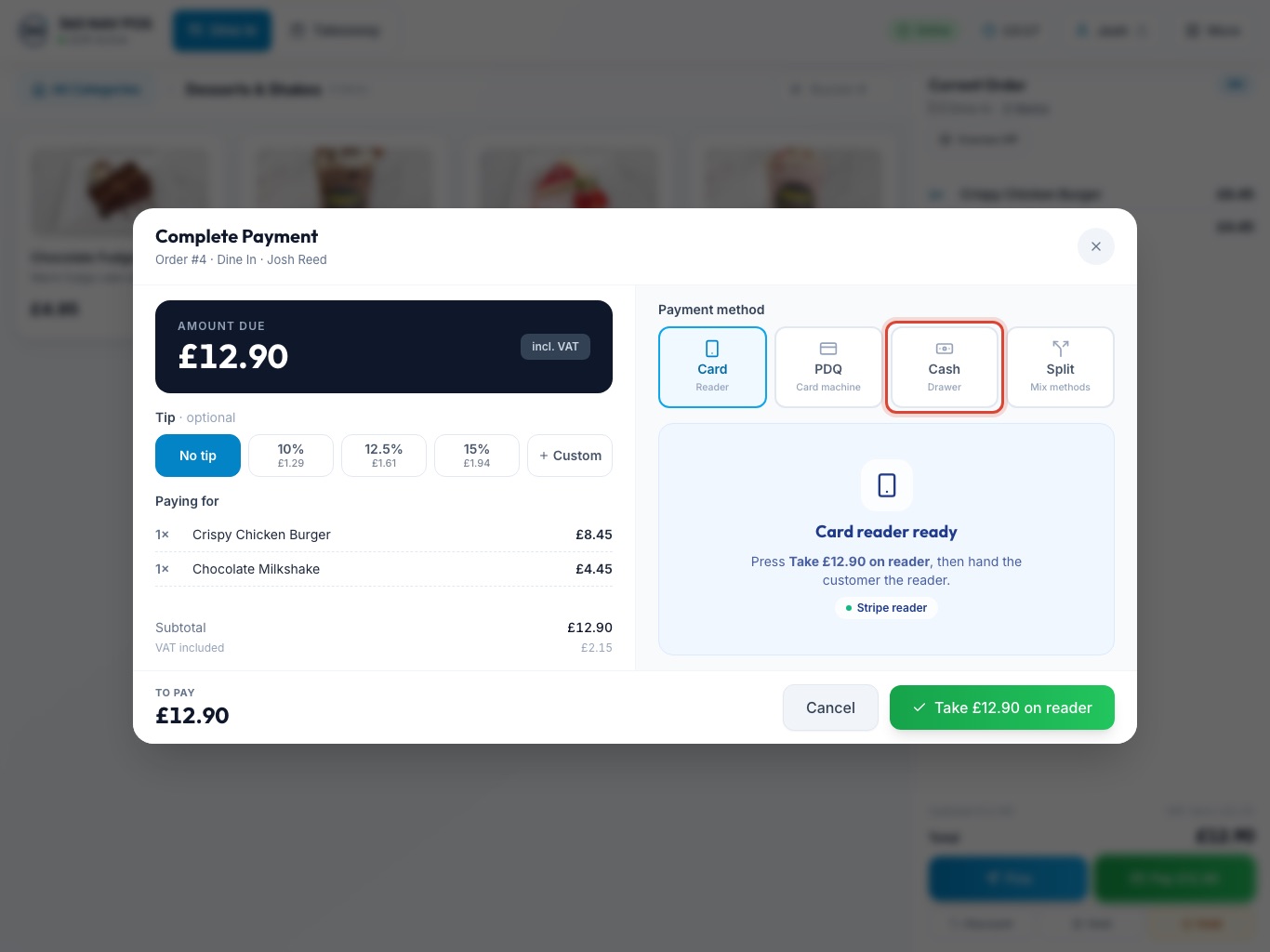
Choose how they pay.
- Cash: tap Cash, then the note they handed you (£5, £10, £20, £50), Exact, or type the amount.
- Card (reader): tap Card, then Take £… on reader, and hand the customer the card reader.
- PDQ: if you use a separate card machine, charge it there first, then tap PDQ and confirm here.
- Split: tap Split to take part by card and part in cash.
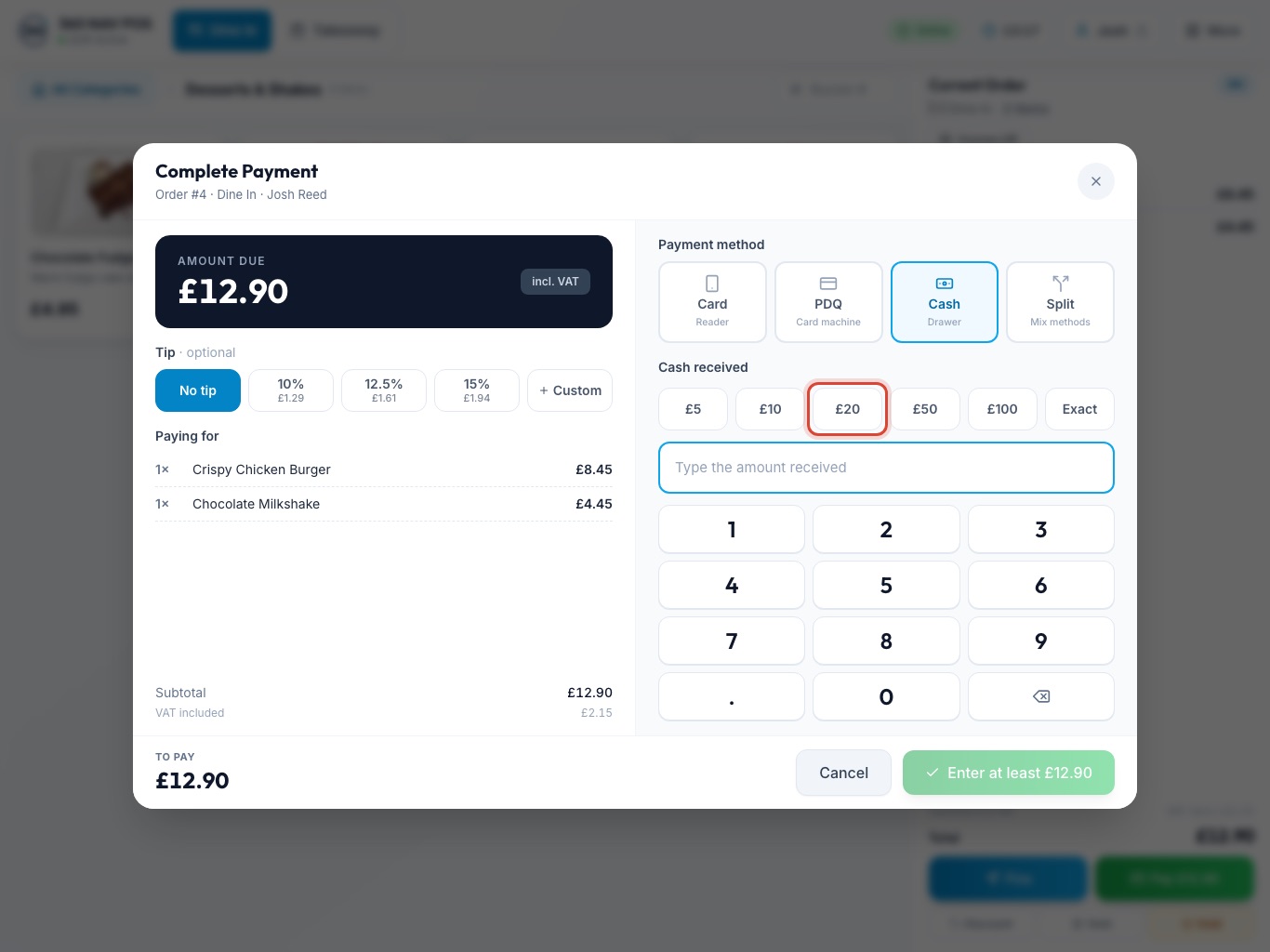
Check the change. For cash, the green button shows the change to give back, for example Take cash · give £13.15 change.
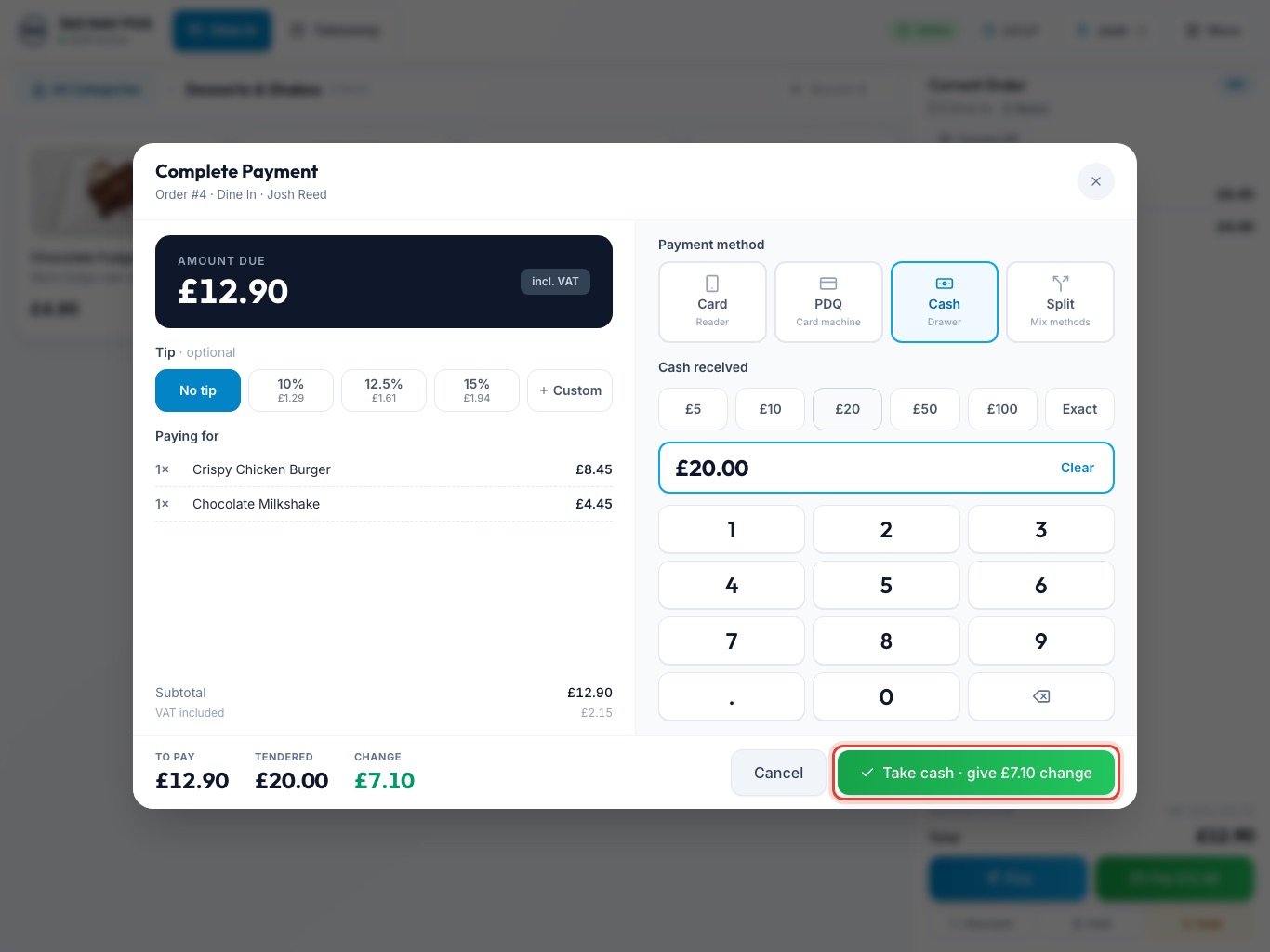
Finish. Tap the green button. The cash drawer opens for cash payments, and the receipt prints if your till is set to print automatically.
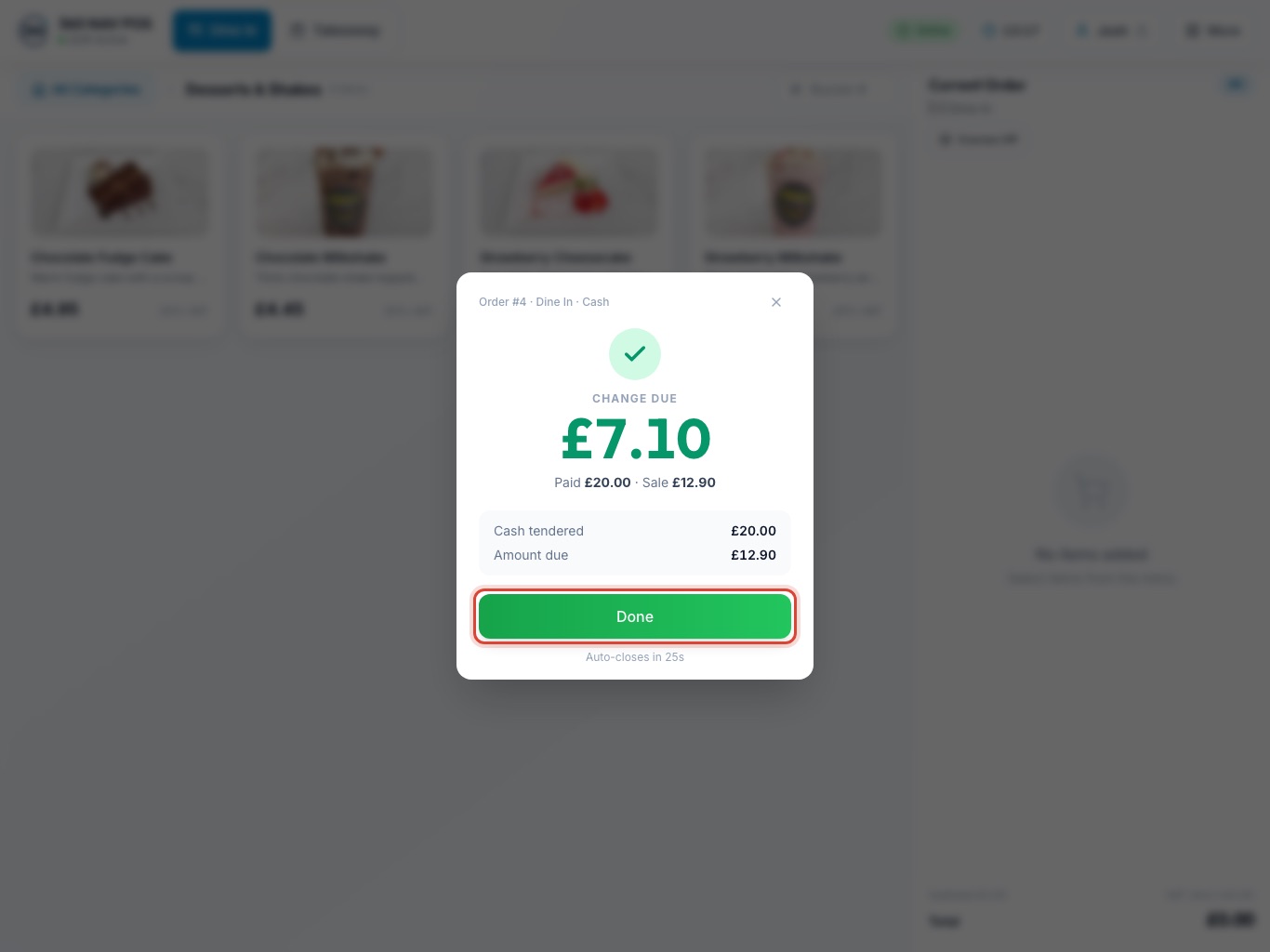
Give the change and tap Done. The screen shows the change due in large numbers. Tap Done, or leave it and it closes by itself after a few seconds. The till is ready for the next order.
Tips
- A card payment that fails leaves the order unpaid, so you can try again or take cash.
- To print a receipt on request, a manager can turn on automatic printing in More → Settings → Receipt Printer.
- With PDQ, the till only records what the card machine took. Always charge the machine first.
- To refund a payment later, see Refunds (coming soon).
If something goes wrong
- Card reader not ready: check it is switched on and paired in More → Settings → Card Payments.
- Drawer doesn't open: check the receipt printer is on; the drawer opens through it.