
360nav POS
Help centre
Step-by-step guides and short videos for the till, the dashboard and the kitchen.
Getting started
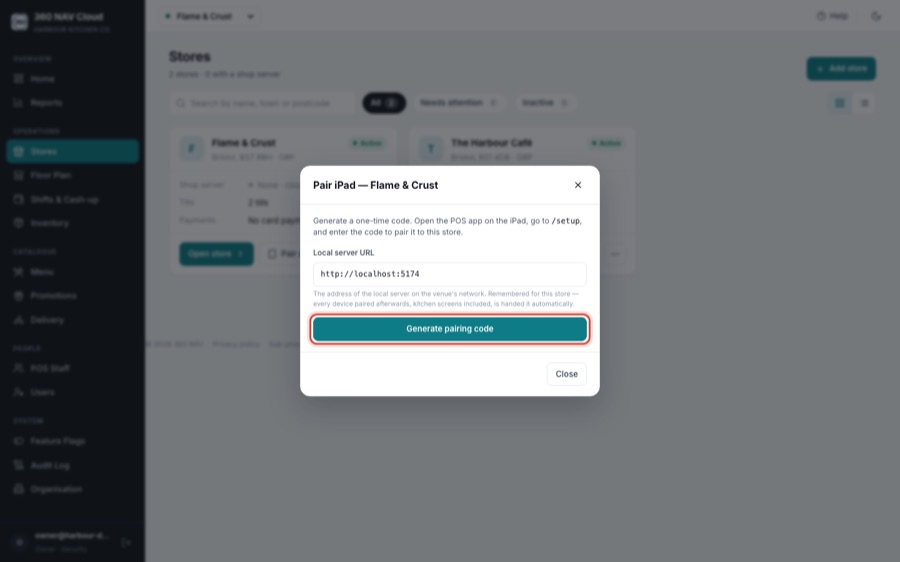
Using the till
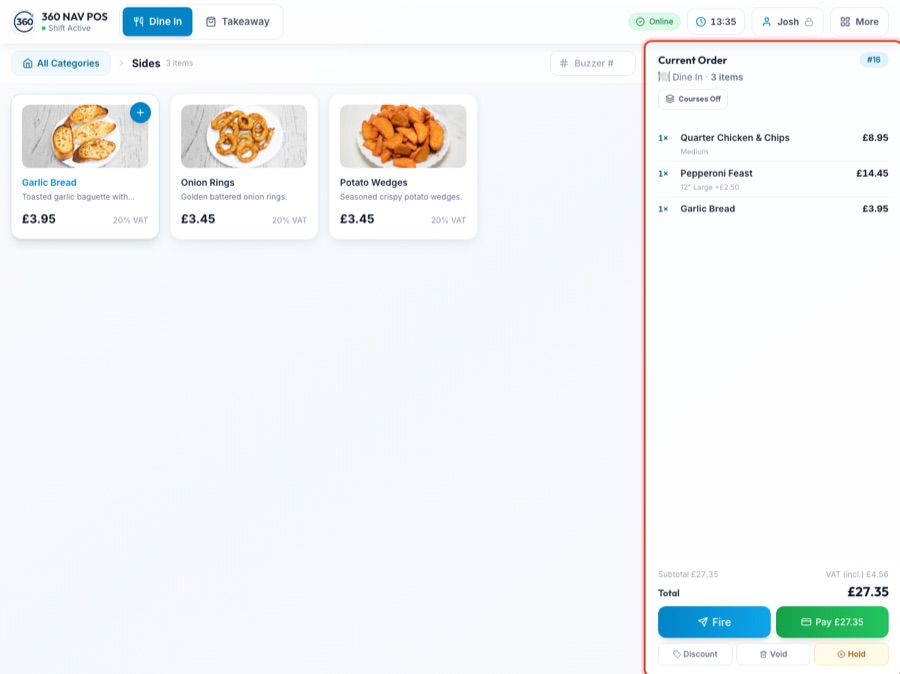 TillTake an orderSign in, add items with their options, check the order and send it to the kitchen.
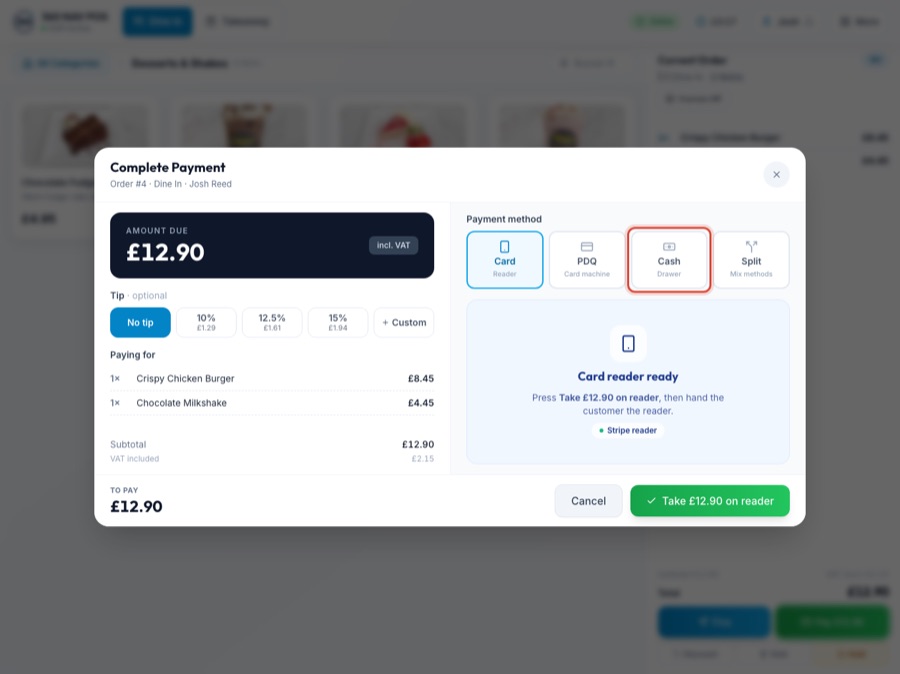 TillTake a paymentTake cash, card or a mix of both, add a tip, and give the change.
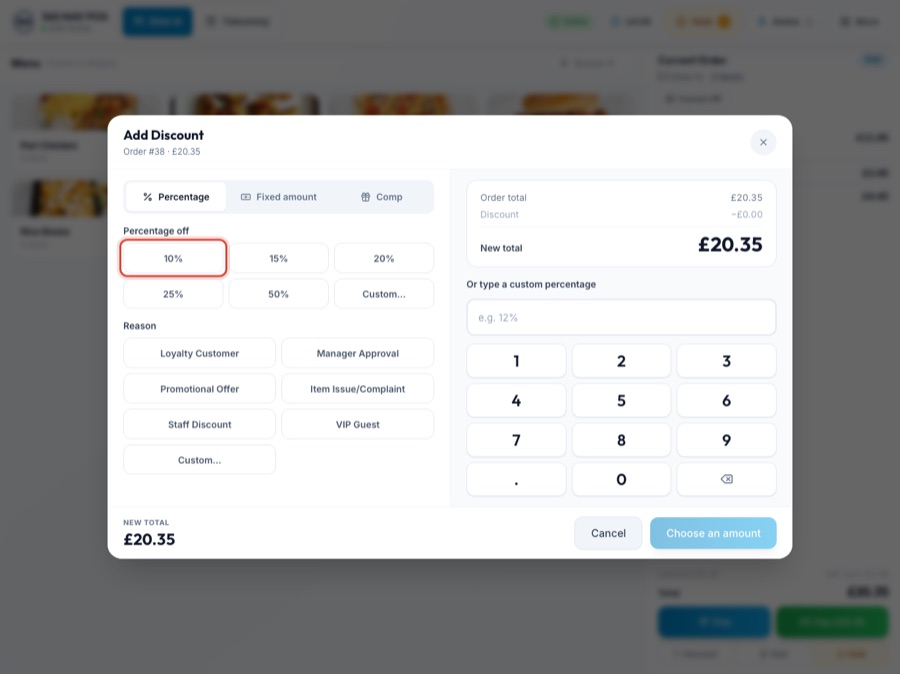 TillGive a discountTake a percentage or an amount off the whole order or a single item, with a reason for your reports.
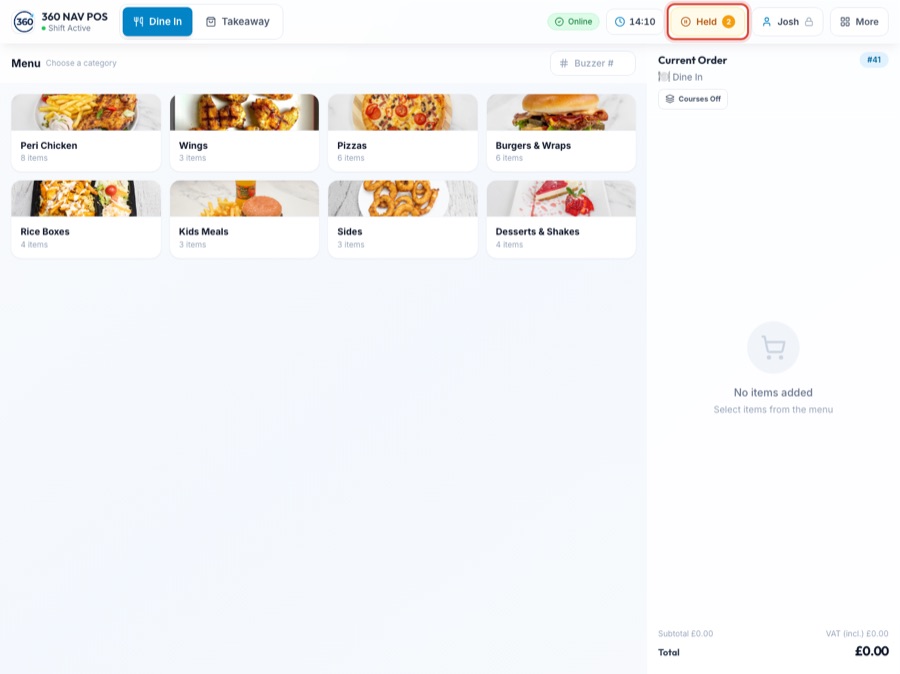 TillHold, resume and void ordersPark an order to serve someone else, bring it back later, cancel an order, or take off a single item.
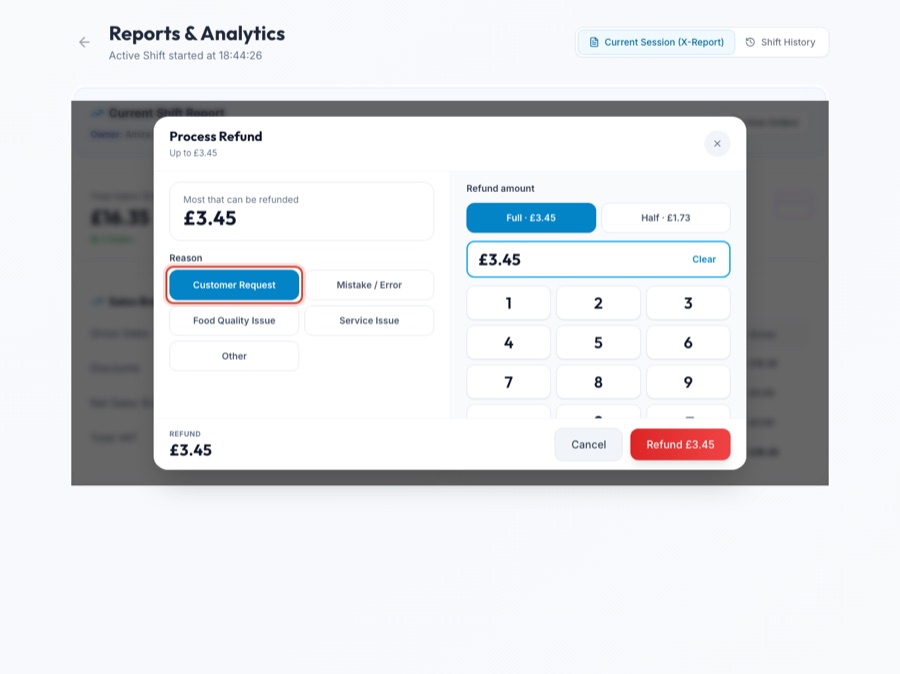 TillRefund a paymentGive money back for an order taken on this shift, in full or in part.
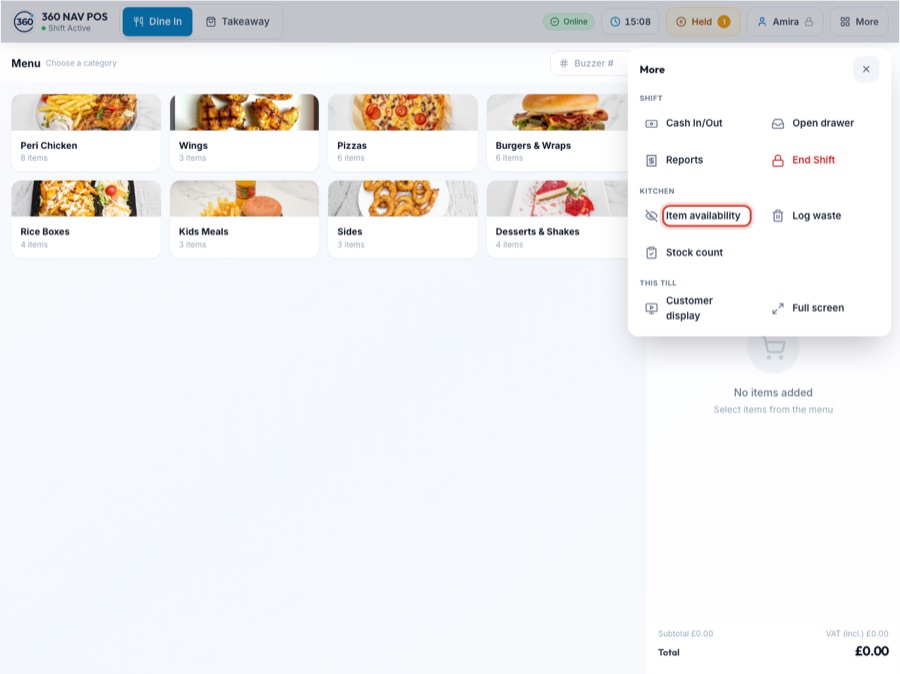 TillMark an item as sold outHide an item from every till when you run out, and bring it back later.
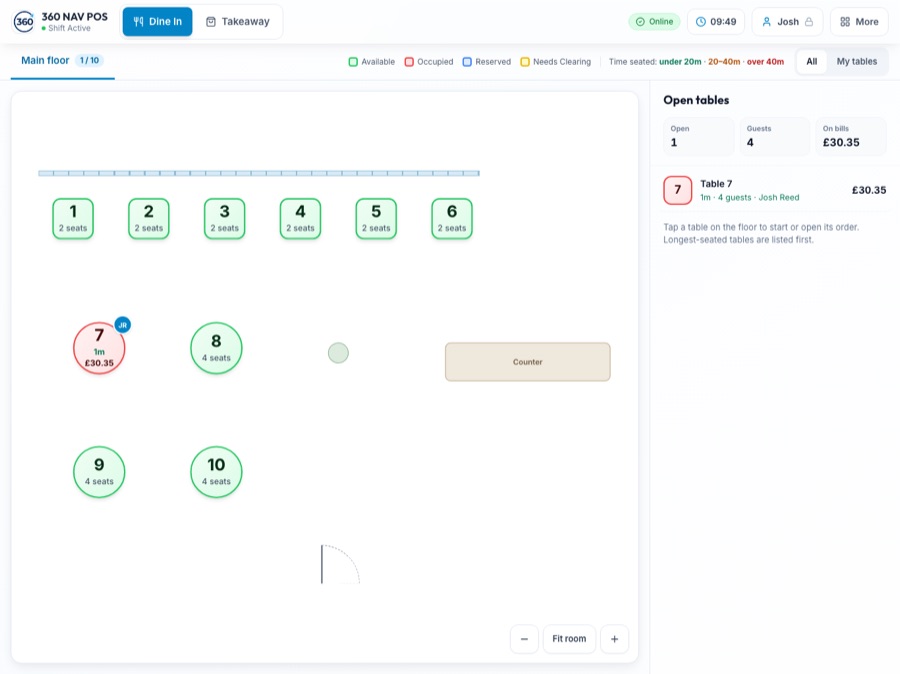 TillServe tables on the tillOpen a table, take and fire the order, move guests to another table, print the bill and split payment.
Reports and cash-up
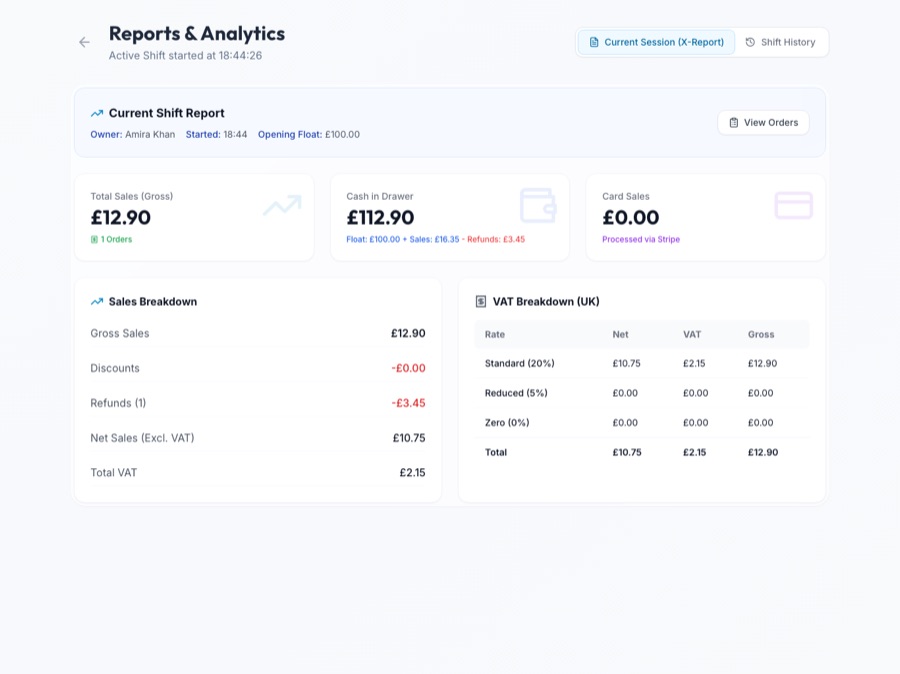 TillCheck today's sales (X-report)See sales, card and cash totals, and VAT for the shift so far, without closing it.
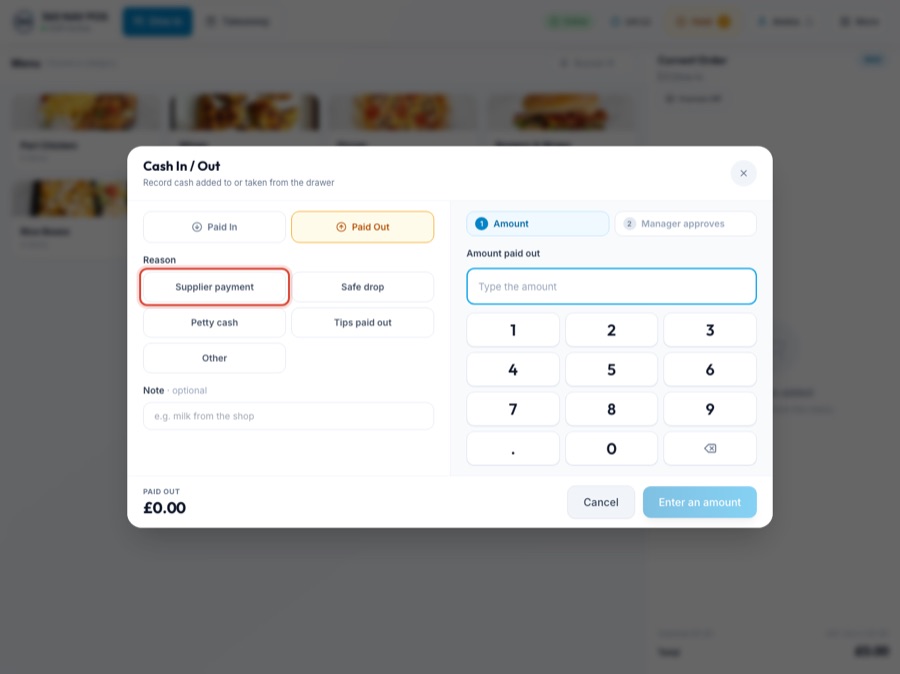 TillPay cash in or out of the drawerRecord cash added to the drawer, or taken out to pay for something, so the cash-up still balances.
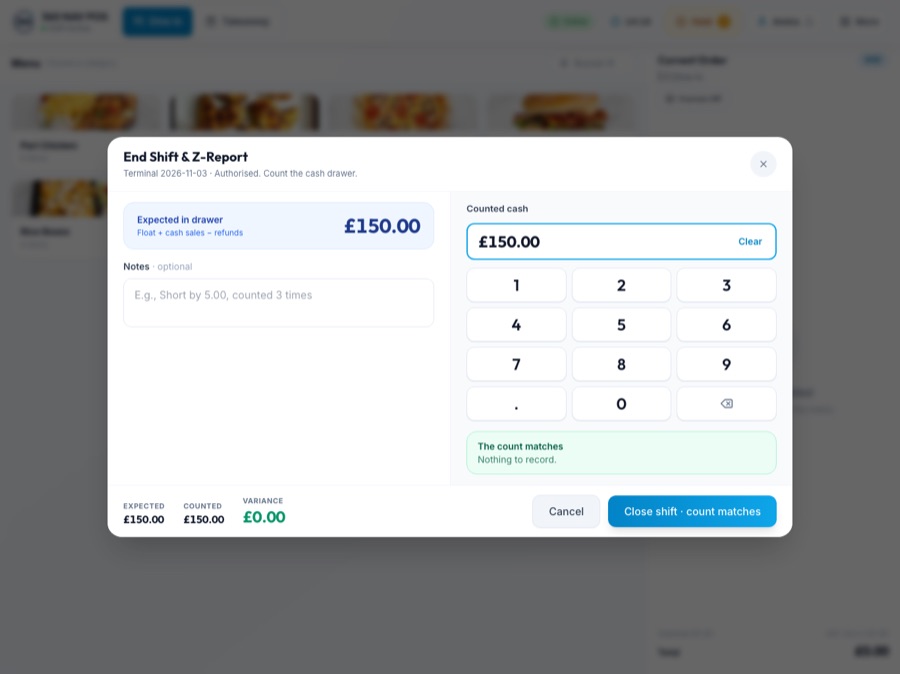 TillOpen and close a shift (Z-report)Count the cash and close the day with a Z-report, then start the next shift with a float.
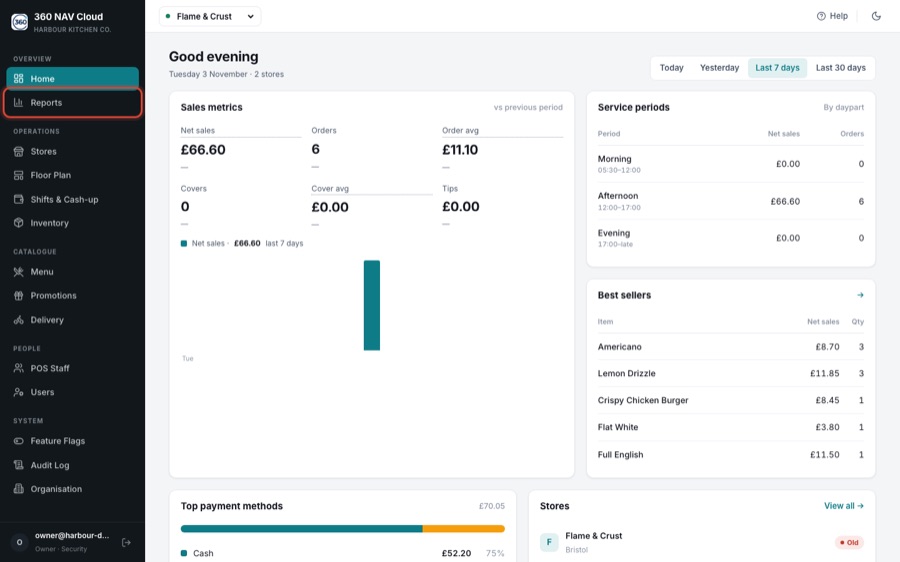 DashboardRead your sales reportsSee sales, orders, best sellers, staff and VAT for any period and any store, and export them.
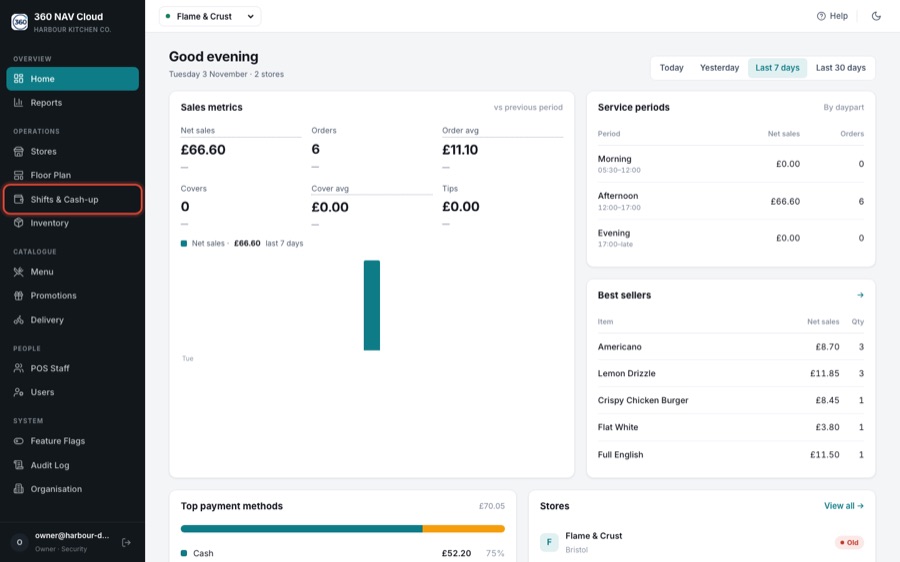 DashboardReview shifts and cash-upsCheck every till's shifts, floats, expected and counted cash, and any differences, from anywhere.
Menu and products
Stock
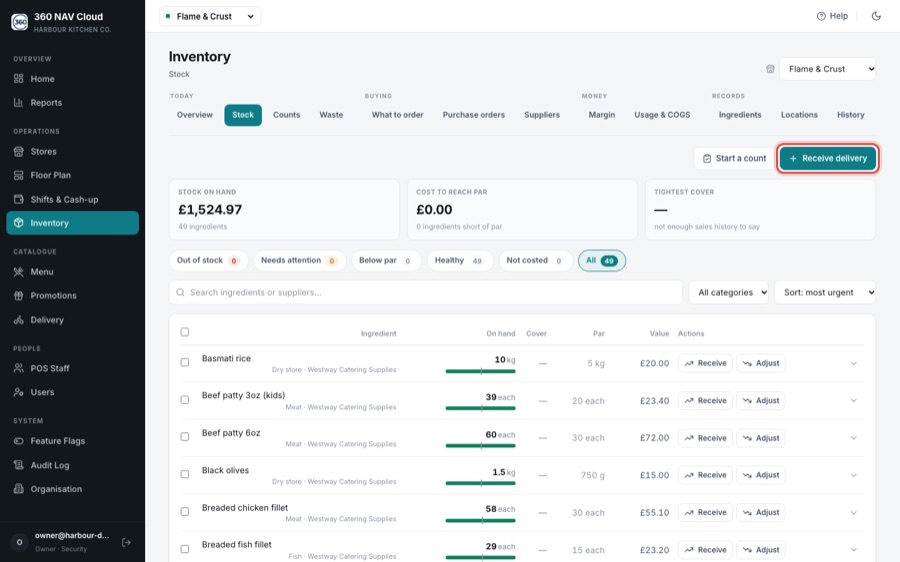 DashboardReceive a deliveryAdd delivered stock with its cost, so stock levels and margins stay right.
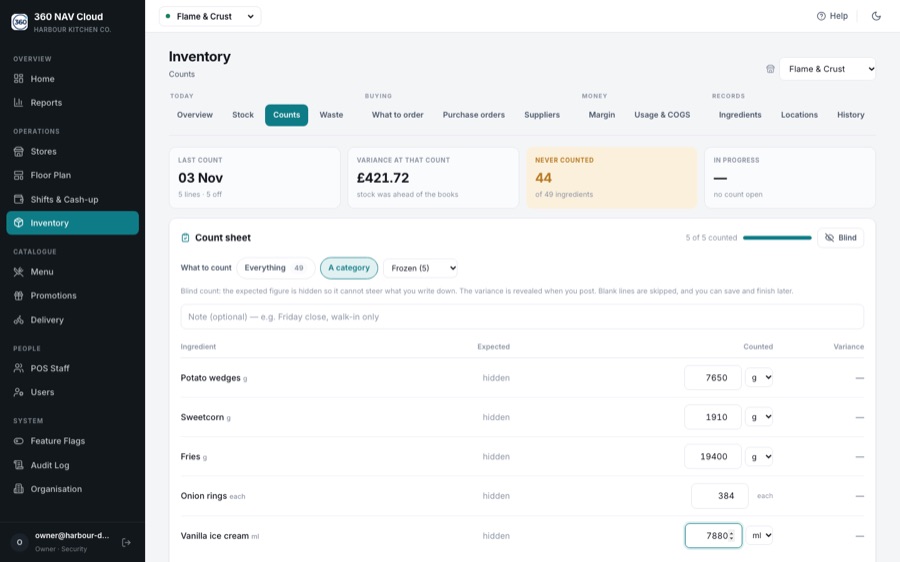 DashboardCount your stockDo a full or partial stock count, correct the figures, and see where stock went.
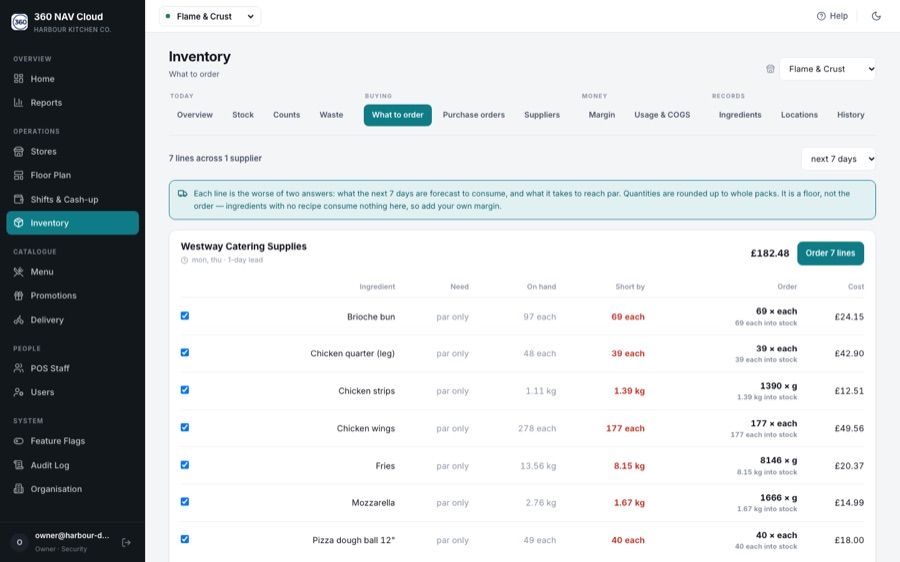 DashboardOrder stock from suppliersLet the system suggest what to order, raise purchase orders per supplier, and receive deliveries against them.
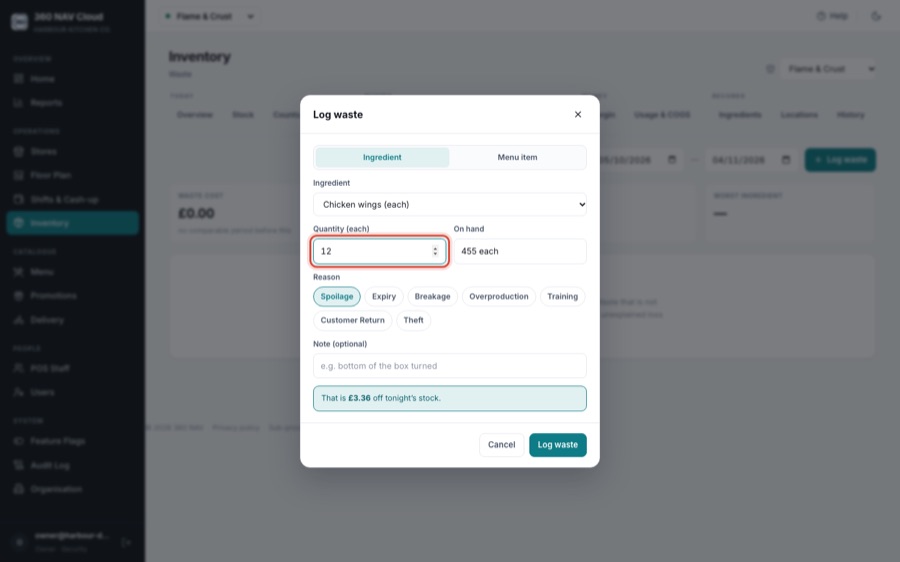 DashboardLog wasteRecord food and drink that's thrown away, so stock stays right and you can see what waste costs you.
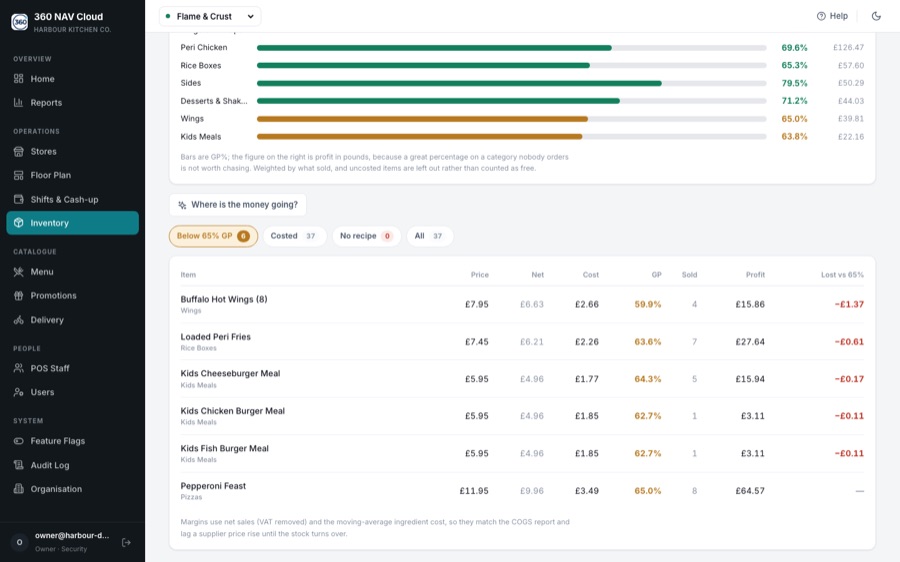 DashboardCheck your marginsSee your gross profit by category and by dish, using real ingredient costs and what actually sold.
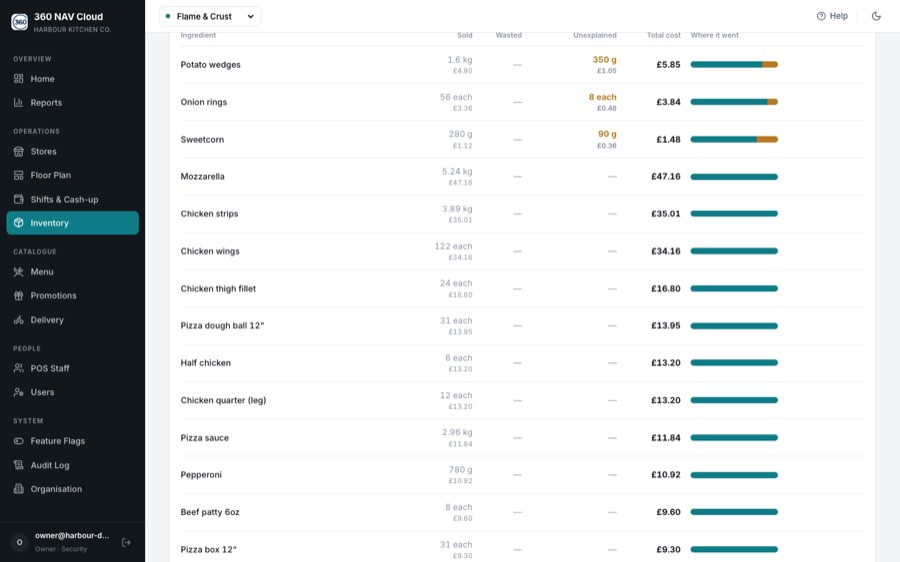 DashboardSee stock usage and COGSFind out what your stock cost you against sales, and how much went missing without a sale or waste record.
Staff and settings
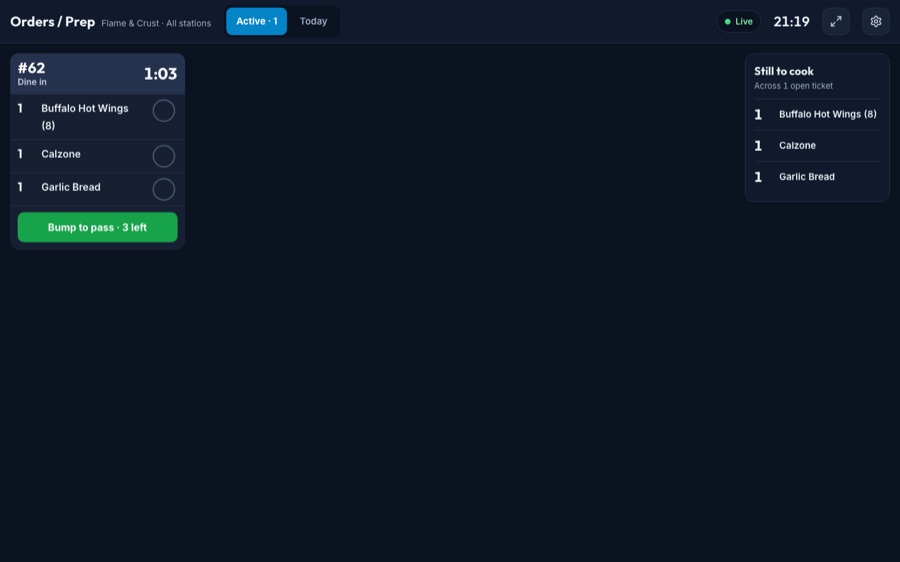
Kitchen
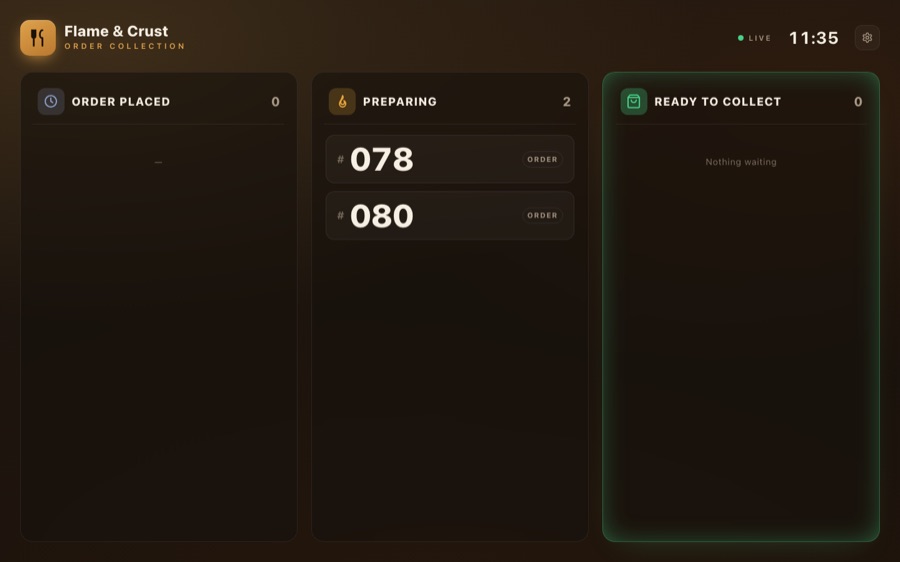
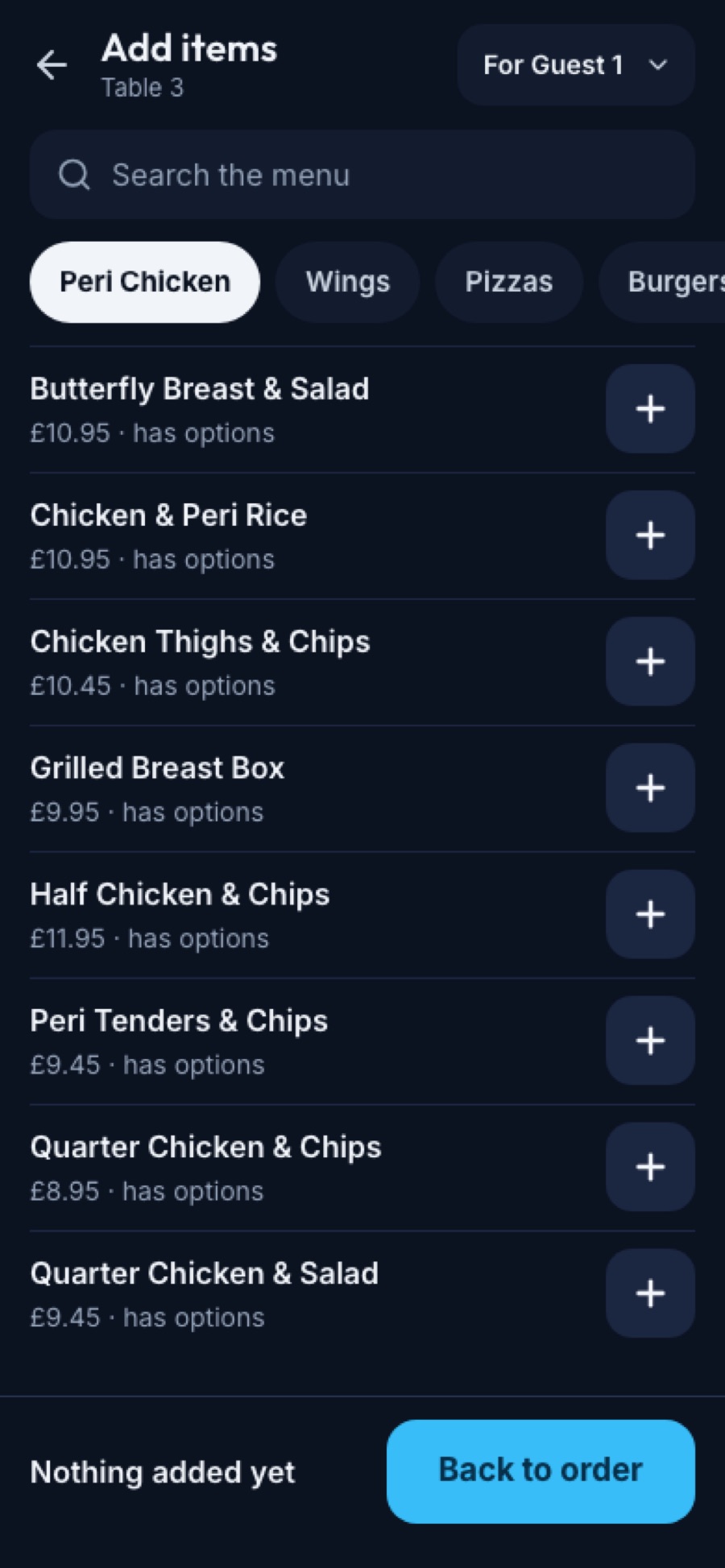
Waiters and self-service
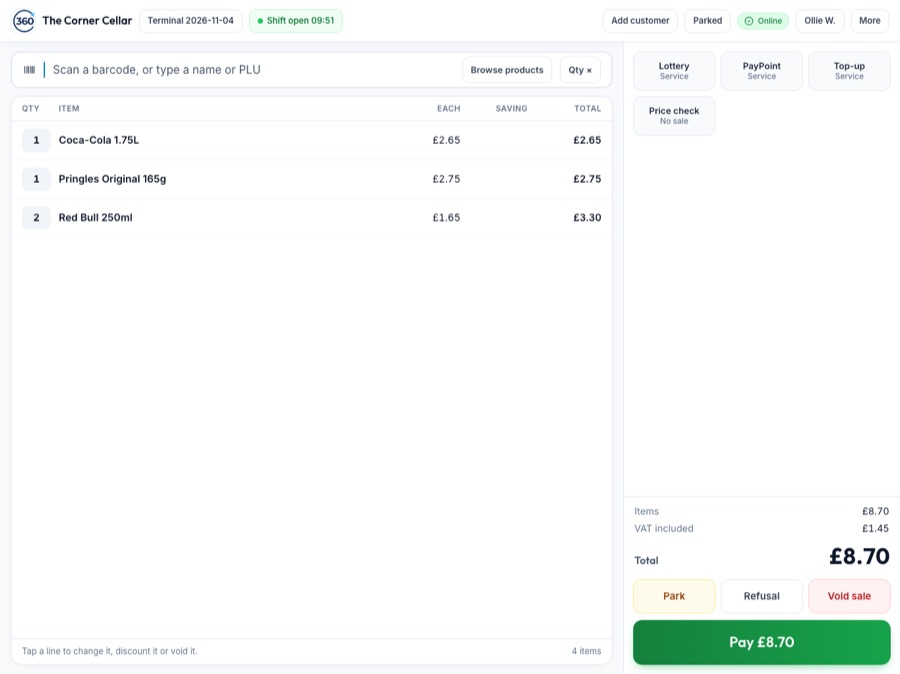
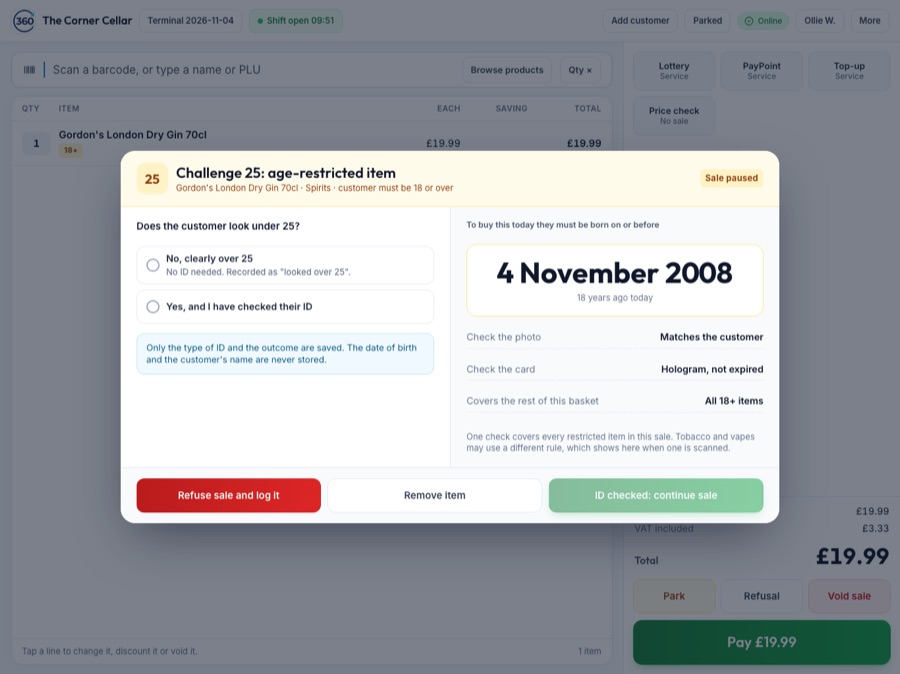
Retail: selling
Retail: products and stock
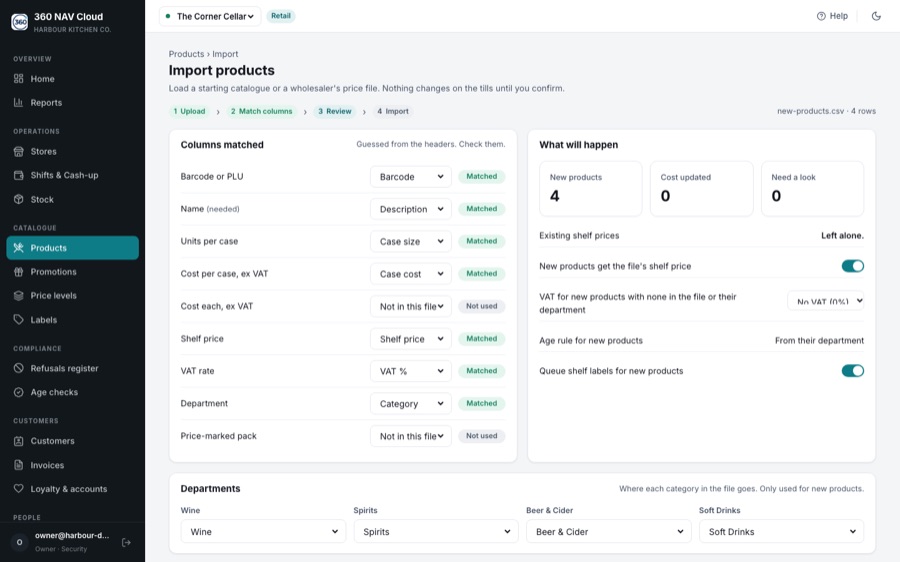 DashboardImport products from a spreadsheetLoad a starting catalogue or a wholesaler's price file, check it, and import it in one go.
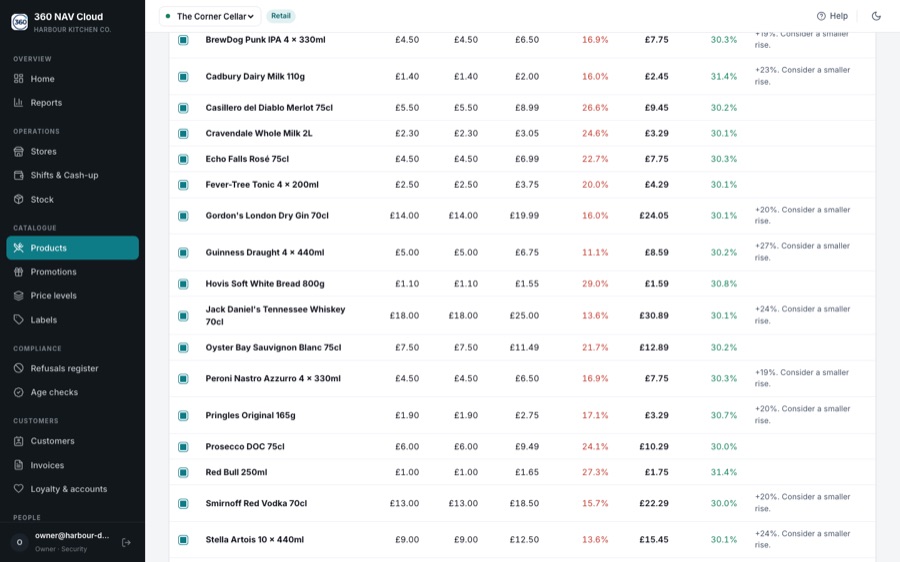 DashboardChange prices in bulkRaise prices to a target margin, or by a percentage or amount, with sensible rounding and a preview.
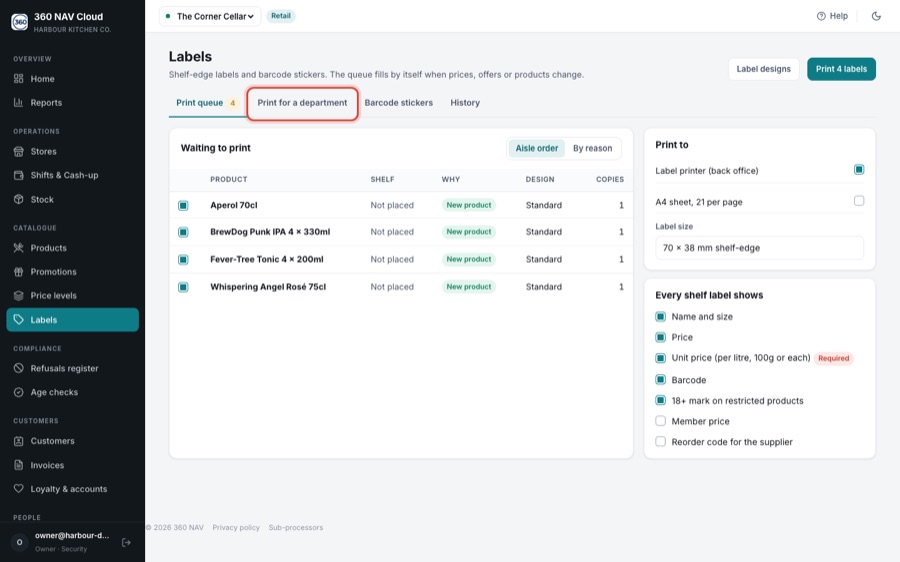 DashboardPrint shelf labelsPrint the labels that changed, or a whole department, on a label printer or A4 sheets.
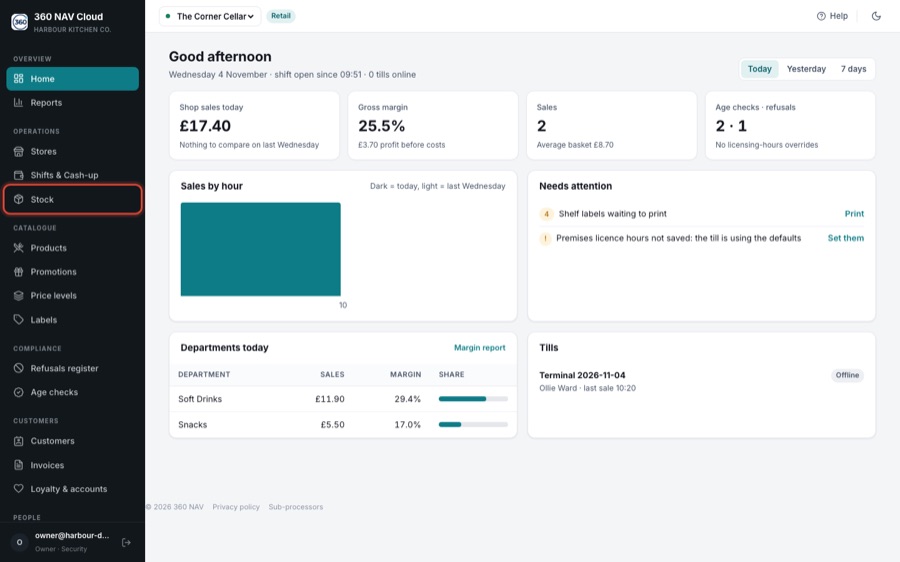 DashboardReceive stock in the shopCheck stock levels, see what's running low, and book in deliveries with their cost.
Troubleshooting
Quick-start cards
Quick-start cardQuick-start card for cashiersThe one page a cashier needs on day one: sign in, take orders, take payment, and what to do when something goes wrong.
Quick-start cardQuick-start card for waitersTaking table orders on the till or on the Serve phone app, firing courses, and taking payment at the table.
Quick-start cardQuick-start card for the kitchenReading the kitchen screen, ticking lines off, bumping orders, and what VOID means.
Quick-start cardQuick-start card for managersOpening and closing the day, approvals, refunds, cash, sold-out items and the dashboard tasks managers do.
Quick-start cardQuick-start card for ownersYour first week: set up stores, menu, staff, tills and stock, and the reports to check each morning.
No guides match that. Try another word, or ask support.
Can't find what you need?
Our support team covers trading hours, evenings and weekends included.