
Steps
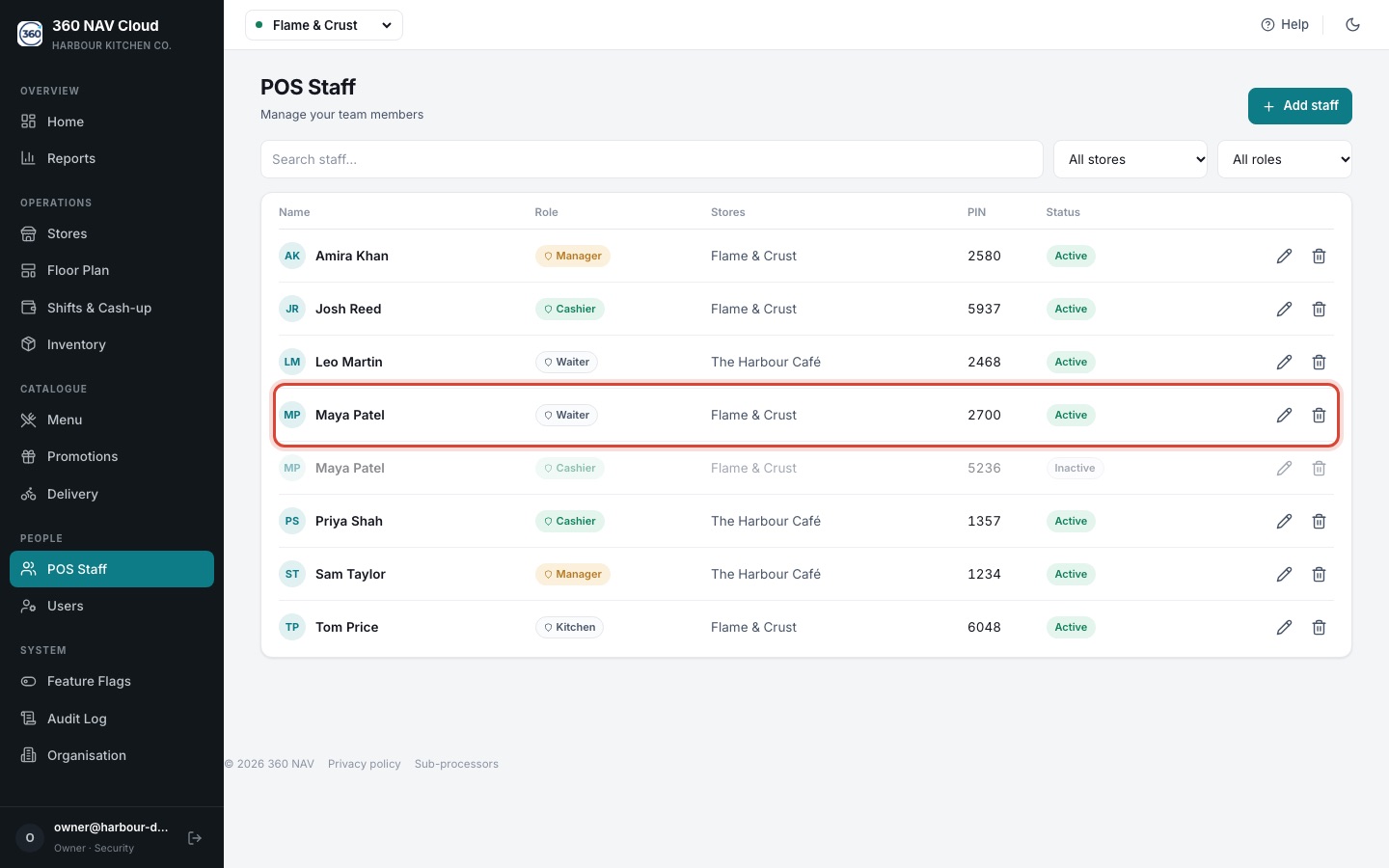
Open POS Staff. Click POS Staff in the left-hand list.
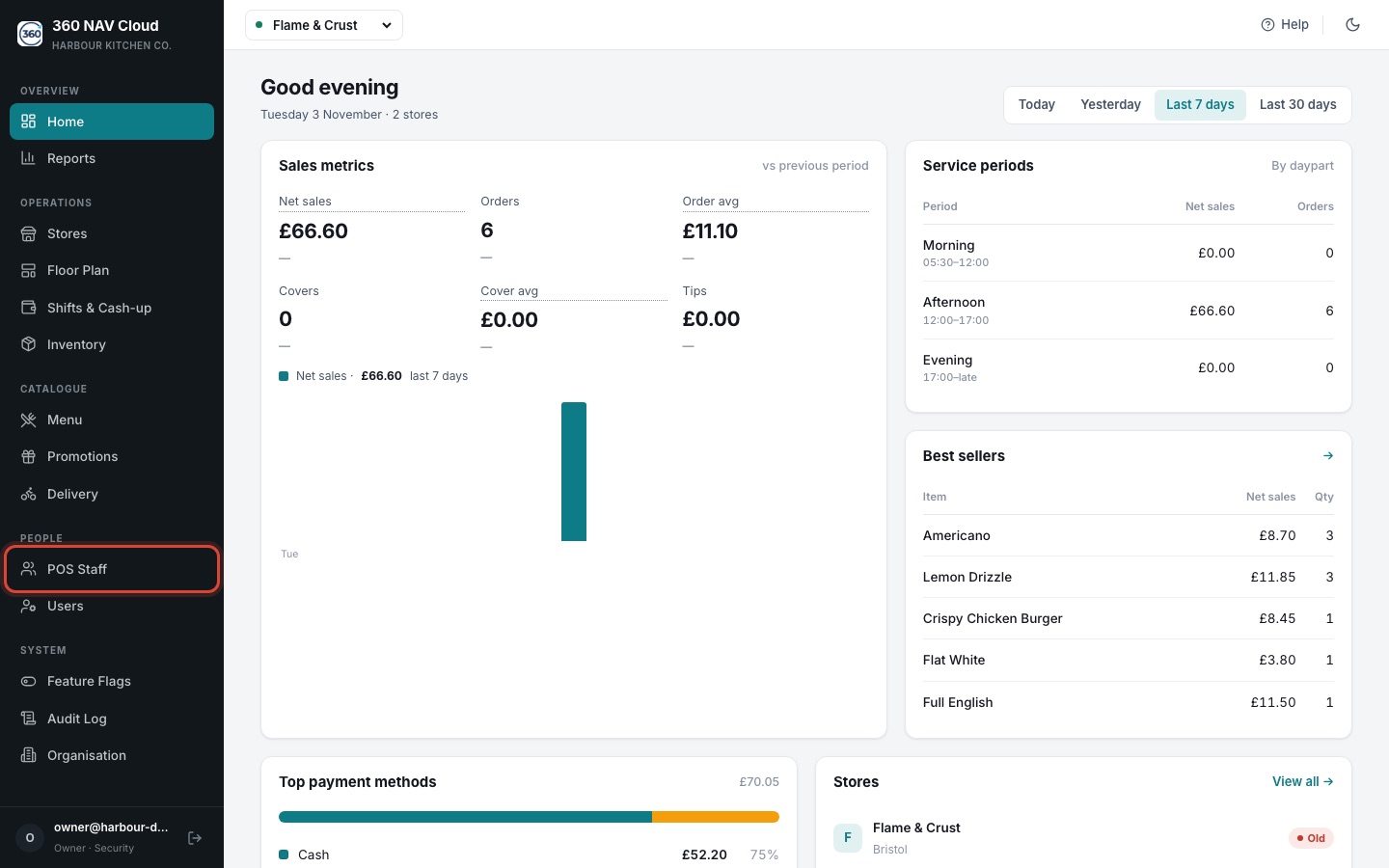
Click Add staff.
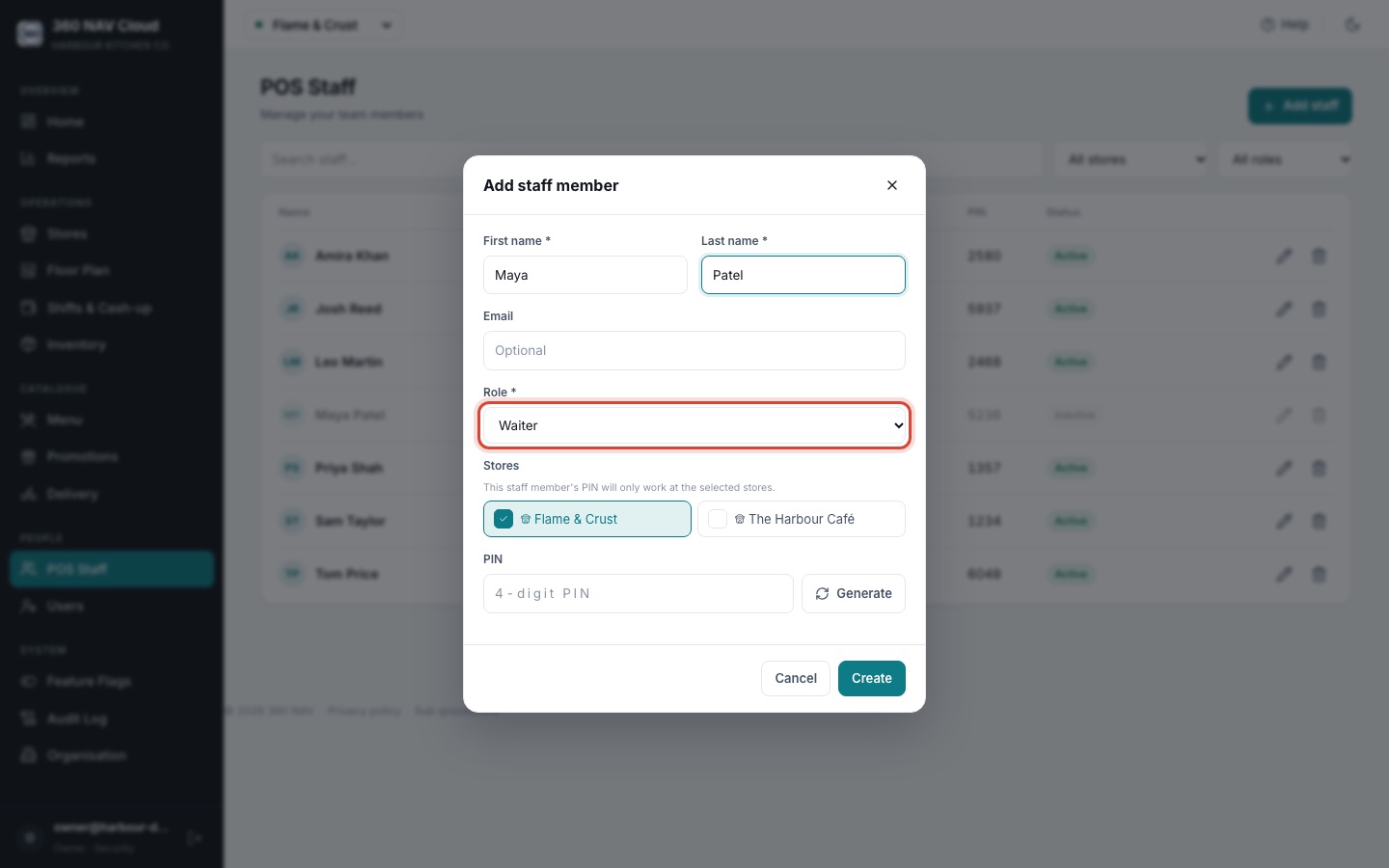
Type their name and choose a role. The role decides what they can do on the till: Admin, Manager, Cashier, Waiter, Kitchen or Bar.
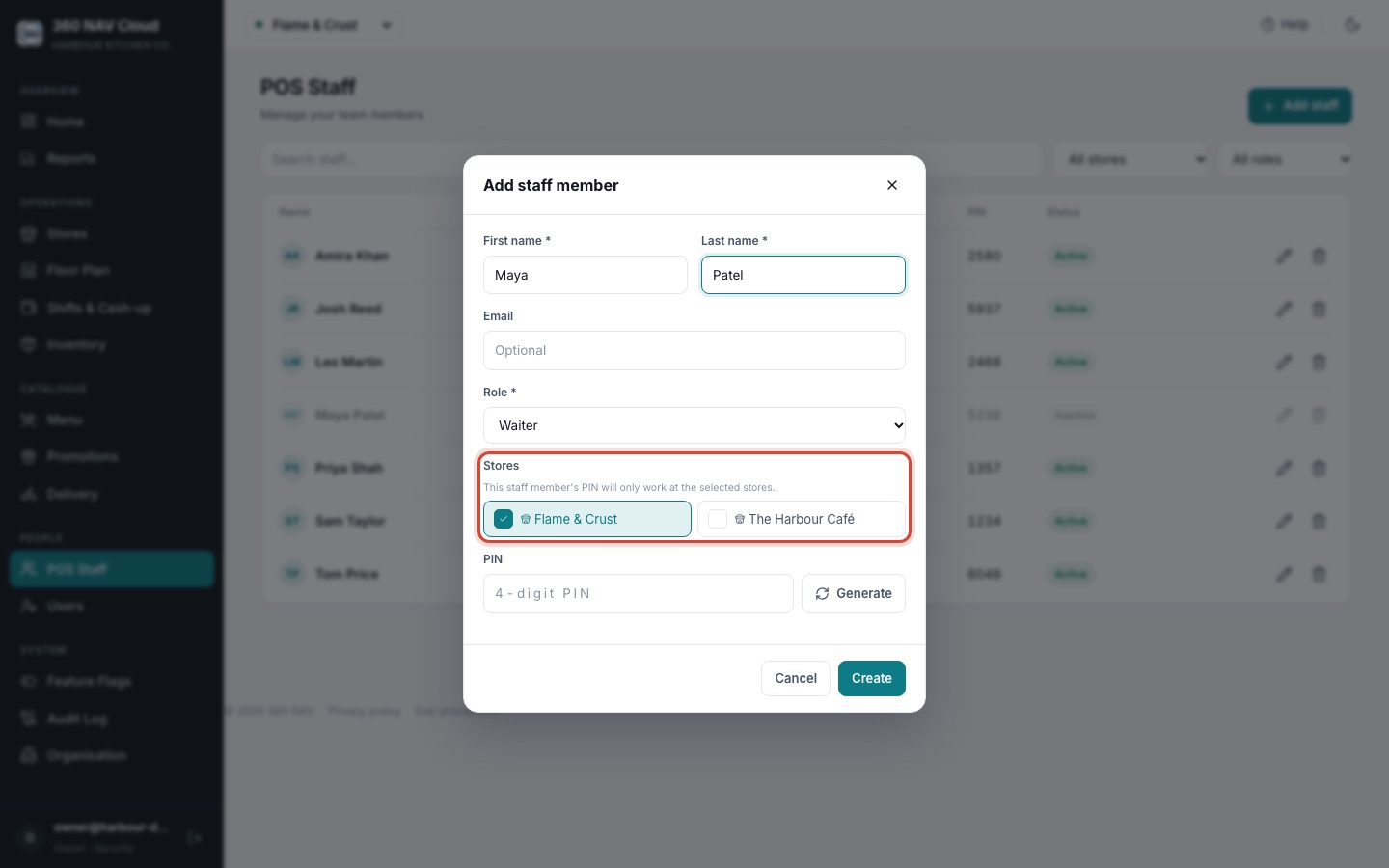
Tick their stores. Their PIN only works at the stores you tick. The store you're in is ticked already.
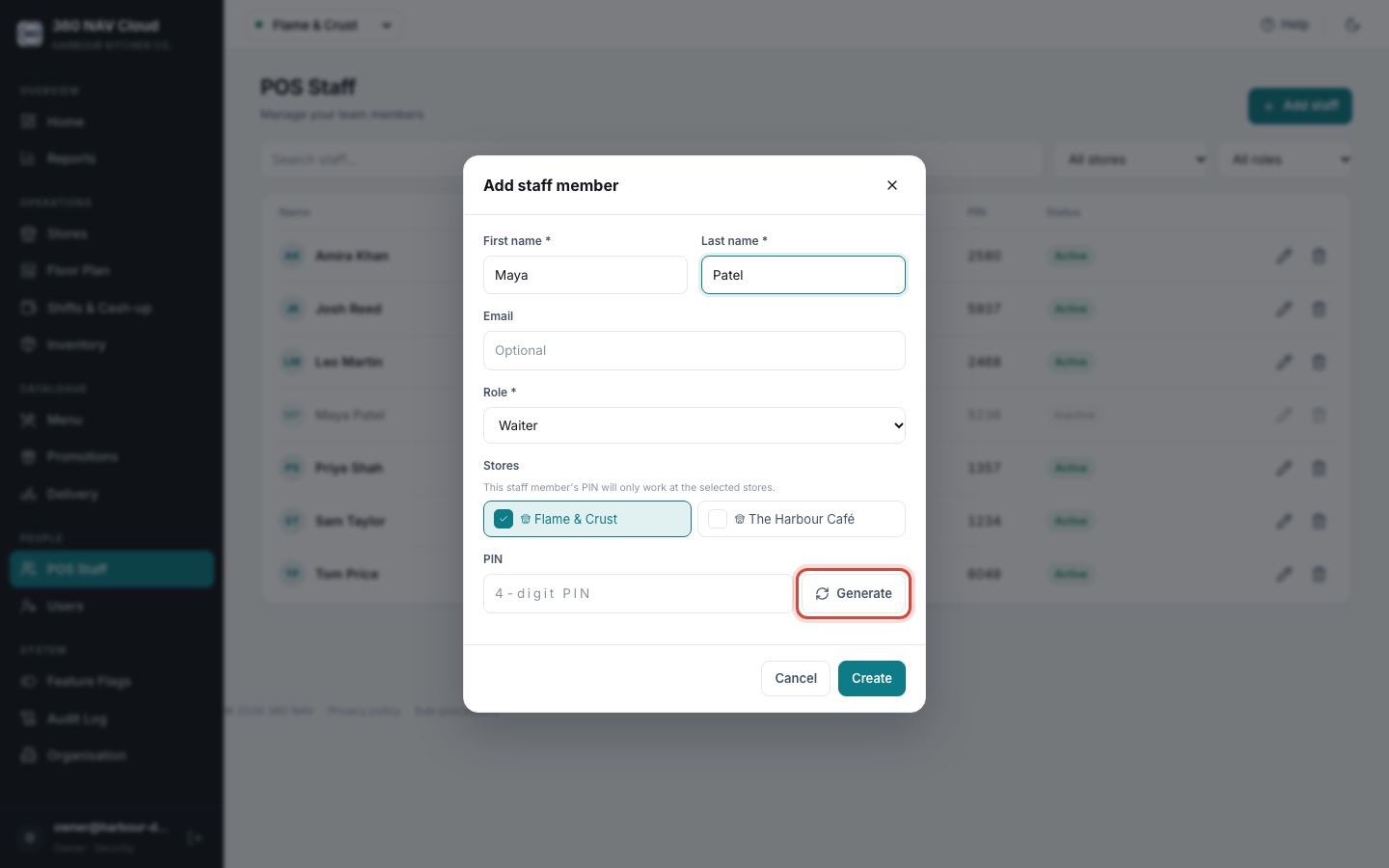
Set a PIN and create. Click Generate for a PIN, or type a 4-digit one, then Create. Each PIN must be different from everyone else's in your business.
Tell them their PIN. They show in the list and can sign in on the till within a minute.
Tips
- Managers approve voids, large discounts, refunds and cash-ups, so keep manager roles to the people who need them.
- To stop someone signing in, open them and set them to inactive. Their sales history is kept.