
Before you start
Save the file as CSV, one product per row, with a header row. It needs a name column; barcode, case size, case cost, shelf price, VAT and category are used when they're there. A wholesaler's price file usually works as it comes.
Steps
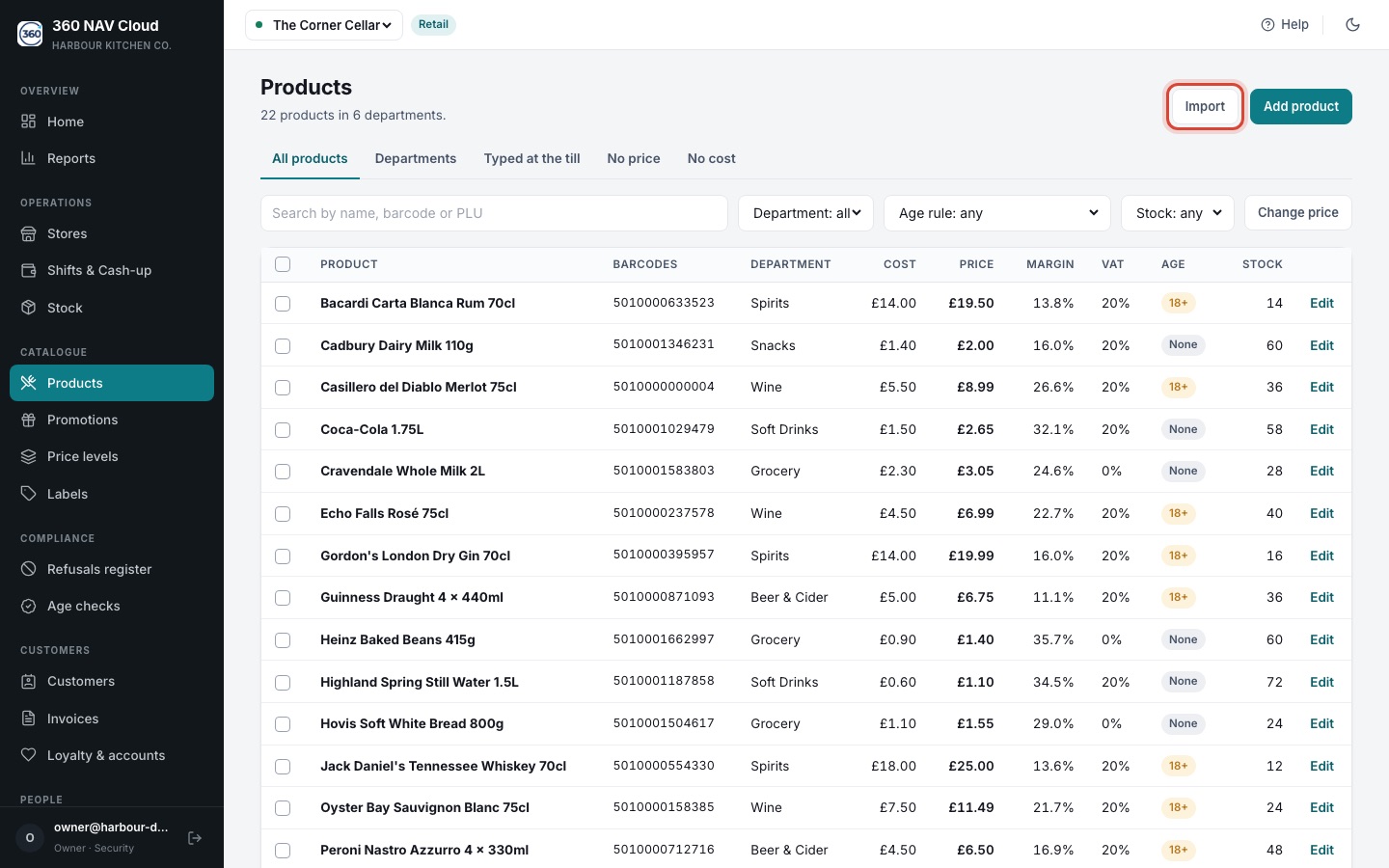
Open Products, then Import.
Choose the file.
Check the columns. Each column in your file is matched to a field. Change any that are wrong.
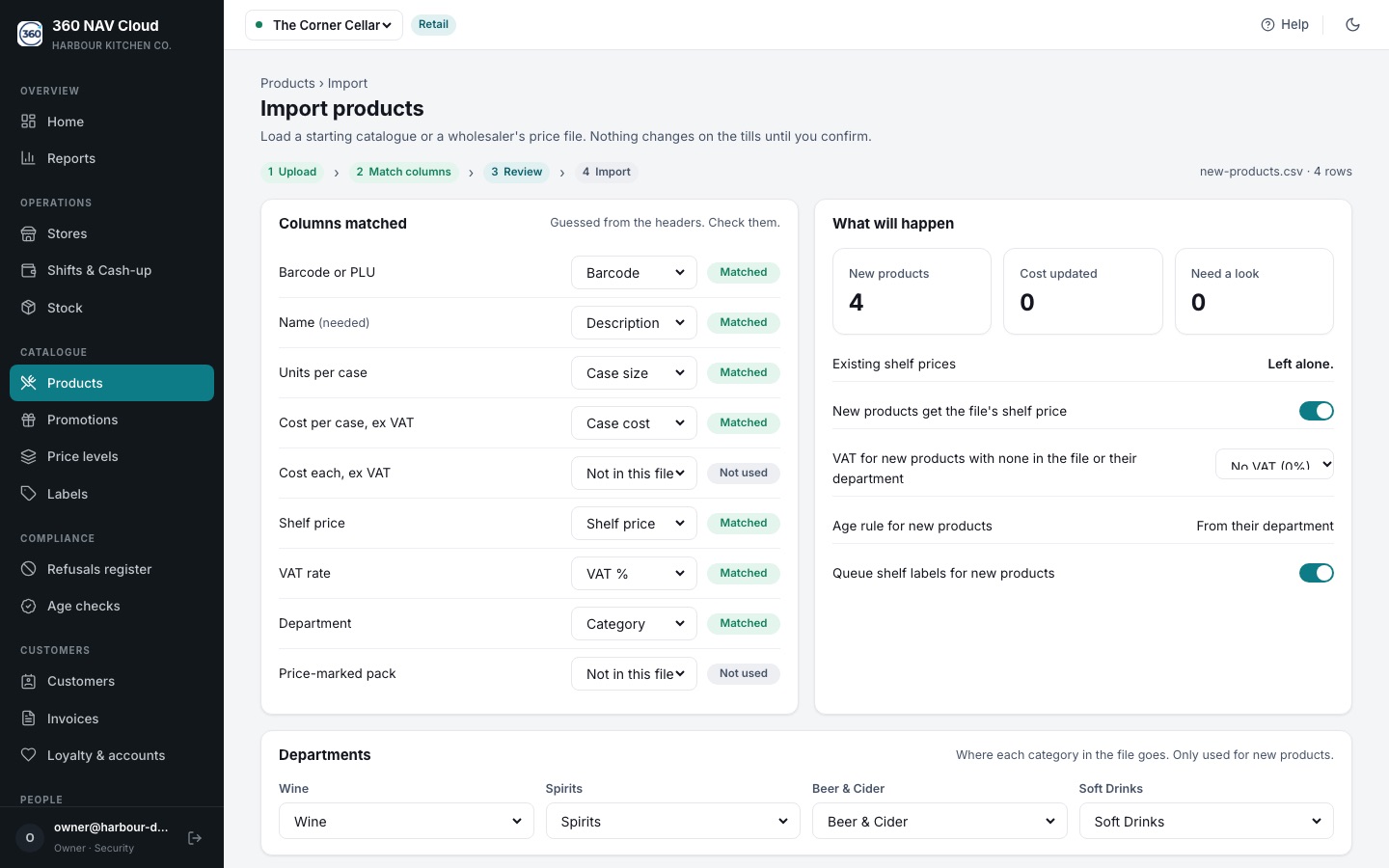
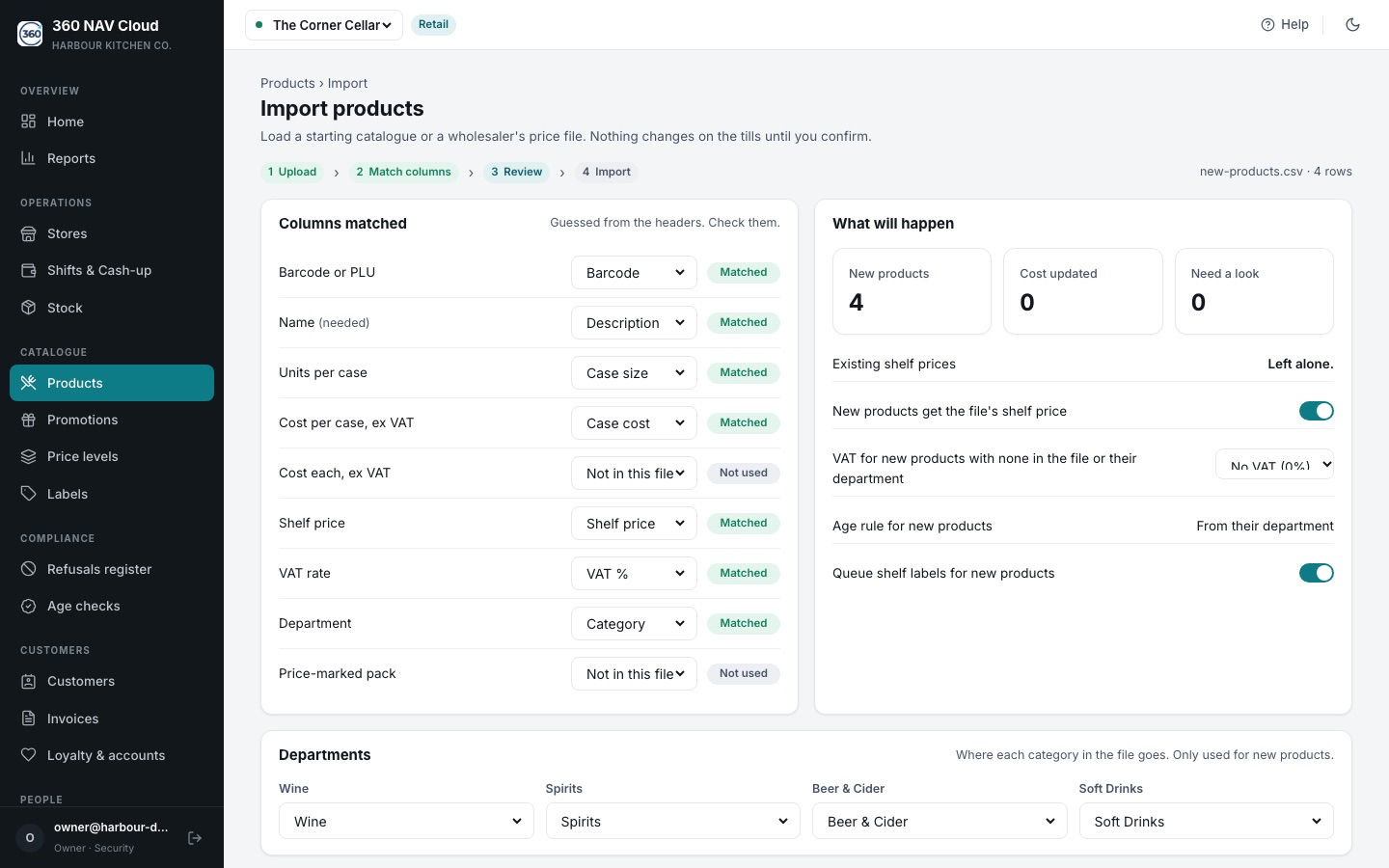
Review. See what will be added, which costs change, which rows are skipped and why, and which departments are new.
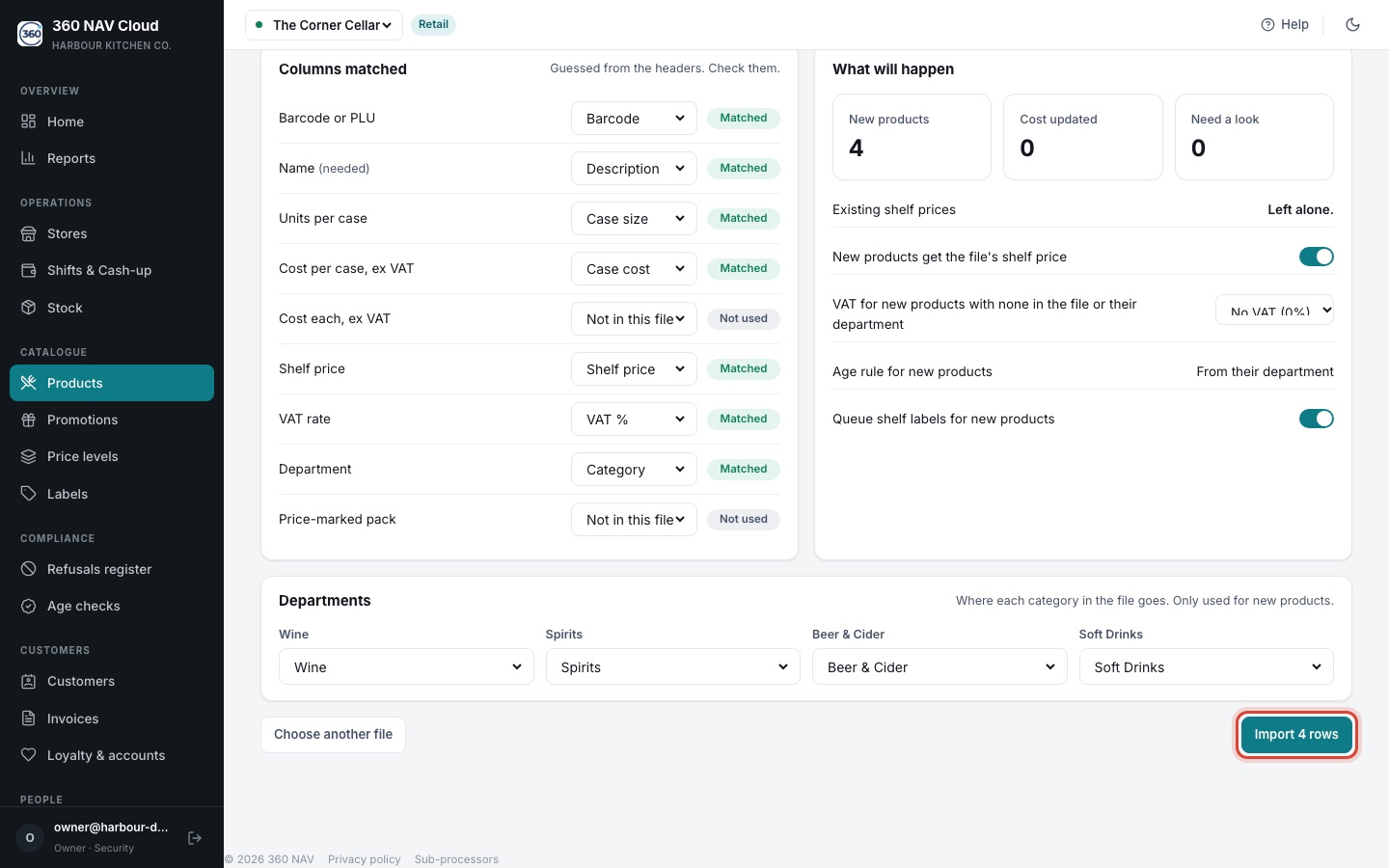
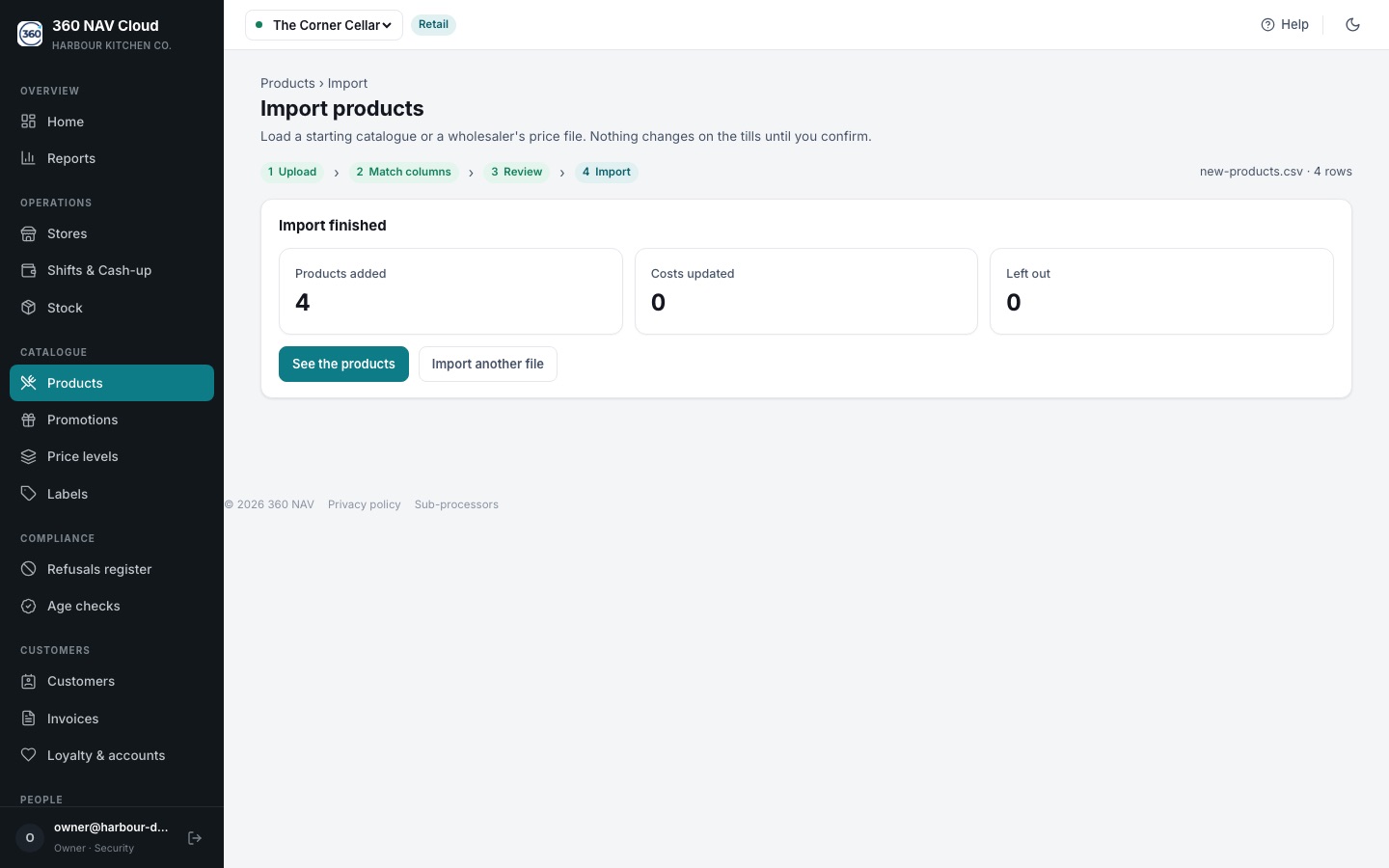
Import. Nothing reaches the tills until you confirm.
Tips
- Products already in the store are recognised by barcode, PLU or name, so importing a new price file updates costs instead of making duplicates.
- New products with a price get a shelf label in the print queue.