
Before you start
Your store needs a floor plan (see Set up your floor plan), and Table Management switched on in the till's settings.
Steps
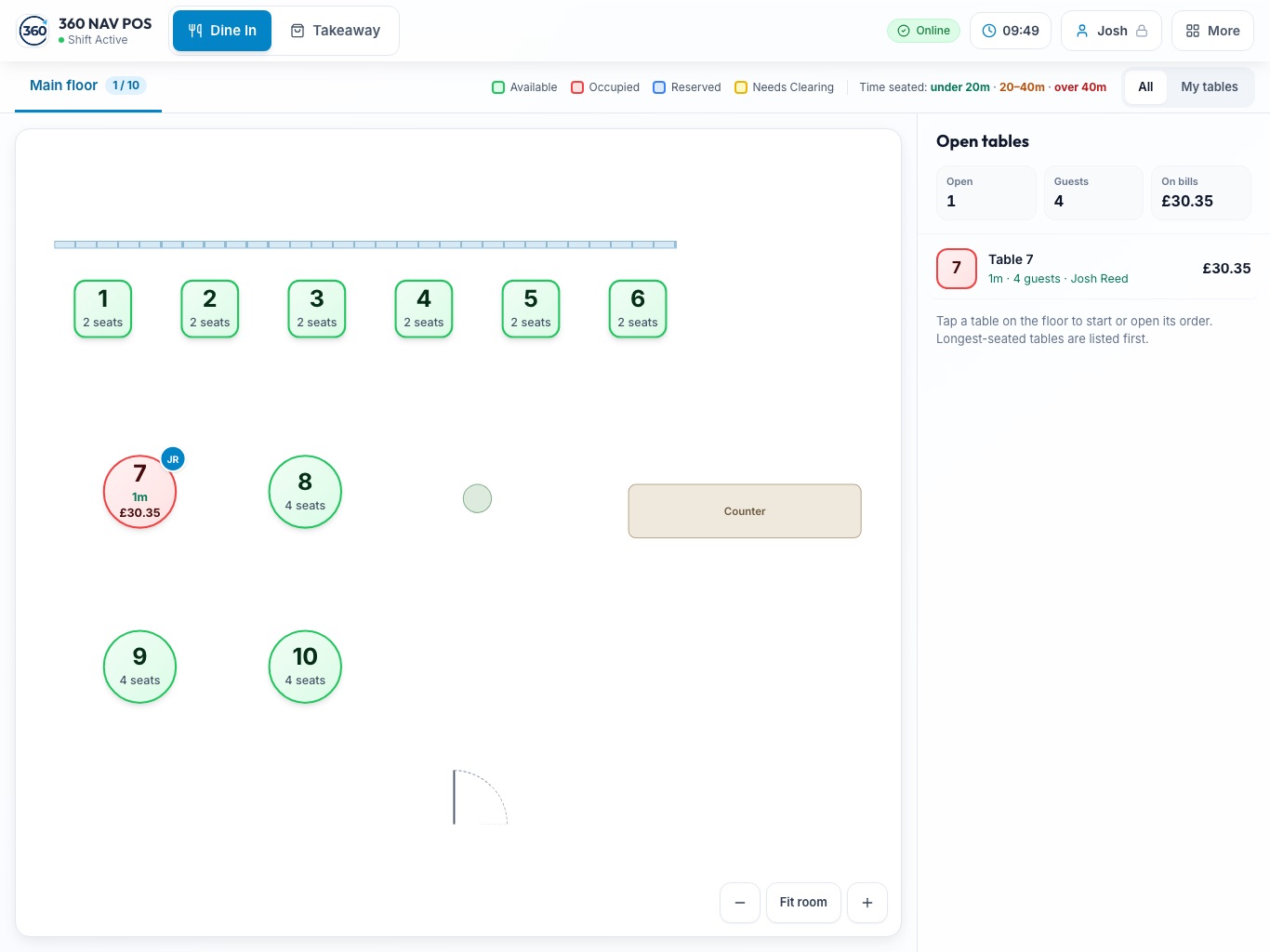
See the floor. With tables on, Dine In shows your floor plan. Colours show free, occupied, reserved and needs-clearing tables, and how long guests have been seated.
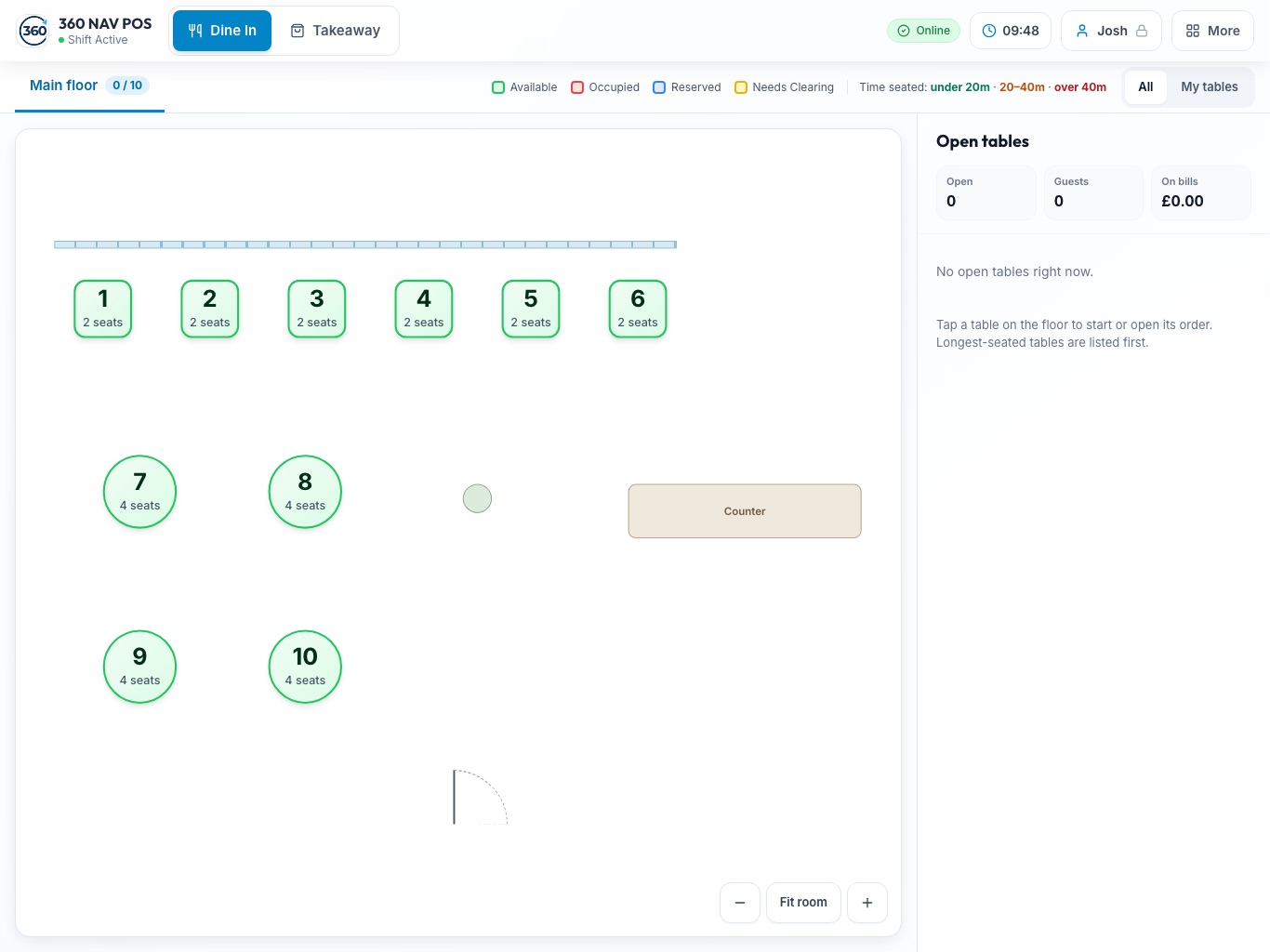
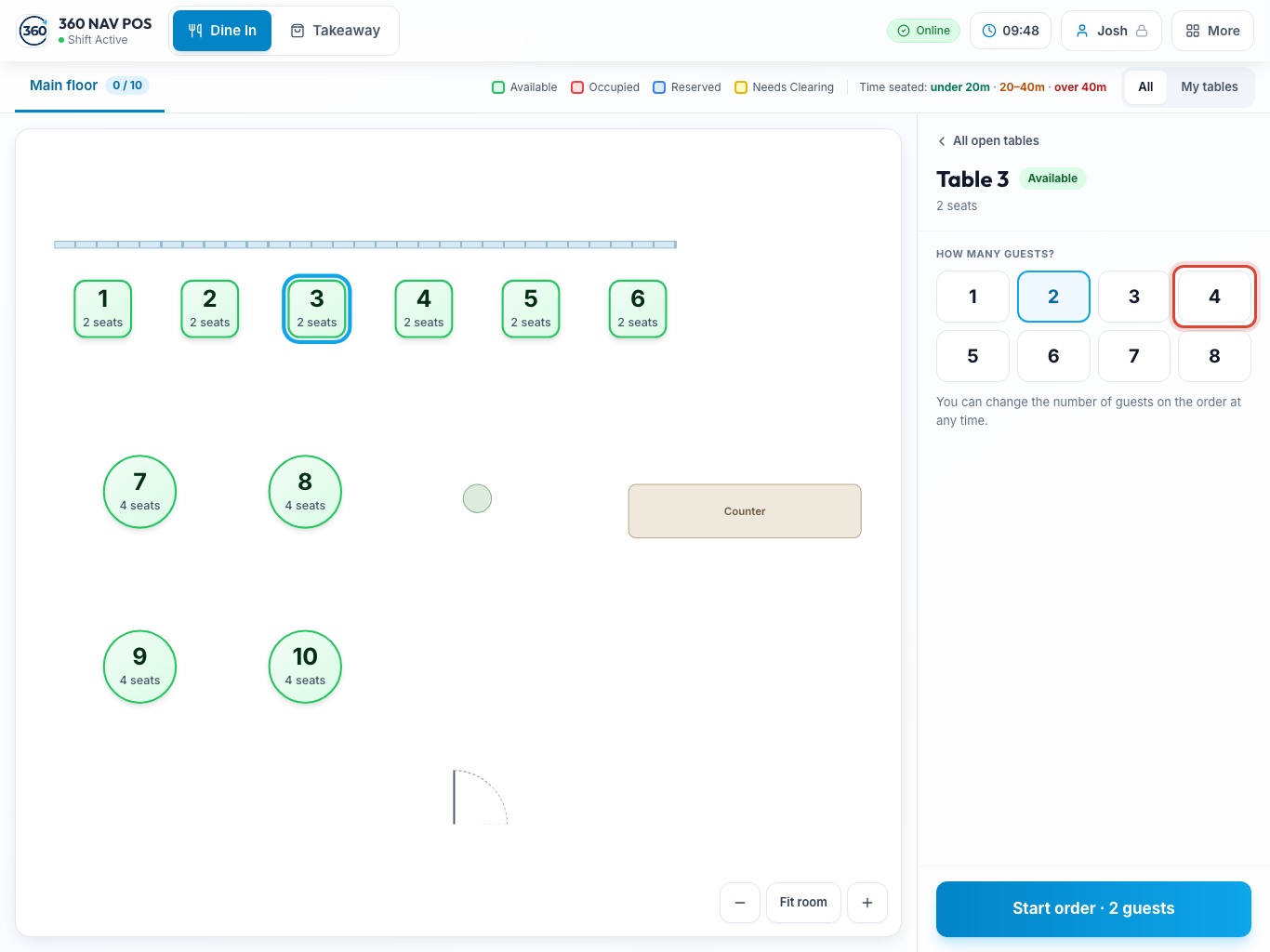
Open a table. Tap a free table, choose the number of guests, then Start order.
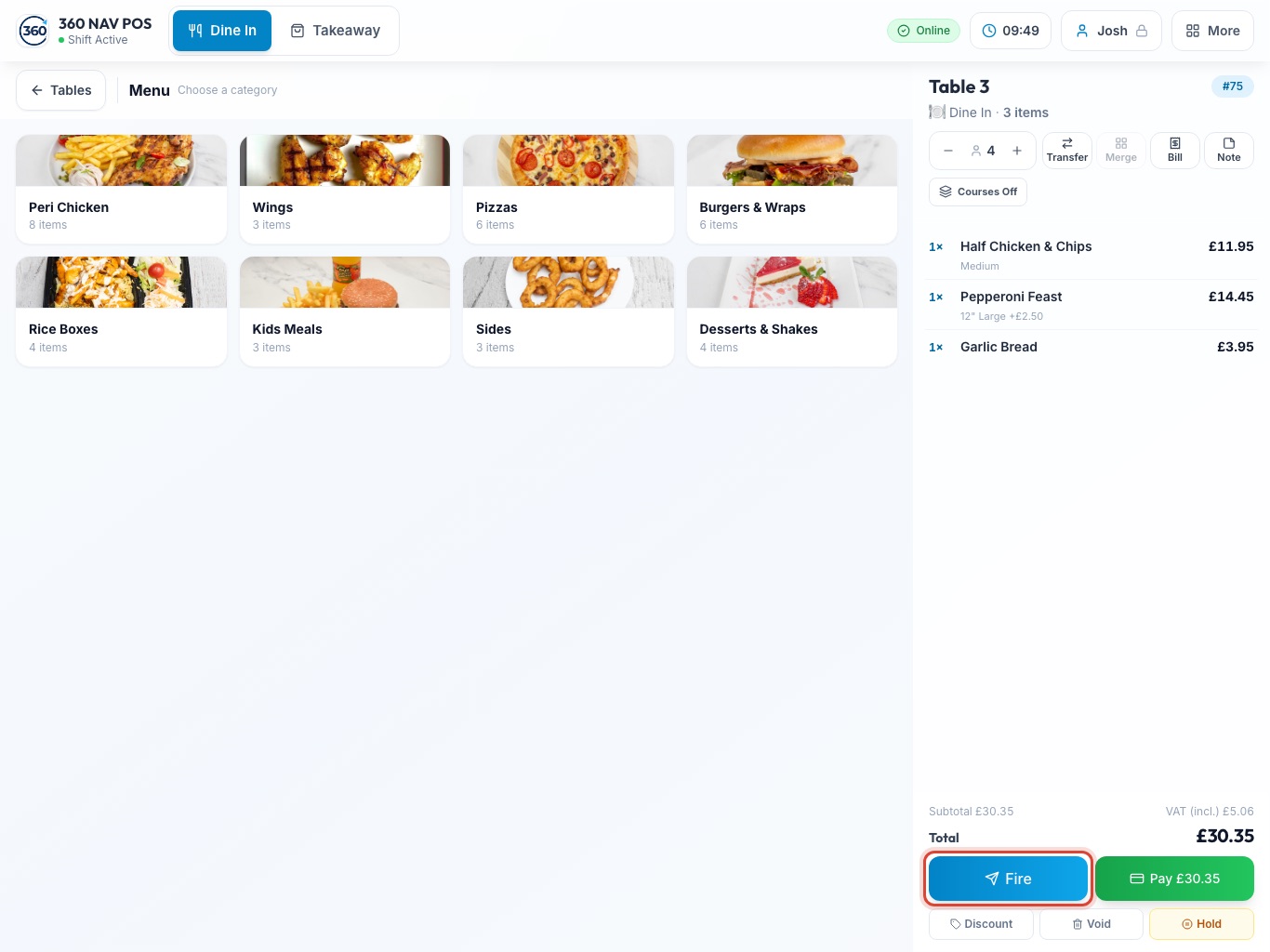
Take the order and fire it as usual.
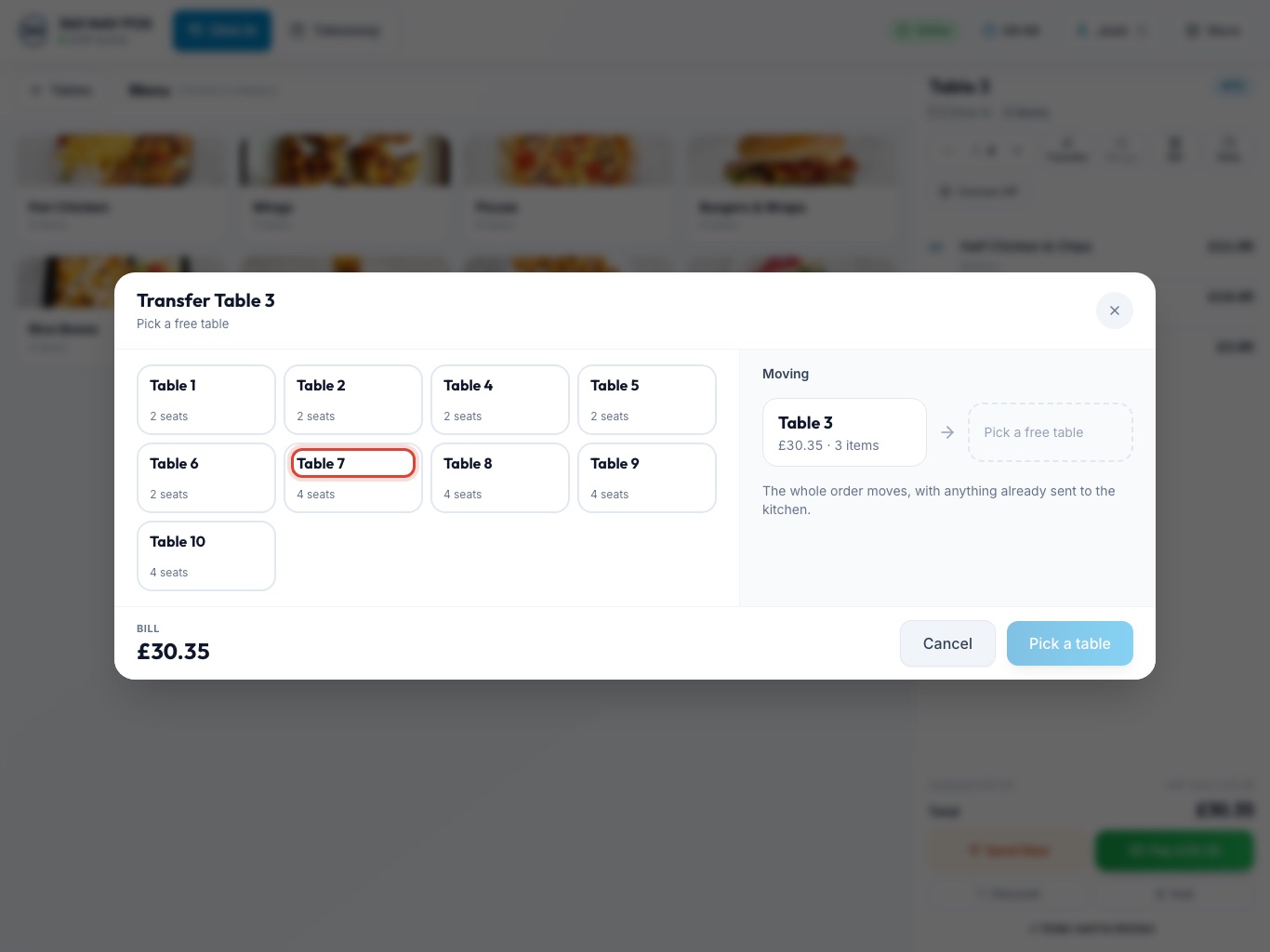
Move tables. Tap Transfer and pick the new table. The whole order moves, including anything already sent to the kitchen.
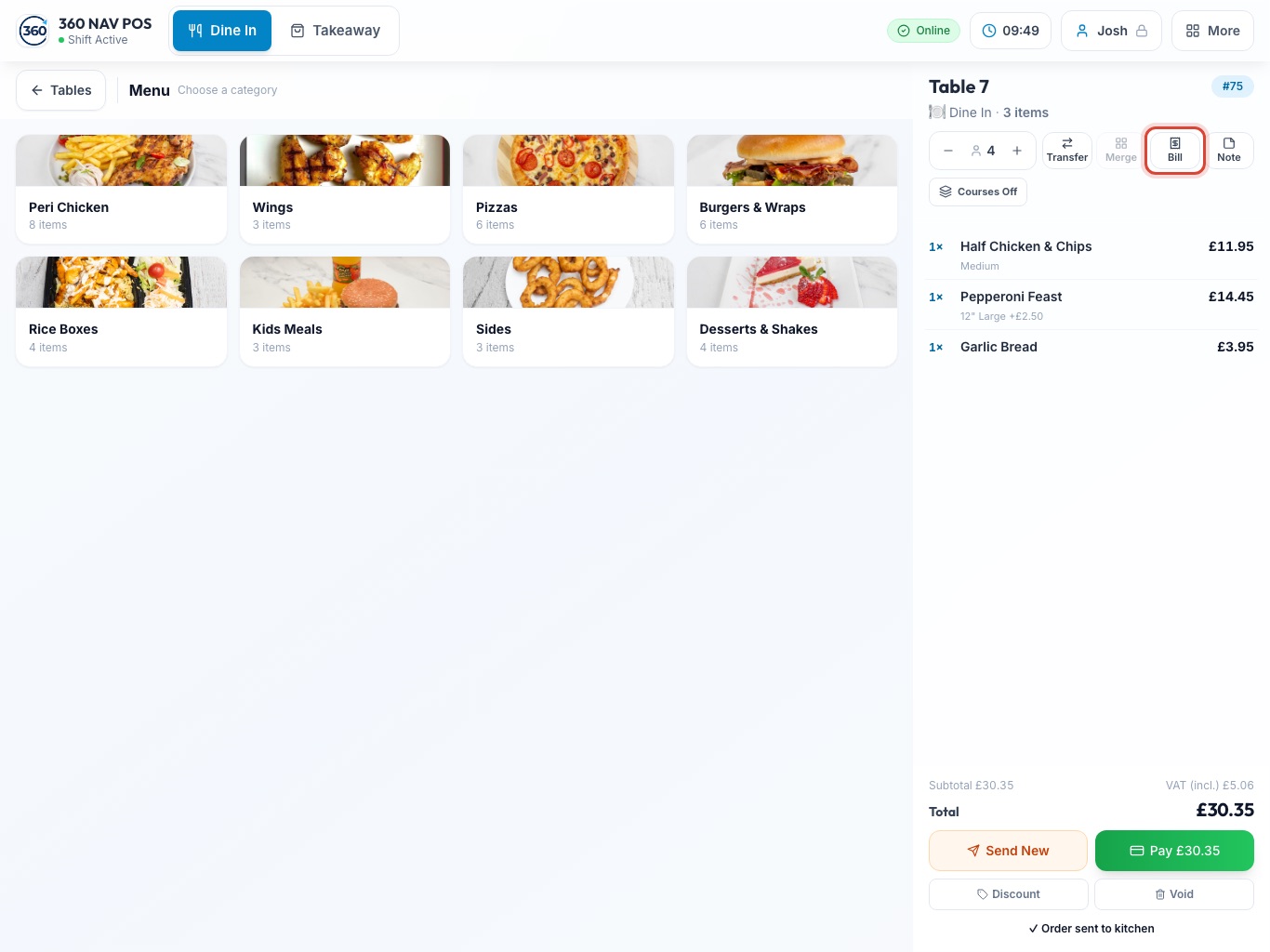
Print the bill. Tap Bill.
Watch the floor. Busy tables show how long they've been seated and what's on the bill. The colour of the time changes after 20 and 40 minutes.
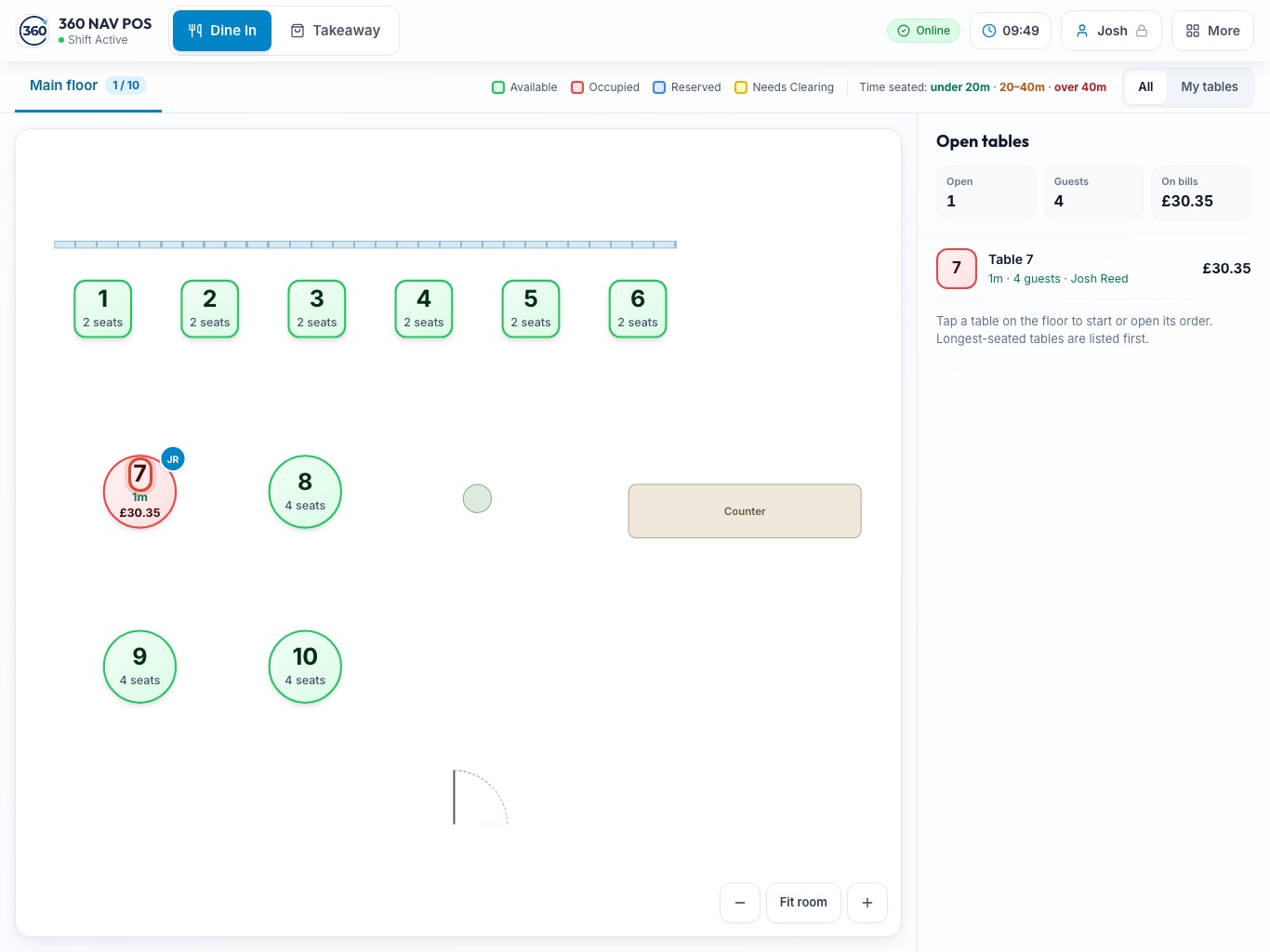
Check a table. Tap a busy table to see its bill, guests and server. From here you can Open order, print the Bill, Move or Merge tables, or Pay.
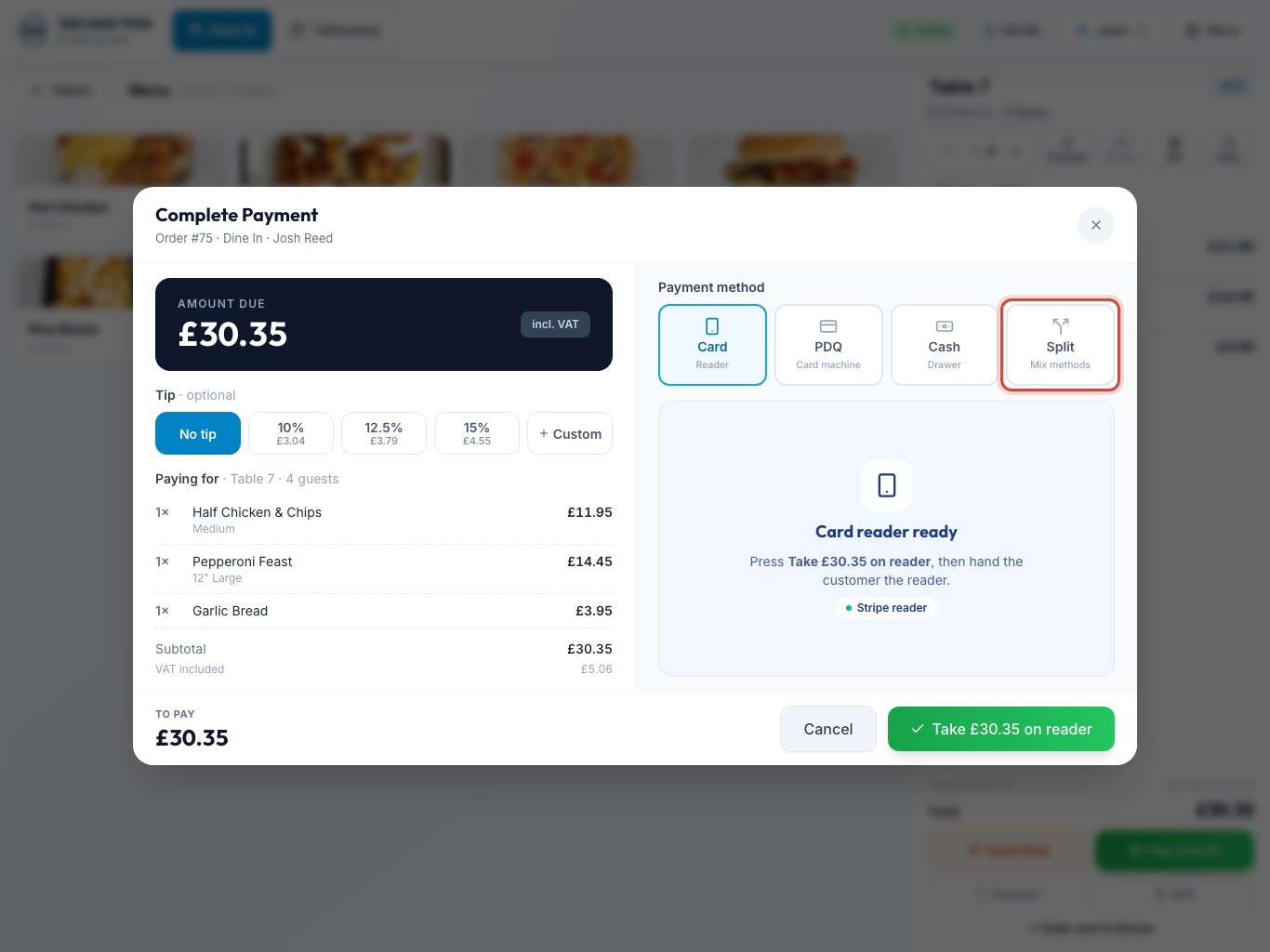
Take payment. Tap Pay, and use Split to take it in parts.
Tips
- Merge joins two tables' orders into one bill, for example when two tables push together.
- Change the number of guests any time with the − and + next to the order.
- Note adds a note to the whole order, such as a birthday or an allergy.