
Before you start
Your store needs a floor plan with tables, and the waiter add-on on your plan.
Steps
Open Serve on the phone and tap Pair this phone.
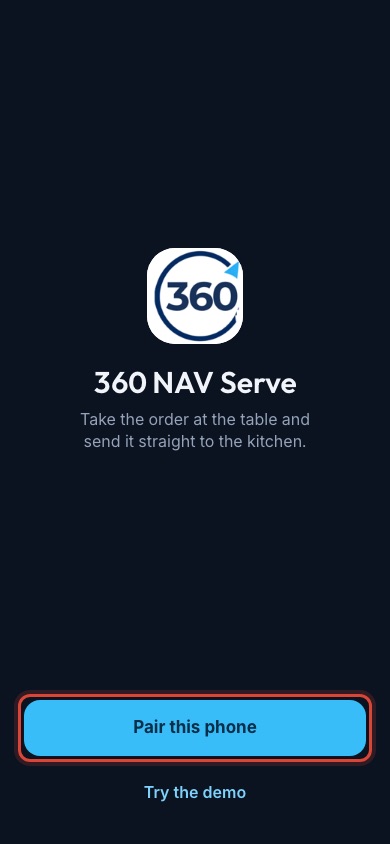
Enter the pairing code. In the dashboard, open Stores, your store, then Waiter phones → Manage. Scan the QR code or type the 6-character code; the phone pairs by itself.
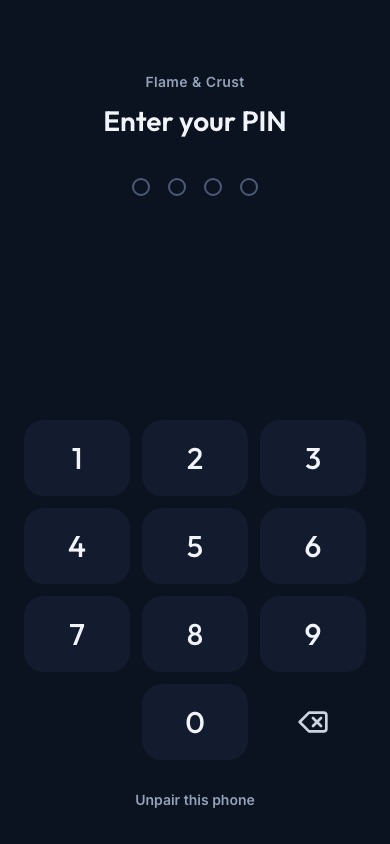
Sign in with your PIN. Any waiter can sign in on any paired phone.
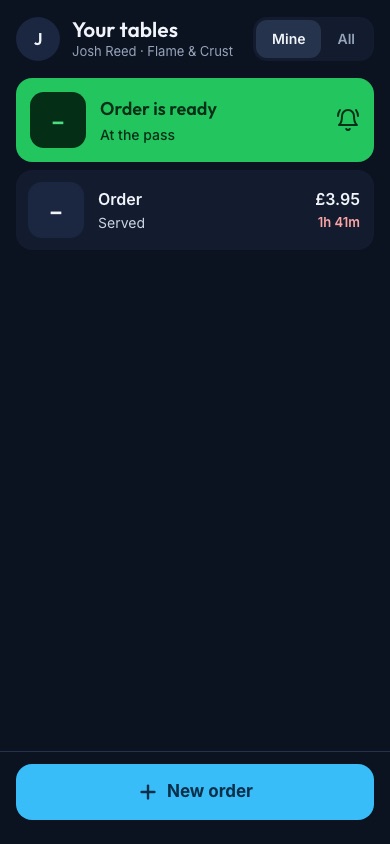
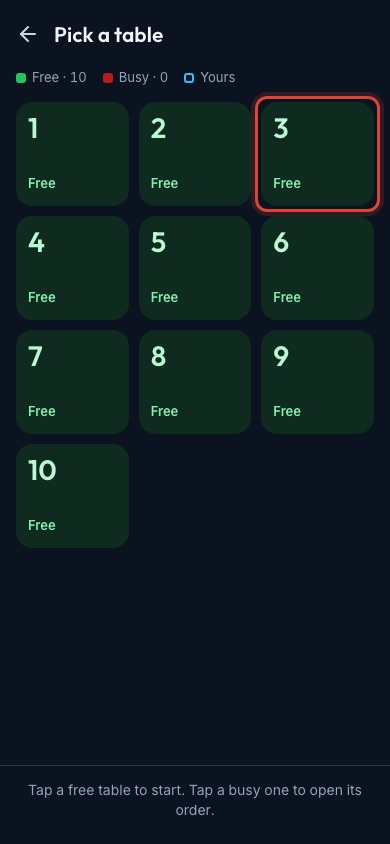
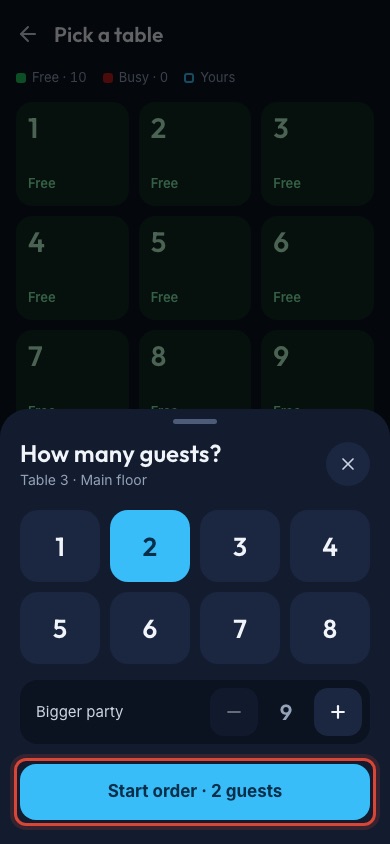
Start an order and pick the table. Tap New order, a free table, then the number of guests, and Start order.
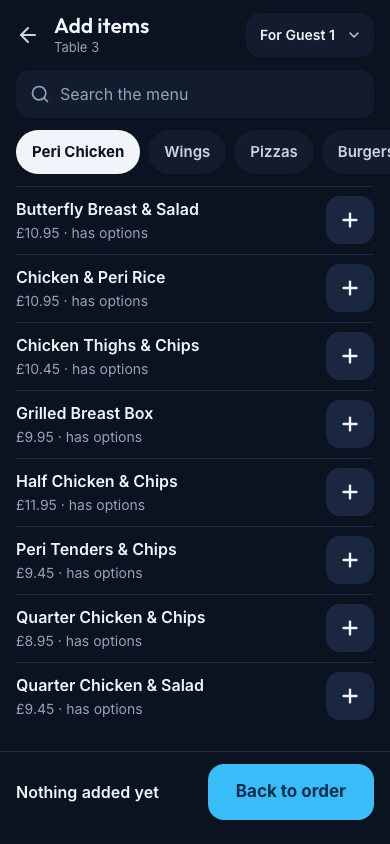
Add items. Tap Add items, pick a category and an item, choose any options, then Add. Each guest has their own tab, so you can split by seat later.
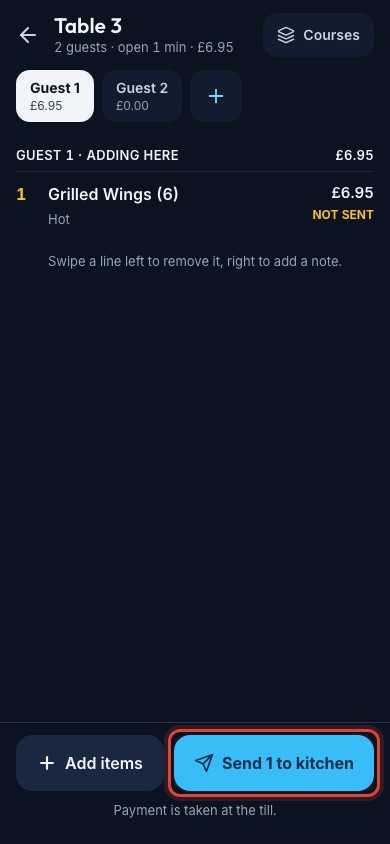
Send it to the kitchen. Tap Send to kitchen. The order shows on the till and the kitchen screen straight away.
Tips
- On iPhone, use Share → Add to Home Screen so Serve opens like an app.
- The pairing code expires after 10 minutes. Make a new one if needed.