
Before you start
The order must be on screen. Large discounts need a manager's PIN (by default 20% or more, counting any discount already given). The limit is set in the till settings under Discount Authorisation.
Steps
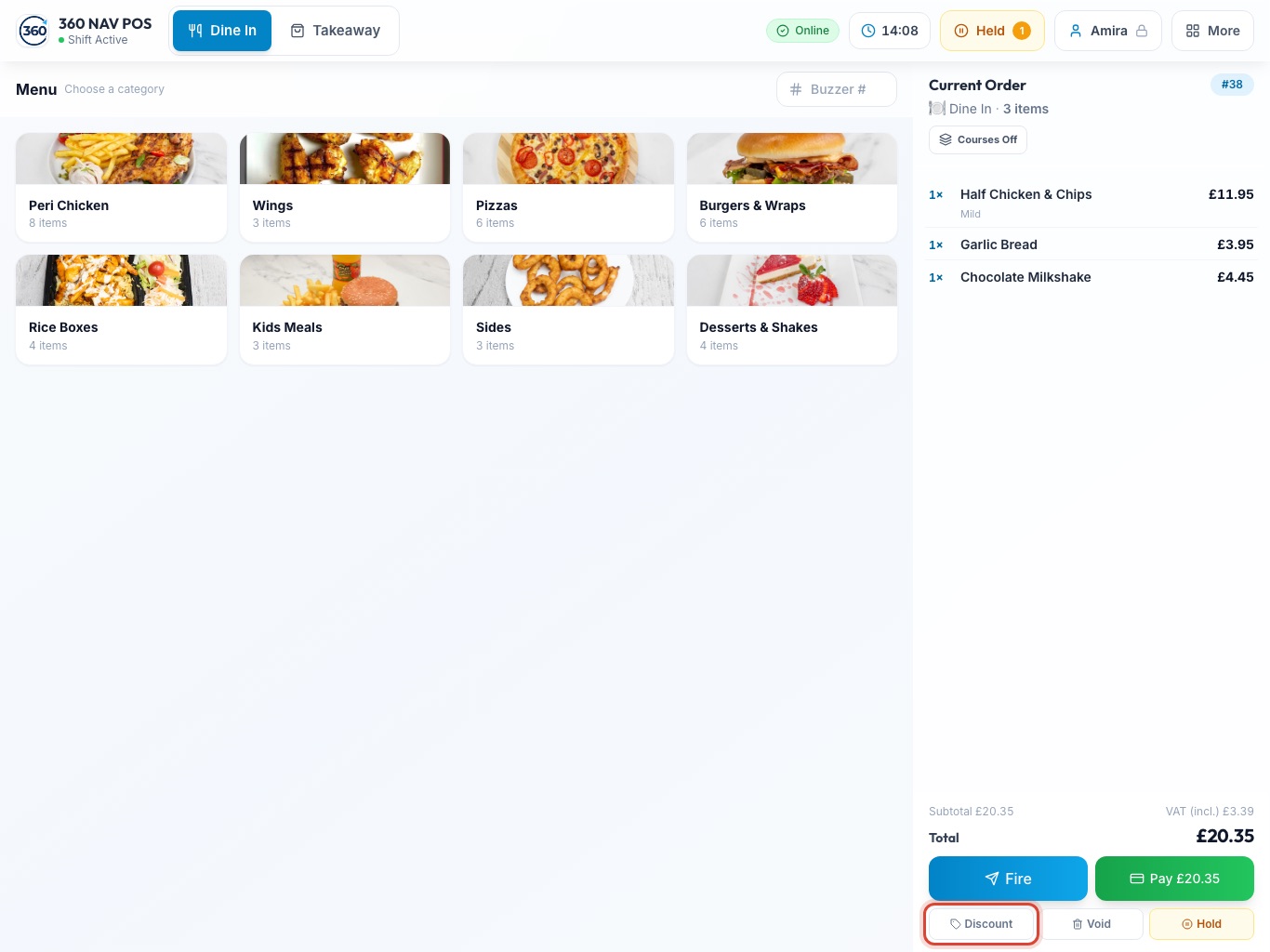
Tap Discount. It's under the order, next to Void and Hold.
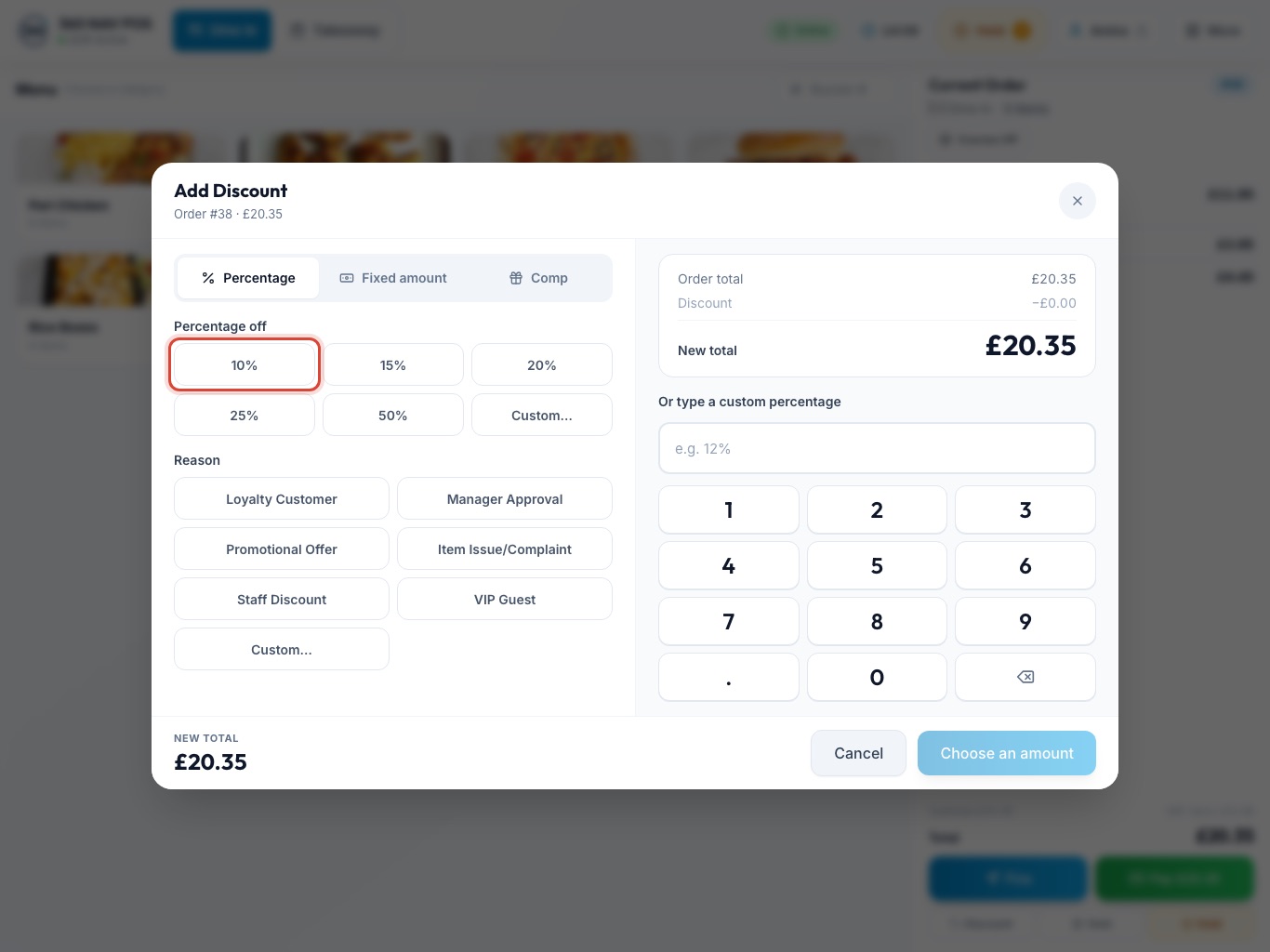
Choose the type and amount. Pick Percentage, Fixed amount, or Comp to make the order free. Tap a quick amount, such as 10%, or type your own.
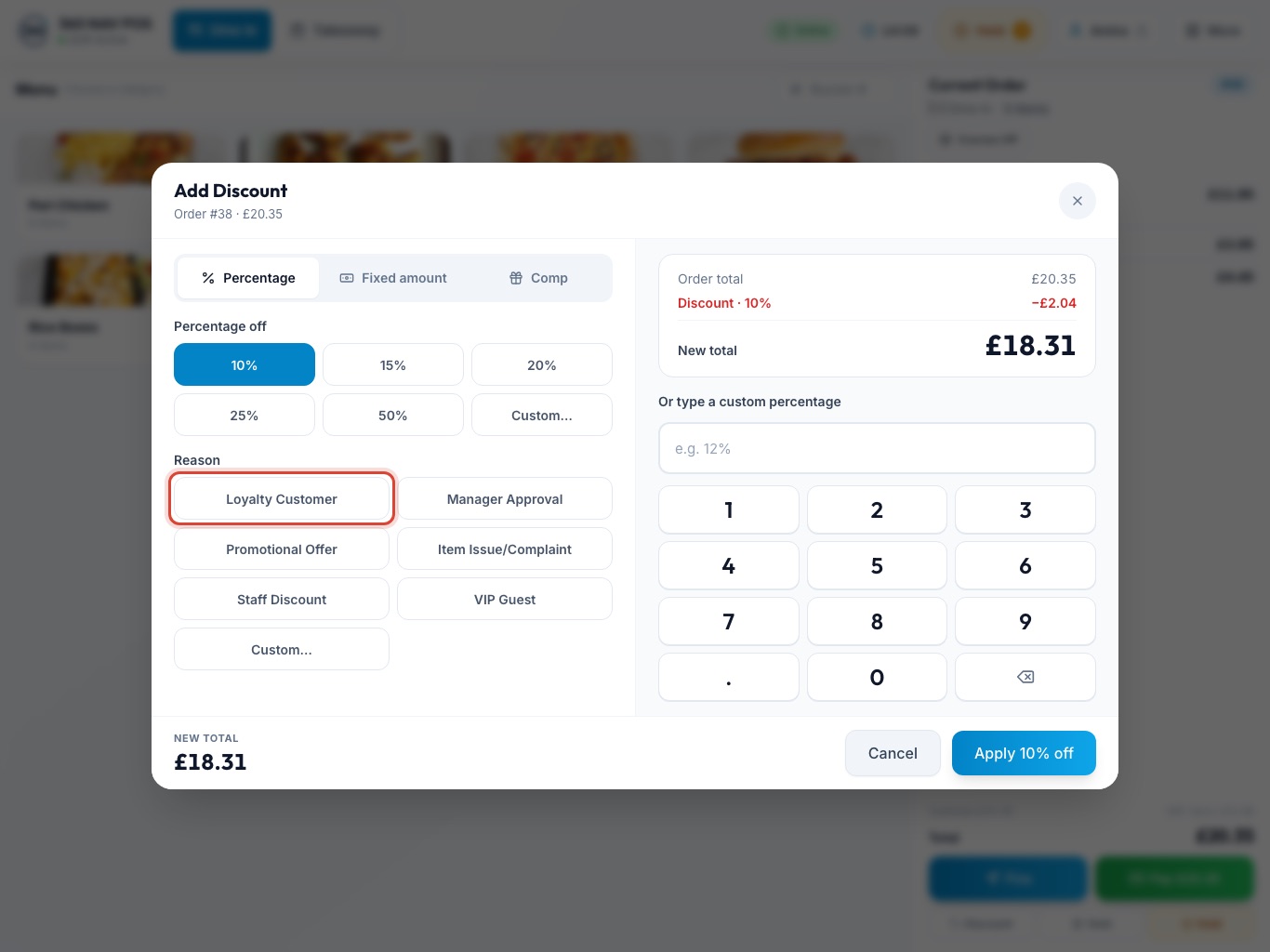
Pick a reason. For example Loyalty Customer or Item Issue/Complaint. The reason shows on your reports.
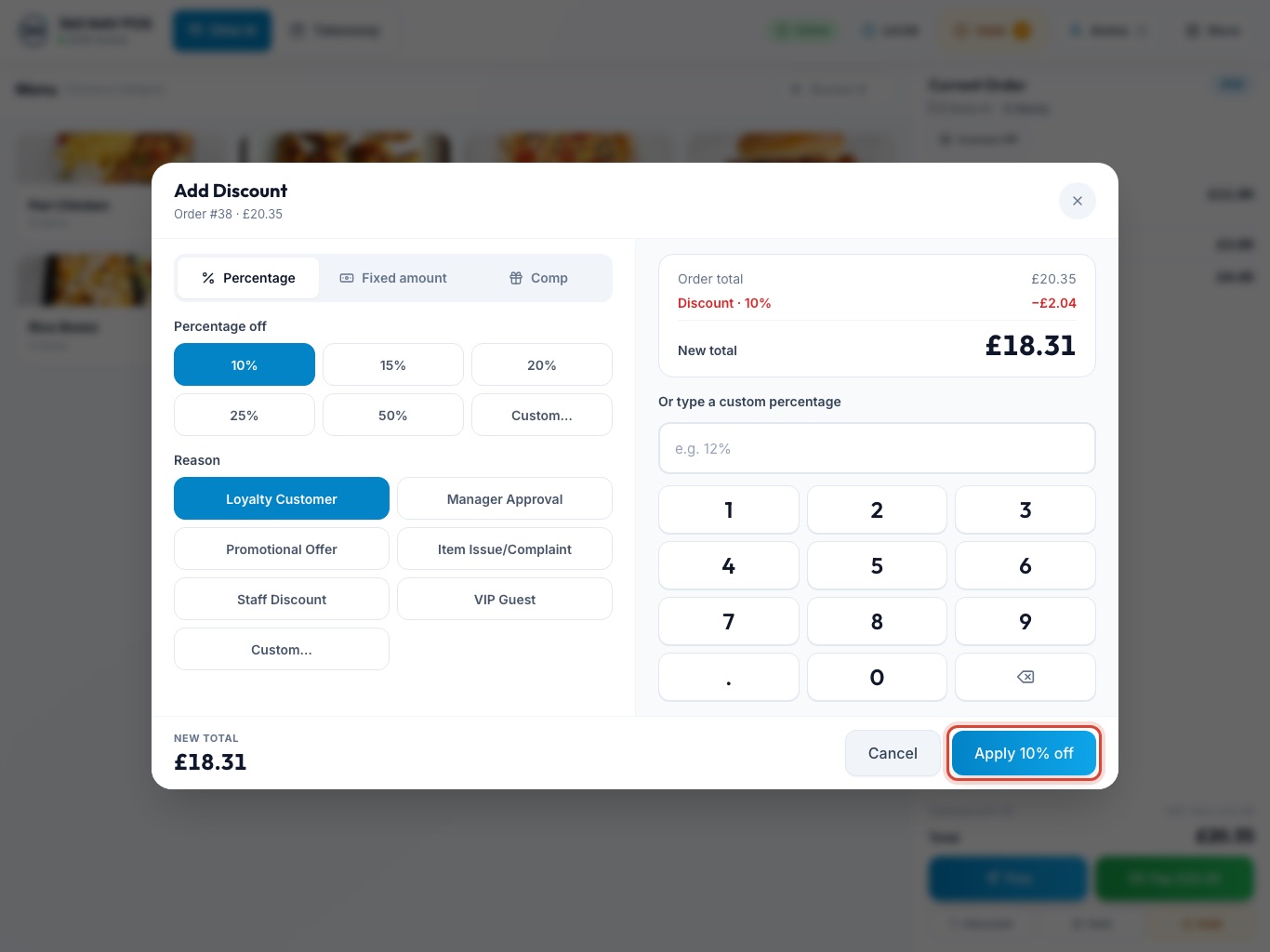
Confirm. Check the new total at the bottom, then confirm.
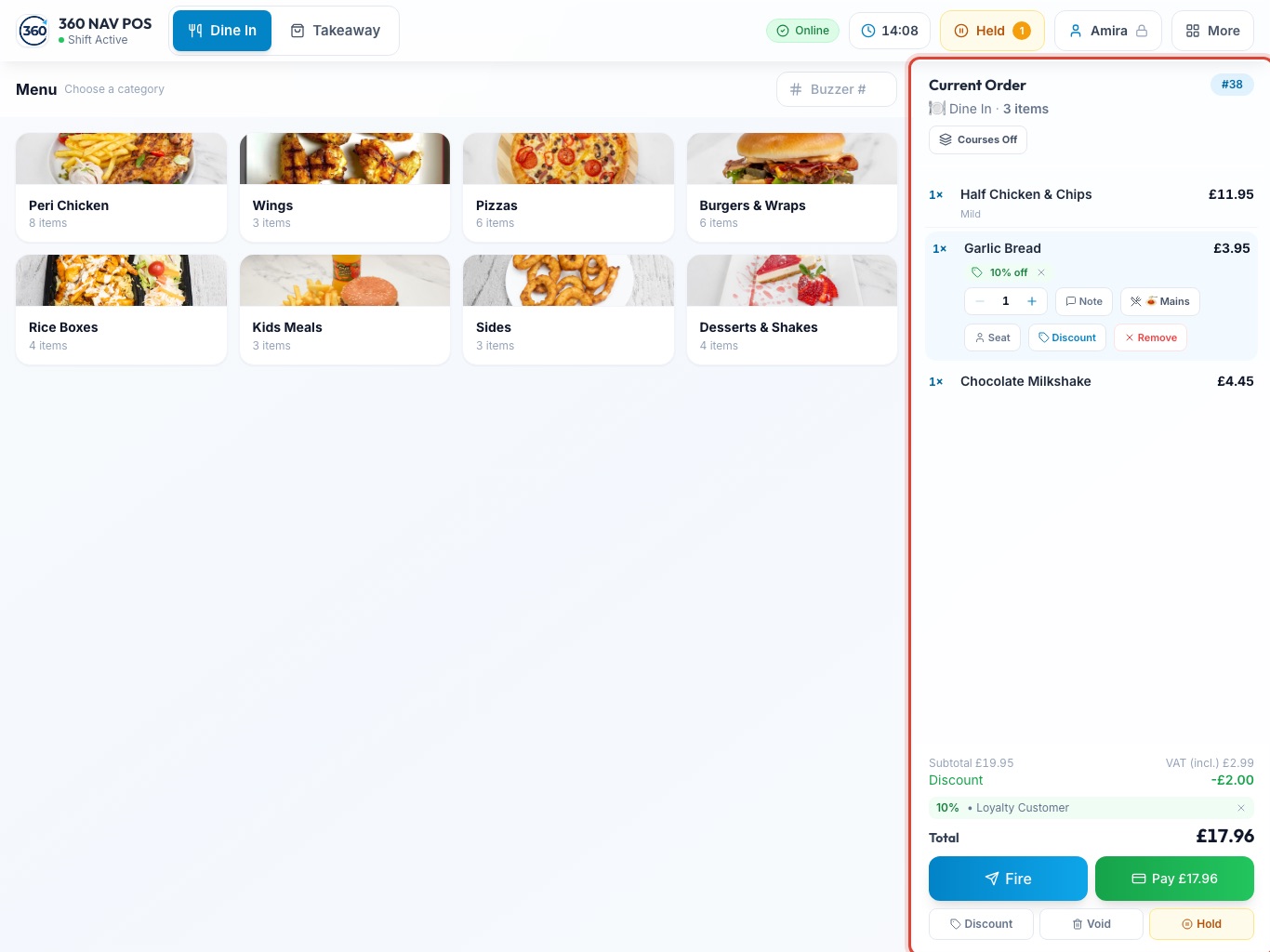
Discount a single item (optional). Tap the item in the order, then Discount, and choose the amount the same way.
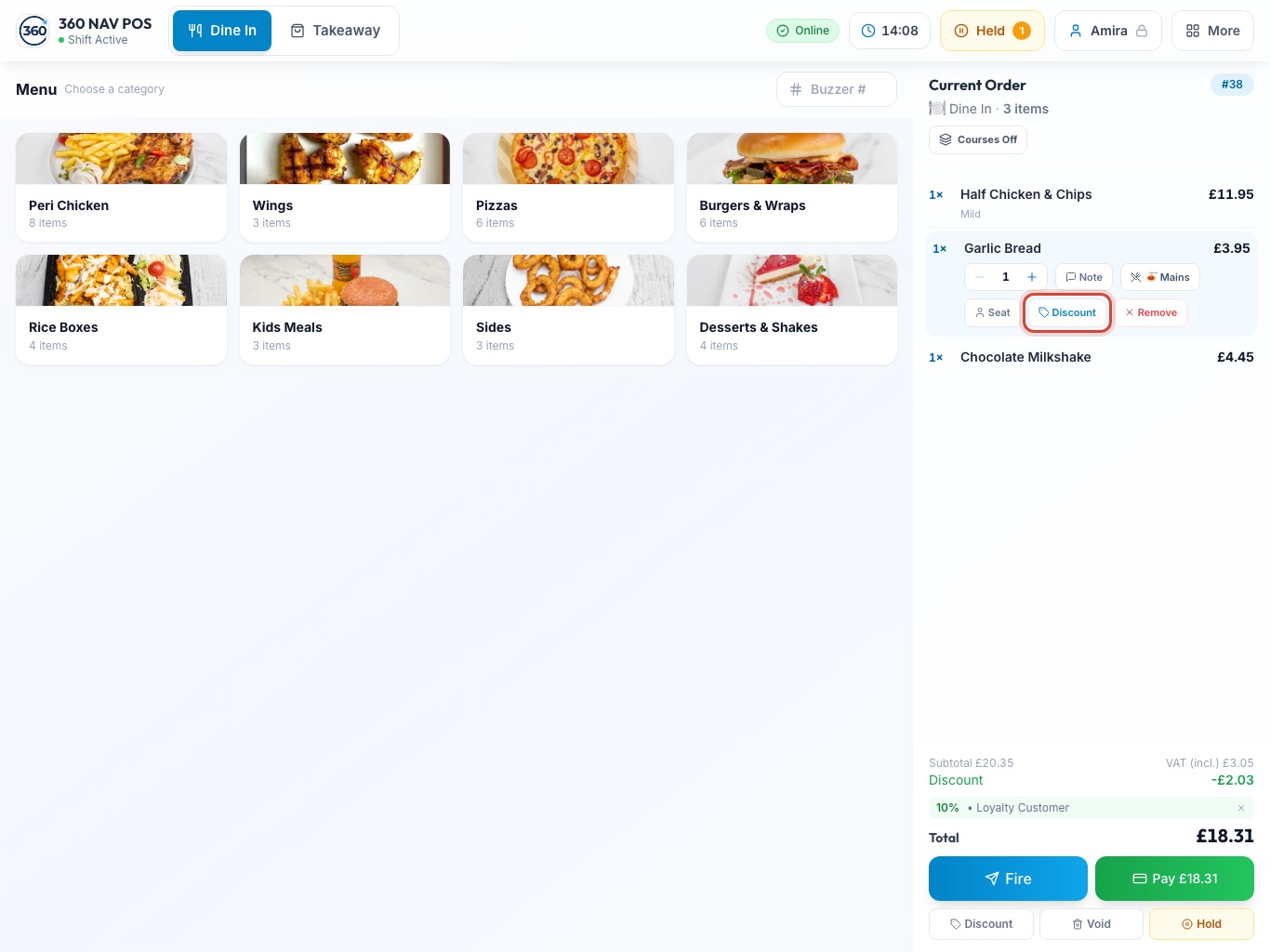
Check the order. The discount shows on the order and on the receipt.
Tips
- Promotions such as happy hour or meal deals apply by themselves. Set them up in the dashboard under Promotions.
- Every discount is recorded with who gave it and why.
If something goes wrong
- It asks for a manager PIN: the discount is over the limit a cashier can give. Ask a manager.