
Before you start
Use any screen with a browser or the 360 NAV POS app, facing the customers. Each paid till allows up to 4 screens, at most 1 of them a customer display. Customer displays aren't available on the Basic plan.
Steps
Open the customer display setup in the POS app on the screen (or tap Customer Display on the till's setup screen).
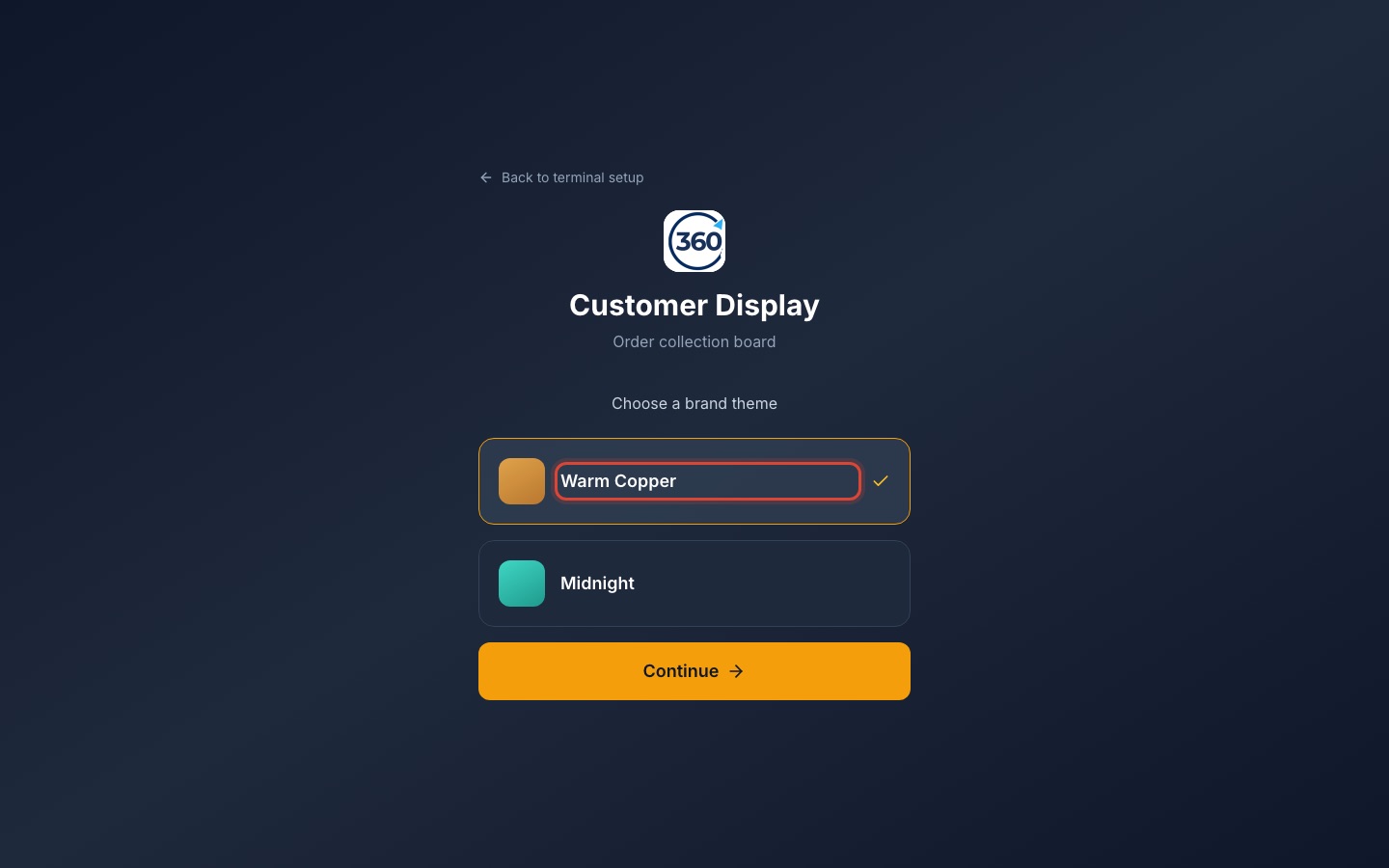
Choose a theme and tap Continue.
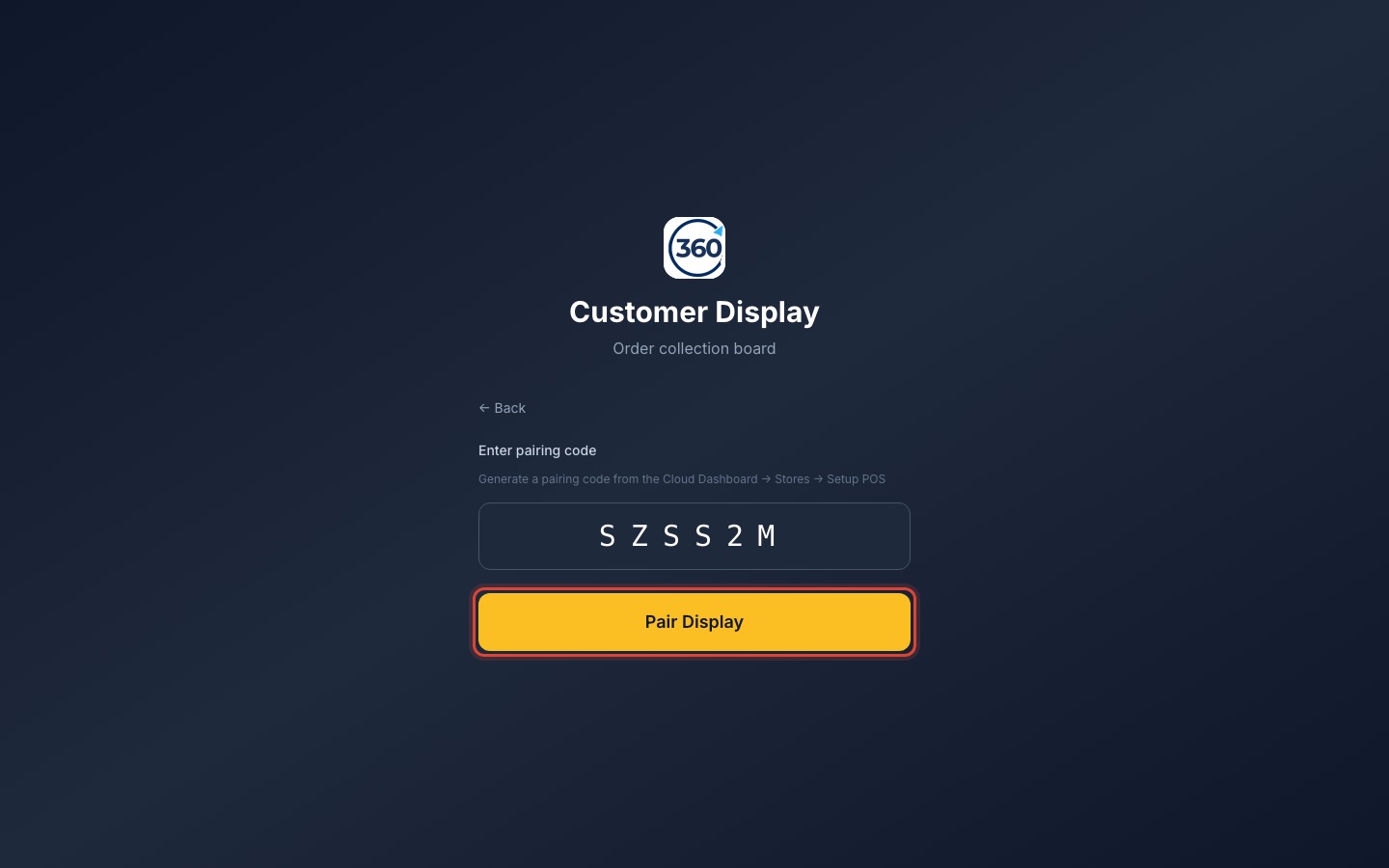
Pair it. In the dashboard, open Stores → Pair a device and generate a code. Type it on the screen and tap Pair Display.
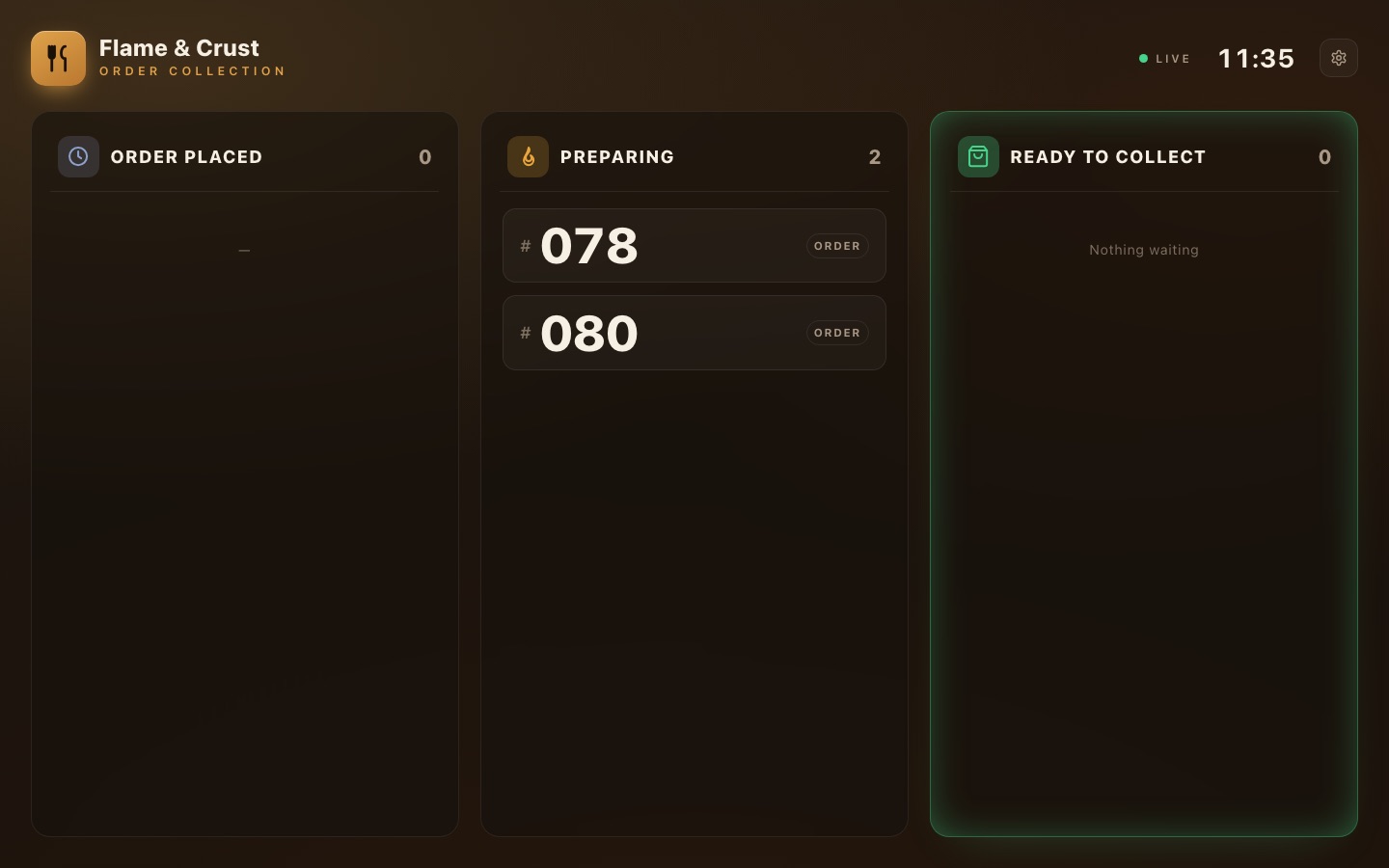
Leave it running. Orders appear once they're paid, then move across the board on their own: Order placed, Preparing, then Ready to collect when the kitchen finishes them. Buzzer numbers show when you use them.
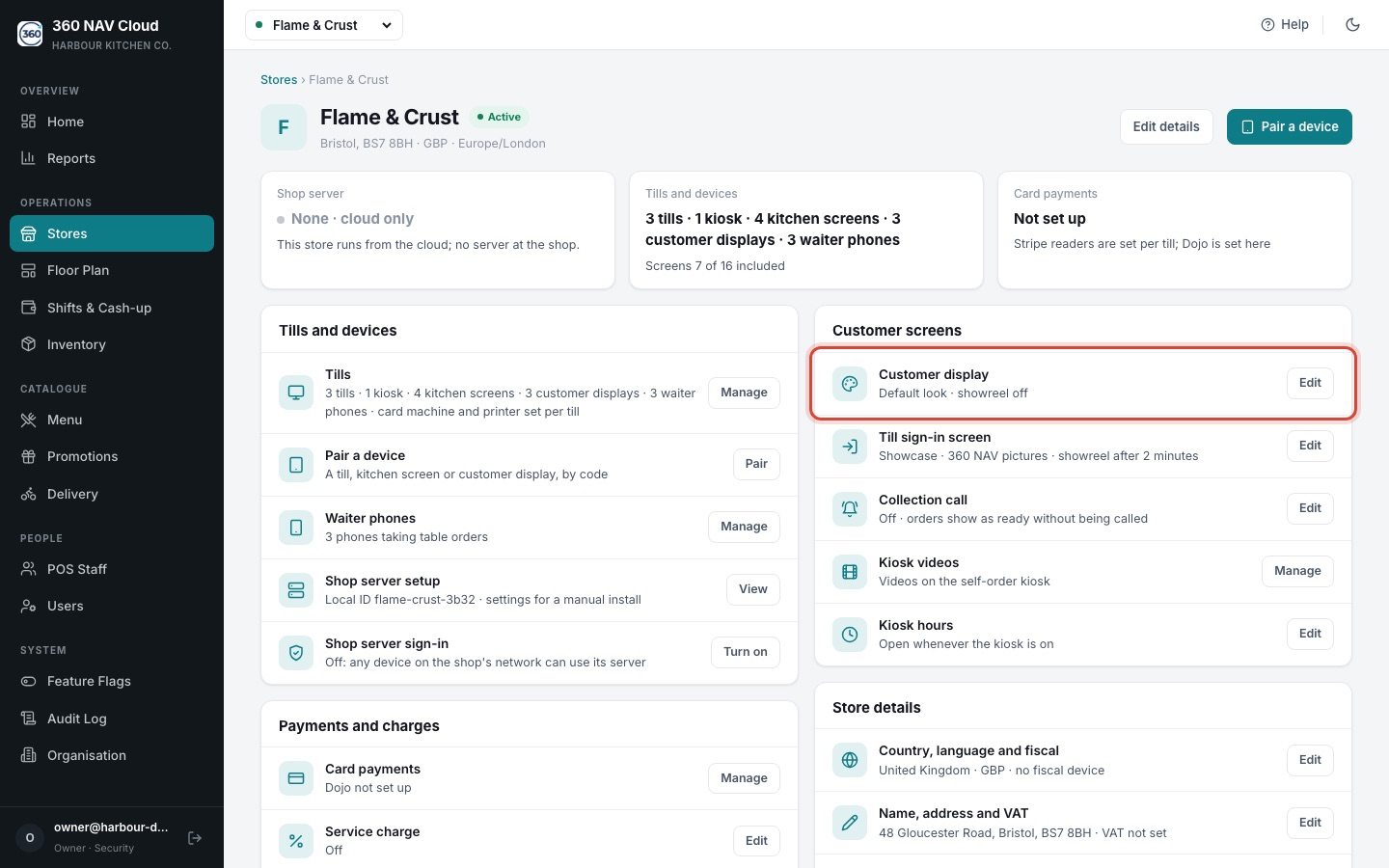
Adjust it in the dashboard. Under your store, Customer display sets its look and showreel, and Collection call makes orders show as ready only when the pass calls them.
Tips
- Orders show their number, or the buzzer number if staff typed one on the till.
- If the screen goes blank, check it's on the shop's main network and refresh it.